What should you consider when choosing?
First, decide which controls you need while arranging. Then consider zones and keyboard range, and check that your DAW and library support the layout you want.
| What to consider |
What to look for |
Who is this important for? |
| Dynamics and expression |
Check for assignable faders, encoders or a modulation wheel, and find out which MIDI CC your patch uses. For certain sustained articulations, Spitfire Audio describes controlling dynamics with a control rather than key velocity. |
If you want to adjust dynamics and expression as you play, you’ll need to know which controls your patch uses. Around 36% of consumers give control over dynamics and expression top priority. |
| Two parts or zones |
Check the zones, split point, MIDI channels and settings for the receiving tracks. Novation describes these zone features for Launchkey MK4 models. |
If you want to play two parts from different key ranges, the zones and receiving channels need to match. Around 29% of consumers give playing multiple parts simultaneously top priority. |
| DAW windows across two monitors |
Check whether your version of the DAW can show the editor you need in a separate window, and which controller functions you can assign. Steinberg describes this window option for the Key Editor in Cubase Pro. |
If you want to see your project and MIDI editing side by side, your DAW needs to support the window layout. Around 21% of consumers give a two-monitor workflow top priority. |
| Key feel, range and space |
Compare the number of keys and the key action on the exact model with the space you have available. Semi-weighted keys are not the same as a hammer-action keyboard. |
If you want to match the playing range and key feel to your workspace, consider how much room the keyboard will take up too. Around 14% of consumers give key feel and space top priority. |
Related products on Joybuy
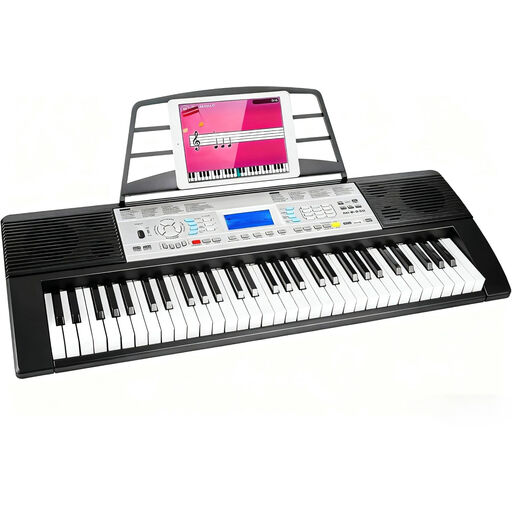
A related 61-key keyboard for MIDI input in a DAW setup.
 No image available
Electronic keyboard, 61 keys, black
May suit a workflow where you enter notes using a keyboard; check that the model on offer is suitable for your DAW setup.
The product listing mentions 61 keys and a MIDI controller function. Before buying, check that the specific model meets the applicable EU product requirements.
View on Joybuy
Frequently asked questions
Do I need a controller with two built-in displays to use two monitors?
No. Using two computer monitors doesn’t mean your controller needs two displays of its own. Check whether your DAW can show the editor you need in a separate window; Steinberg describes this option for the Key Editor in Cubase Pro 15. A display on the controller serves a different purpose.
Why doesn’t playing harder always change the dynamics of long string notes?
For the sustained articulations described by Spitfire Audio, dynamics are controlled using the Dynamics control, not key velocity. Check which MIDI CC is used for each library and patch, then assign your controller accordingly.
How do I set up a split for two parts?
According to Novation, you can set up a split on Launchkey MK4 models with zones. Then configure the receiving DAW tracks or instruments to use the right MIDI channels; check the settings for your specific model and project.
Does the controller itself make string sounds?
For this software-based workflow, you’ll also need a configured sound source. Native Instruments explains that for Kontakt libraries, you load the library in Kontakt or the Kontakt plug-in, then configure the MIDI and audio settings.
What should I check for EU product compliance?
CE marking is mandatory for products covered by applicable EU rules. The European Union explains that this depends on the rules applying to the product, so check the compliance of the specific model you intend to buy.