If you mainly record your own voice, choose a directional microphone that you can position close to your mouth. Placement helps your voice stand out from the room noise, but it won’t remove all background sound. If you also want to record a student or teacher clearly, consider using one microphone per speaker or a suitable multi-channel setup. A single microphone close to you won’t automatically pick up the other voice clearly. Also check the connection, any stand or audio interface, and make a test recording from the distance at which you’ll be speaking.
Who are these microphones for?
Teacher recording their own explanations
If you do most of the talking and can position the microphone close to your mouth, keeping your voice clear above the sounds of home is an important consideration. Shure explains how the distance between the speaker and microphone affects the balance between direct speech and room noise.
Language learner listening back to their pronunciation
If you want to monitor your own voice while recording, look for a headphone output and a USB connection that works with your computer. RØDE and Samson describe these connection and monitoring options for their models.
Conversation partners in a language lesson
If both of you need to be clear in the recording, consider how close each speaker will be to a microphone. A microphone right next to the teacher won’t necessarily record a student sitting further away just as clearly; Shure explains why microphone placement matters.
What should you look for when choosing?
First decide whether your own voice or several speakers’ voices matter most. Then consider whether you can speak close to the microphone, and whether its connection and setup will work with your recording equipment.
| Buying consideration |
What to look for |
Who is this important to? |
| Keeping your own voice clear |
Check the polar pattern and whether a stand or arm can position the microphone close enough to your mouth. Make a test recording from your usual speaking distance. |
I want to keep my explanations clear while there are sounds around the home, so I look for a setup that positions the microphone close to my mouth. Around 42% of consumers say keeping their own voice clear is their main buying consideration. |
| Listening back to your pronunciation |
Check whether the exact model has a headphone output and how to set the microphone as the input source on your computer. |
If I want to check my pronunciation while recording, I look for direct monitoring and a usable recording. Around 25% of consumers prioritise being able to listen back to their own pronunciation. |
| Recording both voices |
Decide who needs to be heard and check that your setup supports enough microphones and inputs. |
When both my voice and the other speaker’s matter, I want to know whether the chosen setup can capture both. Around 17% of consumers prioritise recording two conversation partners. |
| Easy connection and setup |
Check the connection, included cable and stand. For computer recording via XLR, you’ll need a suitable audio interface or mixer with a digital connection. |
If I want to get started without extra connection equipment, I check in advance what’s included with the microphone and whether it works with my computer. Around 16% of consumers say easy connection and setup are their main buying consideration. |
Common mistakes when choosing a microphone
-
Assuming ‘voice isolation’ completely removes noise from a flat
A directional polar pattern and digital noise processing aren’t the same thing. Shure says the MV7+ denoiser can tackle constant sounds such as fans, but it doesn’t remove background voices or sudden noises.
Consider the microphone’s placement and make a test recording with the sounds you get in your flat.
-
Choosing a single-speaker microphone when both speakers need to be heard clearly
A microphone close to the teacher may pick up a student sitting further away less clearly.
Before buying, decide who needs to be heard and check how many microphones and separate inputs your recording setup supports.
Recording two speakers may require a separate microphone or suitable recording equipment.
-
Overlooking connections and included accessories
Microphone bundles vary in the cables and stands they include. An XLR connection on its own won’t provide a digital computer recording.
Check the contents of the exact bundle against your computer, desk and chosen USB or XLR connection.
Brands to consider
RØDE
The PodMic USB is a dynamic microphone with USB-C and XLR; the NT-USB Mini is a compact USB condenser microphone with a desk stand.
- RØDE recommends a speaking distance of around 5–10 cm for the PodMic USB. The NT-USB Mini comes with a USB-C to USB-A cable.
- Check that the recommended short speaking distance and included cable suit your workspace and computer.
Shure
The MV7+ is a dynamic microphone with USB-C and XLR, designed for people who speak close to it and want extra recording controls.
- According to Shure, the switchable denoiser can tackle constant sounds such as fans.
- Shure says the denoiser doesn’t remove background voices or sudden noises. ‘Voice Isolation’ doesn’t mean that all surrounding noise disappears digitally.
Samson
The Q2U is a dynamic microphone with USB and XLR.
- Samson lists a desktop tripod stand, windscreen and cables among the items included with the Q2U.
- Check that the stand can position the microphone close enough to your mouth for the way you work. The items included in the bundle don’t prove that it suppresses noise from a flat.
Audio-Technica
The AT2040USB is a dynamic USB microphone with a hypercardioid polar pattern for a focused, single-speaker setup.
- Audio-Technica’s European product information lists direct monitoring, a USB-C output and an included USB cable with adapter.
- The description of reducing surrounding noise doesn’t guarantee that sounds in a noisy flat will disappear.
FIFINE
The AmpliGame AM8 is a dynamic USB/XLR microphone with a cardioid polar pattern and controls for speech recording.
- According to FIFINE, monitoring and various control functions work via USB.
- Check separately which features are available when using XLR. The manufacturer’s description of noise reduction doesn’t guarantee a particular recording result in a noisy flat.
Products at Joybuy
This selection includes wireless microphone systems and USB desktop microphones. For each model, check that the connections and setup are right for recording solo or teaching a lesson with several speakers.
 No image available
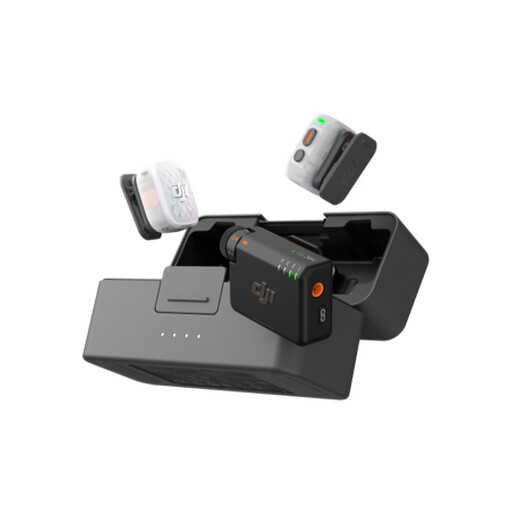
DJI Mic Mini 2S (2 TX + 1 RX + Charging Case)
The set with two transmitters and one receiver may suit a lesson with several participants; check how your recording device captures the voices.
The product information lists compatibility with PCs.
Joybuy
 No image available
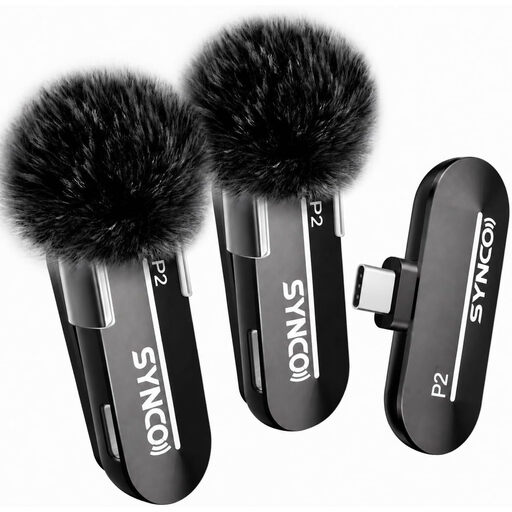
SYNCO P2XT USB-C Wireless Microphone
The USB-C receiver may suit recording with a USB-C device; check that the connection matches your recording equipment.
The product information lists a monitoring port on the receiver.
Joybuy
 No image available
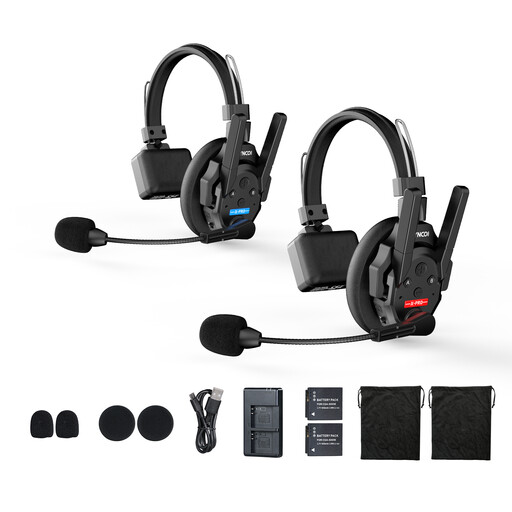
SYNCO XTALK XPRO2 Wireless Intercom Headset (2PCS)
This set may be worth considering if you need two microphone units; check that the intercom setup suits the way you want to record the lesson.
The product information lists omnidirectional microphones and a USB-C receiver.
Joybuy
 No image available
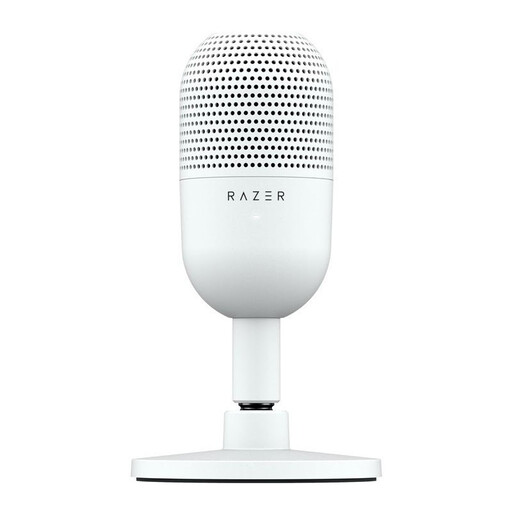
Razer SEIRÉN V3 MINI White
This compact USB desktop microphone may suit a permanent single-speaker setup; check that you can position it close enough to your mouth.
The product information lists a supercardioid recording pattern, USB connection and tap-to-mute control.
Joybuy
 No image available
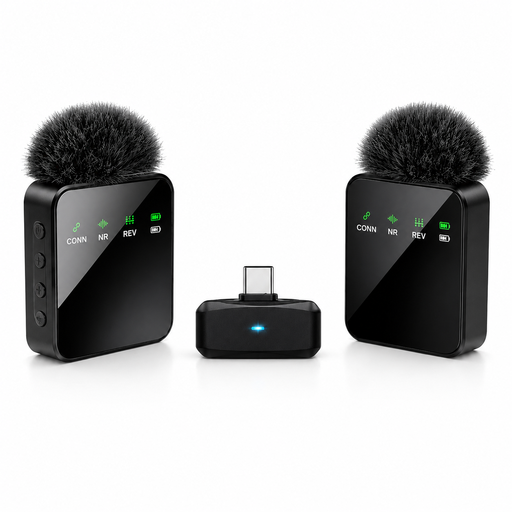
Verbex ST5 Dual-Mic Type-C Wireless Lapel Microphone
The dual-microphone setup may suit a recording that requires two microphones; check that Type-C works with your recording device.
The product title lists two microphones and a Type-C connection.
Joybuy
Frequently asked questions
Can a microphone completely filter out neighbours, traffic or other voices?
No. Don’t assume a microphone will remove all surrounding noise. Position the speaker you want to record close to the microphone and angle it to pick up less sound from unwanted sources. Shure says the MV7+ denoiser can tackle constant sounds such as fans, but it doesn’t remove background voices or sudden noises.
How do I set up a USB microphone for my first language lesson?
Connect the right cable, select the microphone as the input source in your sound settings, and make a short test recording from your usual speaking distance. RØDE recommends around 5–10 cm for the PodMic USB; that distance applies to this model and isn’t a general recommendation for all microphones.
Do I also need an audio interface with a USB/XLR microphone?
Not if you use the supported USB connection directly for computer recording. If you choose the XLR route to a computer, you’ll need a suitable audio interface or mixer with a digital connection.
What can I do if the microphone breaks sooner than expected?
For a consumer purchase in the Netherlands, the legal guarantee is separate from any manufacturer’s warranty. There is no fixed, general guarantee period; what you can reasonably expect from the product and normal use are taken into account. ACM ConsuWijzer advises contacting the seller if you think a product may be faulty.
Can I record and share a language lesson with another speaker?
That depends on who makes the recording and what happens to identifiable voices. The Dutch Data Protection Authority notes that the GDPR has an exception for personal or household use; outside that exception, an applicable legal basis under the GDPR is required. For educational institutions, the regulator emphasises the need for agreements on making, storing and sharing lesson recordings. This doesn’t mean that every lesson can automatically be recorded or shared publicly.


