If you’re delivering the tutorial from a single laptop and your voice is the main one people need to hear online, start with a wired headset with a boom microphone and a connection that suits your computer. If you want to move around, compare wireless options and factor in pairing and charging. If other people in the room also need to speak, assess the room’s audio separately. Test the microphone and speaker before the tutorial, and avoid having several devices in the same room playing audio at once.
Who is this for?
Tutor using a single laptop
You deliver most of the lesson sitting down and mainly want to make sure you can be heard clearly. A suitable connection and easy-to-reach mute control may be important; Logitech describes the H390 as having in-line volume and mute controls.
Presenter who moves around
You move around the room while explaining. Compare the connection and charging requirements of the specific wireless model with the freedom of movement you need; Jabra describes the Evolve2 65 as a wireless headset.
Tutor with people joining from the room
You’re teaching while others at the table also speak. Decide whether only your voice needs to be heard online or whether everyone in the room needs to be picked up; Zoom warns that multiple computers with active audio in the same meeting room can cause echo.
What should you look for?
First decide whose voice needs to be heard online. Then check the connection and mute controls, before weighing up freedom of movement and wearing comfort.
| What to consider |
What to look for |
Who is this most important for? |
| Speaker clarity |
Check whether the model has a boom microphone and a mute function. Test whether the intended speaker or speakers can be heard clearly online. |
If I’m doing most of the talking, I want my voice to come across clearly without assuming that my headset will also pick up everyone at the table. Around 33% of consumers prioritise the main speaker’s clarity. |
| Connection and setup |
Check that the connection on the exact model matches your computer’s port. Select and test the microphone and speaker in your meeting app beforehand. |
I want to be able to connect my headset and make sure the right audio devices are selected before the lesson. Around 27% of consumers give connection and a working setup top priority. |
| Freedom of movement |
For a wireless model, check the connection to your computer and test it in the places where you plan to speak. |
If I want to move around while teaching, being restricted by a cable matters more to me than having extra setup to do. Around 20% of consumers prioritise freedom of movement. |
| Comfort during longer lessons |
Compare the fit and the mono or stereo version of the exact model; don’t judge comfort based on product specifications alone. |
For a longer tutorial, I want a comfortable model that suits how much of the surrounding noise I need to hear. Around 20% of consumers prioritise wearing comfort. |
Common buying mistakes
-
Confusing microphone noise cancellation with noise cancellation for your ears
These features relate to different sides of the conversation: what other people hear from your surroundings and what you hear yourself.
Check which feature is listed for the exact model, and assess voice clarity and listening comfort separately.
-
Assuming a personal headset will work for everyone at the table
A boom microphone positioned by your mouth isn’t necessarily suitable for picking up people elsewhere in the room.
Before you buy, decide whose voice needs to be heard online and test the actual seating arrangement.
-
Choosing based on the model name alone
Different versions within a product range may vary in connection, mono or stereo sound, and meeting app compatibility.
Check the full model description against your computer’s ports before placing your order.
Brands to compare
Logitech
The H390 is a wired USB option, while the H570e comes in separate UC and Teams versions. Compare the full model description rather than assuming features are shared across models.
- According to Logitech, the H390 has in-line volume and mute controls.
- Connections and microphone options vary by H570e version. Check the specific model you plan to order.
Jabra
The wired Evolve2 40 SE and wireless Evolve2 65 suit different situations: a fixed speaking position or greater freedom of movement.
- Jabra describes the Evolve2 40 SE as having isolating ear cushions and the Evolve2 65 as suitable for wireless use.
- Check the mono or stereo version, connection and any Teams variant for each model; these product descriptions are not an independent comparison with other brands.
Poly
The Blackwire 5220 may be worth considering if you’re looking for a specific combination of connections.
- According to HP’s product specifications, version 8X231AA has USB-C, a USB-C to USB-A adapter and a 3.5mm connection.
- Check the full model version and included connections; these specifications don’t prove that its voice quality is better than that of other headsets.
JLab
The Go Work range is worth considering if you want to compare wireless options.
- The manufacturer lists several generations and versions of Go Work.
- Check the battery, dongle and connection details for the exact generation; don’t assume specifications apply to other versions.
Headsets for a fixed computer setup
These product picks focus on wired headsets for delivering a tutorial from a fixed computer setup.
 No image available
Logitech PC 960 wired USB headset
A wired USB headset to consider if you’re delivering the tutorial from a fixed computer setup.
Joybuy
 No image available
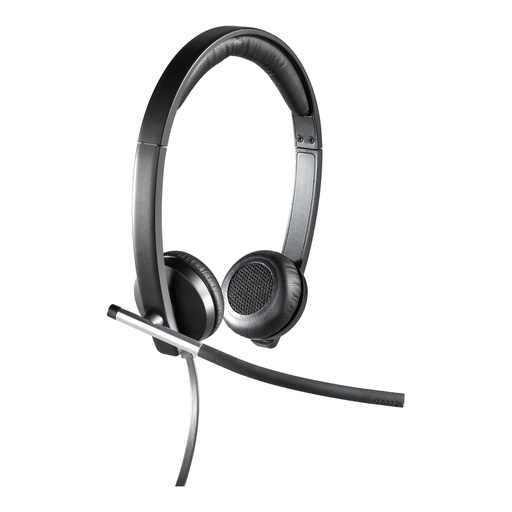
Logitech H650e Stereo wired headset
A wired stereo headset to consider for a fixed speaking position; check that the connection is compatible with your computer before buying.
Joybuy
 No image available
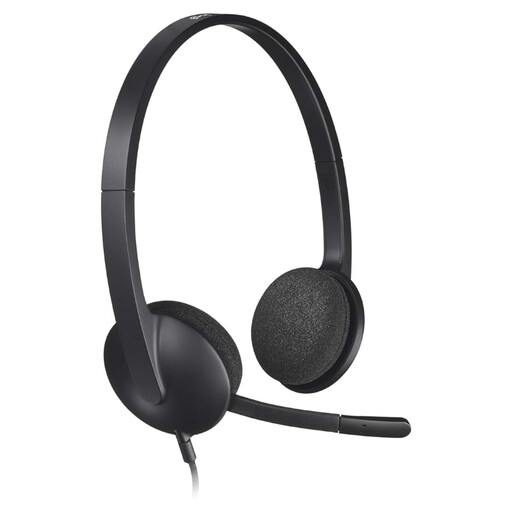
Logitech H340 black wired USB headset
The wired USB connection suits tutorials delivered from a computer; check beforehand that your meeting app is using the right audio devices.
Joybuy
 No image available
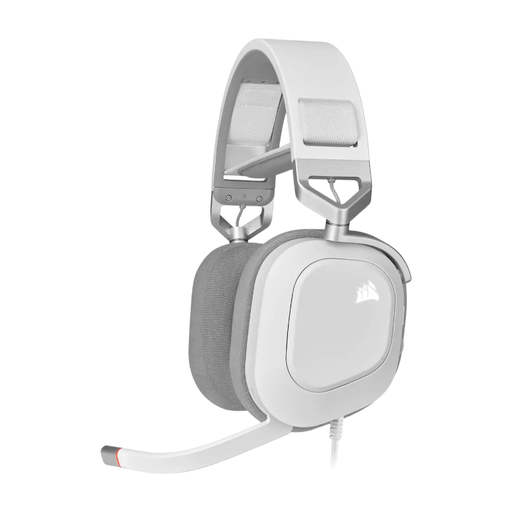
CORSAIR HS80 RGB wired USB gaming headset, white
A wired USB headset to compare if you’ll be using a fixed computer setup for your tutorial.
Joybuy
 No image available
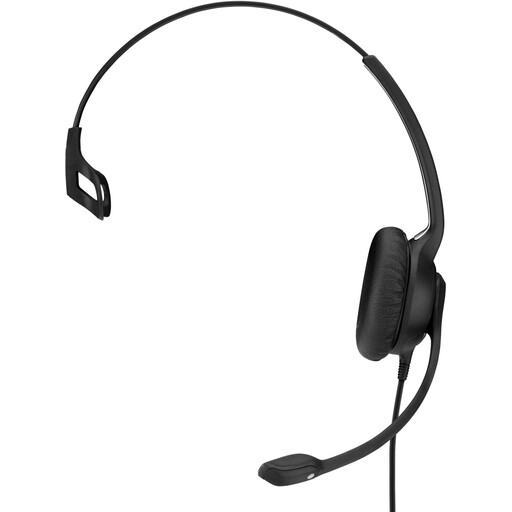
EPOS | SENNHEISER IMPACT SC 230 USB MS II wired OE headset, black
This wired USB version is worth comparing if you’ll be speaking from a fixed computer setup.
Joybuy
Frequently asked questions
How can I check that the right microphone is being used before the tutorial?
In your meeting app, select your headset specifically as the microphone and choose the output device you want to use. Zoom offers a test that lets you listen back to a recording of your voice. Repeat the test after connecting or switching devices.
Why might echo occur when several people join from laptops in the same room?
According to Zoom, multiple computers with active audio in the same meeting room can cause echo. Agree which setup will play audio and test the room before participants join online.
Do I need to install special software for every headset?
Not always; Logitech describes the H390 as a USB headset that you simply plug in to use. Still, check that the connection is compatible and that your meeting app has selected the headset as both the input and output device. Other models may require their own software for certain features.
Is a headset for the tutor enough if people at the table also need to speak?
Not necessarily: a boom microphone positioned by the tutor isn’t automatically suitable for picking up other speakers in the room. Decide whose voice needs to be heard online and test the chosen audio setup with people in their actual seats.


