What should you look for when making simultaneous video calls?
First, find out whether the problem is caused by a weak Wi-Fi signal or whether it also happens close to the router and over a cable. Then decide whether you need extra coverage, a wired or wireless connection between mesh points, or a configuration that works with your existing router.
| What to consider |
What should you check? |
Who should consider this most? |
| Calls at the same time |
Test whether calls also drop out near the router or over a cable. Compare the internet connection and video settings required, not just the stated Wi-Fi speeds. |
If several people are on calls at the same time, I want to know whether the problem occurs everywhere or only where the Wi-Fi signal is weak. Around 29% of consumers prioritise the quality of simultaneous calls. |
| Coverage at workspaces |
Find out where the signal falls short and how many points you need there. An extra point still needs a good connection to the main point. |
When I work on another floor or in a room further away, I want a usable signal there without placing a point somewhere the main point can barely reach. Around 29% of consumers give coverage at their workspace top priority. |
| Connection between points |
Check whether the set you choose supports Ethernet backhaul and whether you have the right cables and ports. Without cables, the positioning of the wireless connection is important. |
If I have network cables, I want to know whether I can use them to connect the mesh points; without cables, I pay extra attention to the connection between the points. Around 24% of consumers make this their top priority. |
| Compatibility and running costs |
Check how the set works with your existing router, which connections it needs and how many points will be switched on continuously. |
When I want to keep my current router, I want to know in advance how the set connects and what the extra continuously powered points mean for running costs. Around 18% of consumers give easy integration and running costs top priority. |
Mesh Wi-Fi products at Joybuy
These products are mesh Wi-Fi options for different areas of your home, with versions offering features such as dual-band or tri-band Wi-Fi and different connection options. Check which configuration suits your router, cables and workspaces for each model.
 No image available
ASUS ZenWiFi BT8, 2-pack, tri-band Wi-Fi 7
A mesh set with two points to place in different areas of your home; compare this option if you’re looking for tri-band Wi-Fi 7.
Specifications: Wi-Fi 7; tri-band at 2.4, 5 and 6 GHz; 2-pack.
View at Joybuy
 No image available
TP-Link Deco X50, 3-pack, dual-band Wi-Fi 6
A set with three mesh points for coverage in different areas; check that the connections and positioning suit your home.
Specifications: Wi-Fi 6; dual-band at 2.4 and 5 GHz; gigabit ports on each point, according to the product description.
The listed OFDMA and MU-MIMO features are network capabilities, not a guarantee of video call quality.
View at Joybuy
 No image available
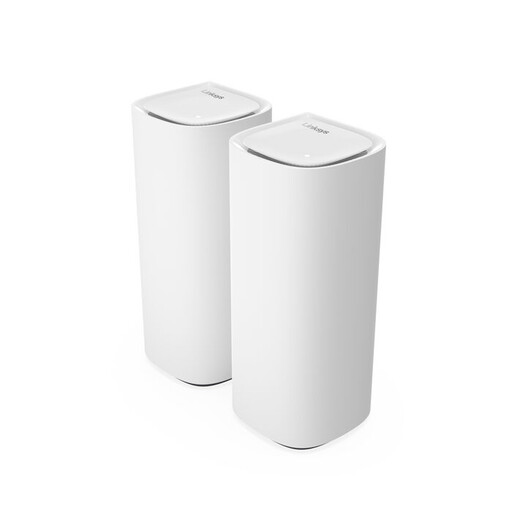
Linksys Velop Pro 7, tri-band Wi-Fi 7
An expandable mesh system to compare if you want to reach several areas and are looking for tri-band Wi-Fi 7.
Specifications: tri-band Wi-Fi 7; two mesh nodes, according to the product description.
The product description says you can manage the system through the Linksys app and expand it with compatible mesh devices.
View at Joybuy
 No image available
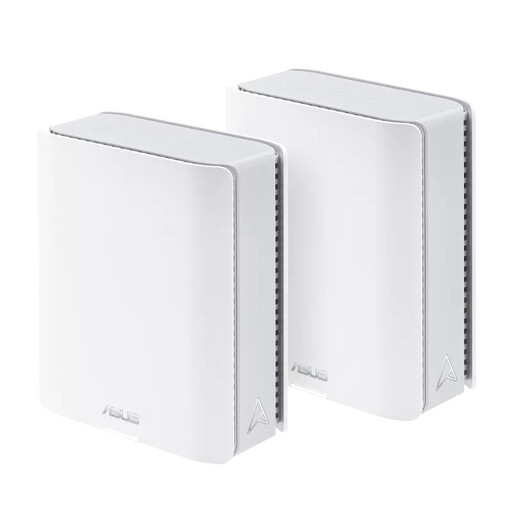
ASUS ZenWiFi BT10, 2-pack, tri-band Wi-Fi 7
A mesh set with two points for different areas of your home; compare it if tri-band Wi-Fi 7 suits your network requirements.
Specifications: Wi-Fi 7; tri-band at 2.4, 5 and 6 GHz; 2-pack.
The product description lists set-up through the ASUS Router app, with OFDMA and MU-MIMO as network features.
View at Joybuy
 No image available
TP-Link Deco X50-PoE, 2-pack, dual-band Wi-Fi 6
A set with two mesh points to compare if a wired installation and PoE would suit your set-up.
Specifications: Wi-Fi 6; dual-band at 2.4 and 5 GHz; 2-pack.
The product description lists PoE support and two Ethernet ports per unit. Check that the cabling and power supply you need are suitable for your installation.
View at Joybuy
Frequently asked questions
How can you tell whether mesh Wi-Fi will fix the dropouts?
Compare a call in the problem area with one near the router or over a cable. If it still drops out there, check your internet connection and video settings first; mesh alone won’t fix the problem.
Where should you put a wireless mesh point?
Don’t automatically put it in the area with the weakest signal. Choose a spot where the point still has a good connection to the main point and can reach your workspace, then check the connection quality.
Can you install mesh behind your existing broadband router?
That depends on the set and the network layout you want. FRITZ! describes how to install the Mesh Set 4200 behind a router from another manufacturer, with one point acting as the Mesh Master and providing a separate home network. Check the manual for the model you choose.
What do a manufacturer’s guarantee and your statutory rights mean?
In the Netherlands, there’s no fixed statutory guarantee period: you’re entitled to a product that does what you can reasonably expect. A manufacturer’s or seller’s guarantee is in addition to your statutory rights; if something is wrong, contact the seller.
Do you need a licence for ordinary home Wi-Fi in the Netherlands?
No. According to the Dutch Authority for Digital Infrastructure, Wi-Fi uses licence-exempt frequencies, so there’s no notification or registration requirement. Radio equipment sold on the market must still meet requirements, including the necessary CE marking; follow the manual too.


