First, test your upload speed using an Ethernet cable. Mesh Wi-Fi can improve a weak wireless connection at home, but it won’t increase the upload speed of your broadband connection. If the main problem is coverage in your workspace, consider the number of mesh points and how they connect to each other. Ethernet backhaul is an option if you can run a cable. Also check that the bands and settings are compatible with the devices you use at home.
Who should consider this?
Home worker with large design files
You need a reliable upload connection from your workspace. Compare a wired speed test with the connection in that spot to find out where the bottleneck is. The Consumers’ Association recommends connecting a computer to your home network with an Ethernet cable when running a speed test.
Anyone dealing with a Wi-Fi dead zone
Your workspace may be behind obstacles or on another floor. Where you place the mesh points and how they connect to each other can affect coverage.
Household with a mix of devices
You want your work device and other household devices to connect. Check which Wi-Fi bands and settings your devices support, and what the mesh model you’re considering offers.
What should you look for?
If you’re having upload problems, it helps to first work out whether the issue is with your internet connection itself or Wi-Fi coverage in your workspace. So, test the connection using a cable and from the spot where you work before choosing an extra mesh point.
| What to consider |
What should you check? |
Who should pay extra attention? |
| Upload speed in your workspace |
Compare your upload speed over a cable with the speed in your workspace; don’t just look at download speed. |
I want to know whether my internet connection itself is the limiting factor before choosing equipment. Around 33% of consumers in this situation prioritise upload speed. |
| Coverage in a tricky spot |
Check where the main device and an extra point could go, and whether you can run a cable between them. |
If my workspace is behind walls or on another floor, I want usable coverage there. Around 27% of consumers prioritise coverage in a tricky spot. |
| Devices at home |
Make a note of the bands and Wi-Fi settings your key devices support, then compare these with the exact model. |
I want to keep using my existing devices, even if they need different Wi-Fi bands. Around 20% of consumers prioritise compatibility. |
| Management and aftercare |
Look at the model’s management and update features, and check the seller and terms and conditions. |
If I want to manage my home network myself, settings and support if something goes wrong are important to me. Around 20% of consumers prioritise management and aftercare. |
Common pitfalls
-
Assuming faster Wi-Fi means faster internet uploads
Wi-Fi and the upload speed of your broadband connection are separate links in the chain. A mesh system won’t automatically change the speed of your broadband connection.
Compare a wired upload speed test with one in your workspace before choosing equipment. The Consumers’ Association recommends a wired connection for speed tests.
-
Buying extra points without planning how they’ll connect
A point connected wirelessly still depends on the signal it receives. Placement and the connection between points both matter; Tweakers describes wired backhaul as a stable way to connect mesh points.
Decide where to place the points in advance and check whether the system supports Ethernet backhaul.
You may need to run a cable or choose a different placement.
-
Assuming similar product names mean the same specification
Models with similar names can have different connection and power options. For example, the Deco X50 and X50-PoE versions have different specifications.
Check the full model name, pack size, ports and power supply for the specific version.
-
Assuming the manufacturer’s warranty is the full legal guarantee
In the Netherlands, there is no fixed term for the legal guarantee and the seller is responsible, according to ACM ConsuWijzer. The manufacturer’s warranty is separate.
Keep your proof of purchase and report any fault to the seller.
Brands to consider
TP-Link
According to TP-Link Netherlands, the Deco X50 offers dual-band Wi-Fi 6, three gigabit ports per point and optional Ethernet backhaul. This could be useful if you can connect the points by cable.
- The ports and backhaul option mentioned provide connection choices for a wired setup.
- These are product specifications, not a measurement of upload speed in your home. Check the exact Deco variant: the X50-PoE has different connection and power options.
ASUS
ASUS lists dual-band Wi-Fi 6, gigabit connections and router and access point modes for the ZenWiFi XD5.
- The two modes listed give you a choice of network configuration.
- ASUS lists one gigabit WAN/LAN port and one gigabit LAN port per XD5. Stated data rates are not guaranteed internet speeds.
Linksys
According to Linksys, the Velop Pro 6E is a tri-band option with 2.4, 5 and 6 GHz bands, and supports both wireless and wired backhaul.
- The bands listed may be useful if you specifically want to use devices that support 6 GHz.
- Buying this system won’t give an older device 6 GHz support automatically. Check the exact pack contents and model codes.
FRITZ!
FRITZ! describes a version of the FRITZ!Mesh Set 4200 with three FRITZ!Repeaters 3000 AX, for extending coverage around an existing router or a compatible connection.
- For this version, the manufacturer lists tri-band Wi-Fi 6 and a five-year manufacturer’s warranty.
- That manufacturer’s warranty is no guarantee of better upload performance and does not replace your legal rights with the seller.
Mesh Wi-Fi products at Joybuy
These mesh Wi-Fi systems for the home are available at Joybuy, with different bands, connections and ways to connect devices or mesh points. Check the specifications of each version to see which features suit your workspace and existing devices.
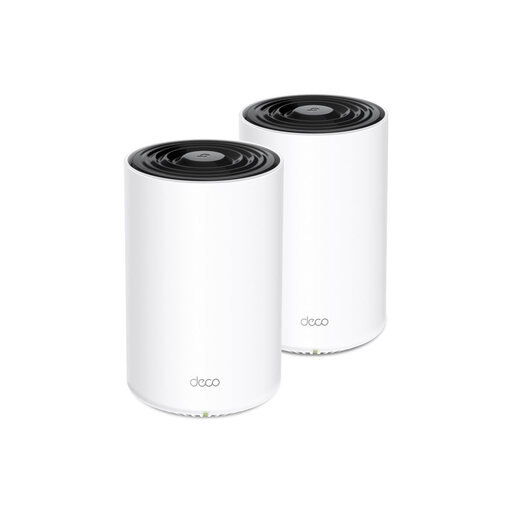 Image unavailable
TP-Link Deco PX10 dual-band Wi-Fi 6
An option to consider if walls or floors weaken the Wi-Fi signal in your workspace.
Dual-band (2.4 GHz and 5 GHz); Wi-Fi 6; three gigabit Ethernet ports per unit; supports Powerline, QoS and WPA3.
View at Joybuy
 Image unavailable
TP-Link Deco X50 (3-pack) dual-band Wi-Fi 6
Worth considering if you want to use three mesh points and may be able to connect them using Ethernet.
Dual-band (2.4 GHz and 5 GHz); Wi-Fi 6; three gigabit ports per unit; optional Ethernet backhaul; supports WPA3.
View at Joybuy
 Image unavailable
TP-Link Deco X50-PoE (2-pack) dual-band Wi-Fi 6
An option to consider if you’re looking for two points and Power over Ethernet suits your setup.
Dual-band (2.4 GHz and 5 GHz); Wi-Fi 6; two Ethernet ports per unit; supports PoE, QoS and WPA3.
View at Joybuy
 Image unavailable
TP-Link Deco XE75 Pro (3-pack) tri-band Wi-Fi 6E
Worth considering if you use devices from different Wi-Fi generations at home and want 6 GHz support.
Tri-band (2.4 GHz, 5 GHz and 6 GHz); Wi-Fi 6E; three Ethernet ports per unit; supports Wi-Fi 4, 5, 6 and 6E, and WPA3.
View at Joybuy
 Image unavailable
TP-Link Deco XE75 tri-band Wi-Fi 6E
An option to consider if you have devices from different Wi-Fi generations at home and are looking at a tri-band system.
Tri-band (2.4 GHz, 5 GHz and 6 GHz); Wi-Fi 6E; three gigabit ports per unit; supports older Wi-Fi standards and WPA3.
View at Joybuy
Frequently asked questions
Will mesh Wi-Fi help if a design file uploads slowly everywhere in the house?
Not always. First, test the upload speed on a computer connected to the router with an Ethernet cable, then compare it with a test in your workspace. If the wired upload is already slow, look into your broadband connection before choosing mesh Wi-Fi.
Where should you put mesh points, and how should you maintain them?
Place the main device somewhere the Wi-Fi signal is affected by as few obstacles as possible. Put an extra point somewhere it can still receive a usable signal. Walls, ceilings and a meter cupboard can interfere with Wi-Fi. Connect points using Ethernet if possible, and check through the chosen model’s management system whether firmware updates are available.
Do I need a licence or registration to use Wi-Fi at home in the Netherlands?
According to the Dutch Authority for Digital Infrastructure, Wi-Fi on the designated frequencies does not require a licence or registration as long as you comply with the terms of use. Also check that the radio equipment meets the requirements applicable to the Dutch market.
Does my right to support end when the manufacturer’s warranty expires?
No. ACM ConsuWijzer explains that there is no fixed term for the legal guarantee in the Netherlands, and that the seller is responsible if a product develops a fault too soon under normal use. The manufacturer’s warranty is separate.


