What should you look for when choosing?
Start by checking the route between the main unit and the mesh node near your study area. Then check the connection where you’ll be attending the lecture.
Ethernet backhaul
Suitable if: you can run a network cable between the main unit and a mesh node near your study area.
Bear in mind: you’ll need cables and may need to install them. Check the ports and connection method for the exact model.
Powerline backhaul
Suitable if: running a network cable isn’t practical and the electrical wiring provides a usable connection at the sockets you plan to use.
Bear in mind: performance depends on your home’s wiring and whether the units you choose are compatible.
Fully wireless mesh
Suitable if: you can place an intermediate node where it gets a good connection to the main unit and can also reach your study area.
Bear in mind: a node placed just behind a wall that significantly weakens the signal may itself have a poor connection to the main unit.
Existing router or targeted cabling
Suitable if: the problem mainly affects one regular study area. Check the connection there first and see whether you can connect your laptop directly by cable.
Bear in mind: this approach won’t automatically improve wireless coverage in other rooms.
| Consideration |
What should you check? |
Who is this important for? |
| Stable connection throughout your home |
Check whether Ethernet backhaul between the units is possible and how the exact model connects. |
I want the connection between the mesh nodes to reach my study area, not just for my laptop to show a Wi-Fi signal. Around 36% of consumers prioritise a stable connection throughout their home. |
| Connection without a network cable |
Check the powerline technology, unit compatibility and connection at the sockets you plan to use. |
If running a network cable isn’t practical, I want to know whether powerline works with my sockets. Around 29% of consumers prioritise a connection without a network cable. |
| Wireless placement |
Try an intermediate position that gets a good connection to the main unit and also provides a link towards your study area. |
I want to be able to place the nodes without extra installation work, but still somewhere with a connection to the main unit. Around 21% of consumers prioritise flexibility in where they can place wireless nodes. |
| Cost and suitability |
First check your existing connection, how many nodes you need and the power consumption of the exact set. |
Before adding equipment, I want to know whether my existing router or a targeted wired solution will be enough. Around 14% of consumers prioritise low upfront costs and easy integration. |
Joybuy products
This Joybuy selection includes mesh sets with multiple nodes. For each model, check that the connections and supported backhaul suit the setup you have in mind.
 No image available
TP-Link Deco X50 (3-pack)
The set includes three mesh units to place in different areas of your home.
Wi-Fi 6; dual-band (2.4 GHz and 5 GHz).
Three gigabit Ethernet ports per unit. Check whether the model supports the Ethernet backhaul you need.
Joybuy
 No image available
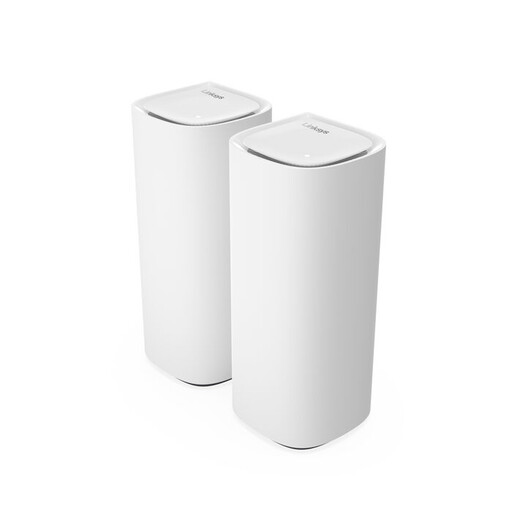
Linksys Velop Pro 7
The product description lists two mesh nodes. Check compatibility if you want to expand the system with other Linksys Cognitive Mesh devices.
Wi-Fi 7; tri-band (2.4 GHz, 5 GHz and 6 GHz).
Ethernet ports with 1 Gbps and 2.5 Gbps speeds.
Joybuy
 No image available
TP-Link Deco XE75 Pro (3-pack)
The product description lists three mesh units for use in different areas.
Wi-Fi 6E; tri-band.
Three Ethernet ports per unit; WPA3.
Joybuy
 No image available
TP-Link Deco XE75 (3-pack)
The description lists three units to place in different areas of your home.
Wi-Fi 6E; tri-band.
Three Ethernet ports per unit.
Joybuy
 No image available
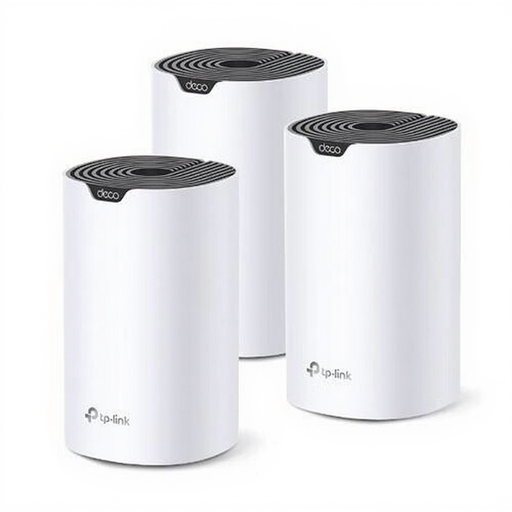
TP-Link Deco S7 (3-pack)
The set includes three units to place in different areas of your home.
Wi-Fi 5; dual-band (2.4 GHz and 5 GHz).
Three Ethernet ports per unit. Check whether the model supports the connection method you need.
Joybuy
Frequently asked questions
Where should I place a wireless mesh node for a study area behind a thick wall?
Choose an intermediate position where the node still gets a good connection to the main unit, then check the connection in your study area. Don’t place a wireless node at the weakest point without testing the link between the nodes.
Can I add a Deco PX50 to a Deco PX10 and use powerline backhaul?
No. TP-Link states that the PX50’s powerline backhaul isn’t compatible with the PX10’s. The PX50 uses G.hn and the PX10 uses HomePlug AV; this doesn’t rule out every other way of combining them.
Do I need a permit or registration to use Wi-Fi at home in the Netherlands?
Normally, no. The Dutch Authority for Digital Infrastructure says that home Wi-Fi is licence-exempt when you follow the rules for the relevant frequencies and their use. The RDI doesn’t require notification or registration for licence-exempt frequency use.
What should I look for when it comes to the safety of a mesh set?
Check that the equipment carries the correct CE marking and follow the installation instructions. The Dutch Authority for Digital Infrastructure outlines the requirements that apply to radio equipment. A listing on a webshop isn’t, in itself, an independent product check.
Am I always entitled to exactly two years of legal warranty in the Netherlands?
No. According to the Dutch government, there is no fixed statutory warranty period in the Netherlands. You’re entitled to a product that works as expected for a reasonable period. The legal remedies available if a product is faulty depend on the circumstances.


