What should you look for when choosing?
Mesh with Ethernet backhaul
Choose this if: you can run a network cable between the rooms and don’t want the connection between nodes to depend on Wi-Fi passing through the kitchen.
Bear in mind: you’ll need to install or conceal cables; mesh won’t increase the speed of your provider’s connection.
Wireless mesh
Choose this if: a mesh node can be placed somewhere in between and still get a good signal from the main node, and running cables isn’t practical.
Bear in mind: walls and other obstacles can also weaken the wireless connection between nodes.
Mesh with powerline backhaul
Choose this if: the wireless route isn’t good enough, Ethernet isn’t practical, and your electrical wiring can support the connection between nodes.
Bear in mind: performance depends on your electrical installation and the compatibility of the exact models. TP-Link states that the PX10 cannot form a powerline backhaul with the PX50.
Start with the connection between the mesh nodes: it needs to cope with the route through the kitchen before extra Wi-Fi nodes in the study rooms can make a difference.
| What to consider |
What should you check? |
Who is this important for? |
| Coverage in both rooms |
Test in both study rooms and check whether an intermediate location gets a good connection to the main node. Then compare wireless, Ethernet and powerline backhaul. |
If I want to study in both rooms, I need to know whether the connection can cope with the kitchen and the obstacles in between. Around 36% of consumers say coverage on both sides of the kitchen is their main concern. |
| Using multiple devices at once |
Compare the Wi-Fi standard and the connection between the nodes. Test in both workspaces while your usual devices are active at the same time. |
If housemates are studying or video calling at the same time, I need to know how Wi-Fi performs in both workspaces. Around 29% of consumers prioritise support for simultaneous use. |
| Installation and compatibility |
Check router or access point mode, the Ethernet ports you’ll need, where the nodes can go and, for powerline, the exact model combination. |
If my cables, router or sockets limit where I can place the nodes, I need to know in advance whether installation is practical. Around 21% of consumers say installation and compatibility are their main concerns. |
| Ongoing use and security |
Compare which security features are available without an additional subscription, and take into account the energy use of all nodes left switched on. |
If the system stays on for long periods, I need to know what’s included and which settings I’ll need to manage myself. Around 14% of consumers prioritise ongoing use and security. |
Mesh Wi-Fi products at Joybuy
These Joybuy products are mesh options for multiple rooms, including models suited to wired or powerline backhaul. Check the supported connection for each model and consider the conditions in your home.
 No image available
TP-Link Deco BE68, 2-pack
Worth considering if you’re looking for a mesh system for multiple locations and want to explore wired backhaul; check that the connections and installation suit your home.
The product name specifies a 2-pack.
View at Joybuy
 No image available
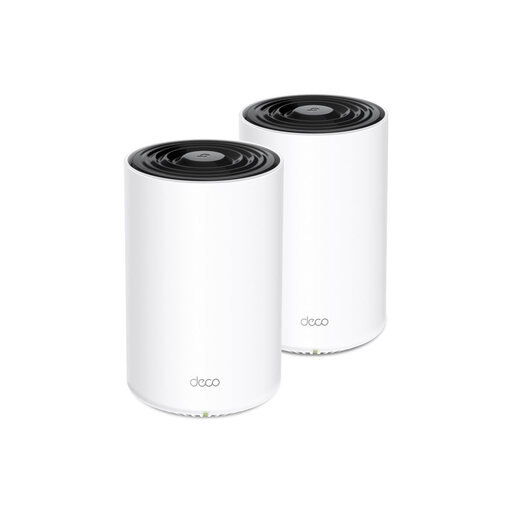
TP-Link Deco PX10, dual-band Wi-Fi 6
Suitable for anyone considering powerline as an alternative connection between mesh nodes when obstacles make the wireless route unreliable. TP-Link describes the PX10 as a hybrid Wi-Fi 6 and powerline system.
Powerline performance depends on your electrical installation. TP-Link states that the PX10 cannot form a powerline backhaul with the PX50.
View at Joybuy
 No image available
TP-Link AX1800 Whole Home Mesh Wi-Fi 6 System, 2-Pack
A 2-pack to consider if you want to connect multiple locations with a mesh system. The product description mentions Ethernet backhaul; check the cable route and placement you’ll need.
The product name specifies Wi-Fi 6 and a 2-pack. Whether the connection between nodes is practical depends on your home setup.
View at Joybuy
 No image available
TP-Link Deco M4, 3-pack
A mesh option with three units to consider if you want to add connectivity in several locations around your home. Check where the units can go and how they’ll connect to each other.
The product description specifies dual-band Wi-Fi 5 and three units.
View at Joybuy
 No image available
TP-Link Deco X50, 3-pack
A 3-pack to consider if you want to connect multiple workspaces using mesh and are thinking about Ethernet backhaul. Check whether the cable route and chosen placement are practical in your home.
The product name specifies Wi-Fi 6 and three units. Assess the connection between nodes in the locations where you plan to use the system.
View at Joybuy
Frequently asked questions
Should you upgrade to a faster internet connection first?
Not before testing it. Check the connection to your home network using an Ethernet cable; if it’s consistently much slower than promised, speak to your provider. If the Wi-Fi is weak mainly in the study rooms, look at node placement or consider an extra access point or mesh system.
Where should you put a mesh node if the kitchen is between the rooms?
Place a wireless mesh node somewhere it can still get a good signal from the main node, then test in both rooms. For powerline, TP-Link recommends using a wall socket directly, away from large electrical appliances such as microwaves and fridges; also check the instructions for your exact model.
Can you combine different powerline mesh models later?
Always check the exact models before adding to your system. According to TP-Link, the PX10, P9 and P7 can form a powerline backhaul with each other, but the PX50 cannot connect with those models because it uses a different powerline standard. Also check the hardware version and other mesh compatibility.
How can you check whether mesh will solve your Wi-Fi problem?
First, test your internet connection using an Ethernet cable, then assess Wi-Fi in both study rooms. Test where you work, ideally while your usual devices are active at the same time; obstacles can weaken the connection between mesh nodes.
Do you need a permit or registration for home Wi-Fi in the Netherlands?
According to the Dutch Authority for Digital Infrastructure, Wi-Fi can be used on designated frequencies without a permit, notification or registration. You must still comply with the applicable conditions; this doesn’t mean that every imported device or setting automatically meets the rules.


