What should you look for?
First, check the Wi-Fi in the places where people actually study. Then decide whether you can keep your current router and whether there is a cable between floors.
Extend your existing router
Best if: your current router still meets your needs, but one or more floors have poor coverage.
Bear in mind: placement and the connection back to the router still matter; check that any additional access points are compatible.
Use a mesh system
Best if: several floors you use need access points that you want to set up and manage as one system.
Bear in mind: the number and placement of access points, as well as any wired connection, will affect the setup. A quoted coverage area does not guarantee a signal through your floors.
Keep or replace just the router
Best if: Wi-Fi is already good enough in the study areas you use and the problem lies elsewhere, such as the router’s position.
Bear in mind: simply buying a different router will not automatically fix poor coverage across several floors; try a different setup first.
| What to consider |
What to look for when buying |
Who is this important for? |
| Coverage in different study areas |
Check how many access points you need and where they can be placed; see whether ethernet backhaul is possible. |
I want Wi-Fi on the floors where we actually study, not just by the router. Around 31% of consumers prioritise coverage in different study areas. |
| Studying online at the same time |
Check the Wi-Fi technology supported by the system and whether the devices being used at the same time support it. |
If laptops and video calls are being used at the same time, I want to know whether the whole setup can handle it. Around 25% of consumers prioritise simultaneous connections. |
| Connecting to your existing network |
Check that the mesh system is compatible with your current router and with the connections or cabling available. |
I want to keep using my current router and any network cables where suitable. Around 19% of consumers prioritise compatibility with existing equipment. |
| Security and maintenance |
Check how updates are provided and what encryption and guest network options the model offers. |
I want to maintain my network and manage guest access. Around 13% of consumers prioritise secure network management. |
| Total cost of the setup |
Compare the number of access points needed, any cabling work and the power consumption of the complete setup. |
I want to know what the complete setup will involve beforehand, rather than looking at just one device. Around 12% of consumers prioritise the total cost. |
Joybuy products
These products are mesh systems designed to provide Wi-Fi in several areas of your home. Compare the number of units, the Wi-Fi technology and the connections listed. Also check that the exact version being sold carries the required CE marking.
 No image available
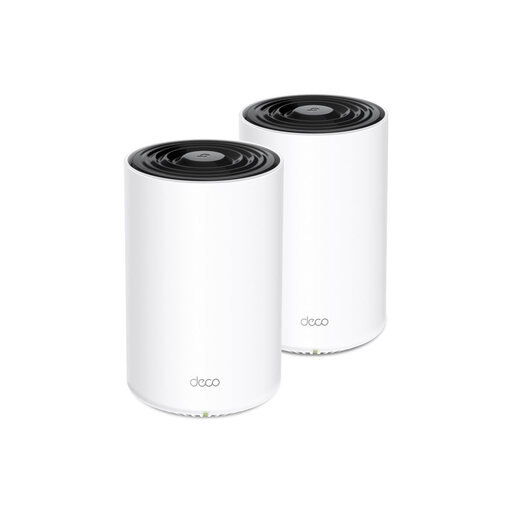
TP-Link Deco PX10 (3-pack), Wi-Fi 6
The mesh setup described combines Wi-Fi with a powerline network connection through your existing electrical wiring.
Dual-band 2.4 GHz and 5 GHz; Wi-Fi 6 (802.11ax); three gigabit ethernet ports per unit; router and access point modes.
View at Joybuy
 No image available
Huawei eKit OptiX FG736 BE3600 Dual-Band WiFi 7 Mesh Router
The product description says that multiple units can be used together as one mesh network.
BE3600; dual-band; WiFi 7.
View at Joybuy
 No image available
Huawei eKit OptiX FG630 AX3000 Dual-Band WiFi 6 Mesh Router
The product description says that mesh use supports one network name, seamless roaming and multiple devices.
AX3000; dual-band; WiFi 6.
View at Joybuy
 No image available
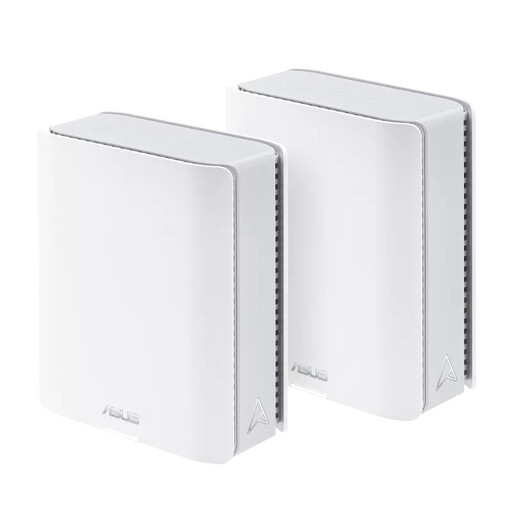
ASUS ZenWiFi BT10 (2-pack), WiFi 7
The product title lists a set of two mesh units for Wi-Fi coverage in several areas.
Tri-band 2.4 GHz, 5 GHz and 6 GHz; WiFi 7 (802.11be); MU-MIMO; 10 Gigabit Ethernet.
View at Joybuy
 No image available
TP-Link Deco XE75 Pro (3-pack), Wi-Fi 6E
The product title lists a mesh system with three units for Wi-Fi coverage in several areas.
Tri-band 2.4 GHz, 5 GHz and 6 GHz; Wi-Fi 6E (802.11ax); WPA3; three gigabit ethernet ports per unit.
View at Joybuy
Frequently asked questions
Where should you put an extra Wi-Fi access point?
Don’t place an extra access point where the signal is already very weak. The Consumentenbond advises keeping obstacles between access points to a minimum; if coverage is poor at the back of the house, somewhere in between may be a good option. Then check Wi-Fi in the study areas themselves.
Can you use your own router in the Netherlands?
Yes. ACM ConsuWijzer explains your freedom to choose a router. If you use your own modem, you may need to pay extra attention to the connection settings and whether it is suitable for your provider’s network.
Do you need a licence for Wi-Fi at home?
According to the Rijksinspectie Digitale Infrastructuur, using Wi-Fi at home does not require a licence, as long as you use the designated frequencies and follow the conditions of use. Choose the correct country settings; the RDI says that incorrect settings can result in excessive transmission power and interference.
What warranty applies if a router develops a fault?
In the Netherlands, statutory consumer rights apply: according to ACM ConsuWijzer, a product must do what you could reasonably expect it to do. The seller is responsible for providing an appropriate solution if a product is faulty; there is no single fixed statutory warranty period for every router.
How can you keep your home network secure after installation?
Keep your router and other network devices up to date, use a strong password and suitable Wi-Fi encryption, and consider setting up a guest network. ACM ConsuWijzer emphasises that your own connected devices also need updates.


