Don’t buy a mesh system straight away. First, test the Wi-Fi in the kitchen and close to your existing router. Mesh can help if the connection is good by the router but the signal doesn’t reach the kitchen well enough; it won’t make a slow or unstable internet connection faster. For a single problem spot, a well-placed or wired access point may be enough. Mesh is mainly worth considering if several areas have poor coverage.
Who is this guide for?
Student with poor kitchen coverage
Your stream works in other areas but keeps buffering where you cook. It’s worth considering where to place a Wi-Fi point and how it connects to the network. The Consumers’ Association highlights the importance of placement and obstacles.
Housemates sharing Wi-Fi
Several people use the network at once, and you want Wi-Fi in the kitchen without inadvertently taking over management of the house router. Discuss the connection and settings with whoever manages the network.
Resident who can run a cable
If you can connect a point by cable, you can first check whether one access point is enough before choosing a wireless multi-point system. TP-Link lists Ethernet backhaul as an option for connecting Deco points.
What should you look for in mesh Wi-Fi?
Keep your existing router
A good fit if: your cookery lesson also buffers near the router, or if the kitchen is the only problem area and you want to try changing the placement first.
Bear in mind: moving the router may be limited by where the connection comes into the property, and won’t necessarily solve every coverage problem.
Wired access point or Ethernet backhaul
A good fit if: there’s a usable network cable running towards the kitchen and the main issue is the wireless connection through walls or between floors.
Bear in mind: running a cable and the number of available ports may limit what’s practical.
Wireless mesh system
A good fit if: several areas have poor coverage, running cables isn’t practical, and you can place an extra point somewhere it will still get a good connection.
Bear in mind: points placed too far apart or behind obstacles may also have a weak connection themselves.
Mesh system behind your existing house router
A good fit if: your existing router needs to remain in charge of managing the network and you’re allowed to connect the mesh main unit to it by cable.
Bear in mind: in access point mode, some gateway features aren’t available in the Deco app.
| Consideration |
What to look for when buying |
Who should pay particular attention? |
| Coverage in the kitchen |
Test the Wi-Fi by the screen and close to the router. Check whether a point placed between the two can still get a good connection. |
If I mainly want to follow my cookery lesson in the kitchen without buffering, I’ll check the coverage there. Around 40% of consumers say kitchen coverage is their main priority. |
| Using the network at the same time |
Check the connection while your housemates use the network as usual, and make sure your viewing devices support the Wi-Fi version. |
If my housemates are online during my cookery lesson, I want to know whether the setup can handle shared use. Around 23% of consumers prioritise simultaneous use. |
| Connection and network management |
Agree who can change the settings, and check how the main unit connects to your existing router and which features are available in the chosen mode. |
If I want to keep using the house router without disrupting its management, I want clear agreements about the connection and settings in advance. Around 22% of consumers prioritise connection and management. |
| Overall cost and usage |
Compare an access point or smaller system with the number of areas that actually have poor coverage. Also check how much power the extra points use. |
If I mainly want to weigh up the cost of buying and running the setup I need, I’ll first check how many points are really necessary. Around 15% of consumers prioritise overall cost. |
Common mistakes when buying mesh Wi-Fi
-
Assuming a higher AX speed guarantees smooth video
A Wi-Fi version or stated speed doesn’t, by itself, tell you how well the connection performs where you watch. If the connection also buffers by the router, a mesh system won’t fix a slow or unstable internet connection.
Compare the connection by the router with the one in the kitchen, and check the placement and connection between points first.
-
Putting a wireless point where the signal already drops out
The extra point needs a usable connection to the network itself, so a spot at the far end of the room may not be suitable.
Choose an in-between position with as few obstacles as possible, or connect the points by cable if you can.
-
Assuming access point mode retains all router features
According to TP-Link, some gateway features aren’t available through the Deco app when using Deco in access point mode.
Agree who manages the existing house router and check which features work in the mode you want to use with your chosen model.
-
Buying three points to solve one problem spot
The number of points you need depends on where the problem areas are and how well the points connect to each other. You don’t automatically need a full system if one access point provides enough coverage.
First, try moving your router or using one wired access point. Add more points only if other areas still have poor coverage.
Extra points left switched on use electricity. Keep your setup to the areas where a point is actually needed.
Brands to compare
TP-Link
The Dutch Deco range includes Wi-Fi 6 models such as the X20 and X50, with access point mode and optional Ethernet backhaul on the models mentioned.
- According to the model specifications, the Deco X20 has two Gigabit ports per point, while the X50 has three.
- TP-Link says the main Deco can’t connect wirelessly as a repeater to an existing, non-Deco router. Also check which features are available in access point mode.
ASUS
According to ASUS, the ZenWiFi XD5 is a Wi-Fi 6 mesh option that supports Ethernet backhaul.
- ASUS lists setup through the ASUS Router app and support for a wired connection between points.
- The manufacturer says some 160MHz capabilities may be restricted in certain regions. Stated speeds and coverage aren’t measurements taken in a specific student house.
NETGEAR
NETGEAR describes the Orbi 370 range as dual-band Wi-Fi 7 with 2.5-gigabit connectivity.
- These connections may be relevant if you specifically want to make use of faster wired connections.
- These are NETGEAR specifications and claims, not independent measurements taken in a home. The Consumers’ Association says Wi-Fi 6 is generally the better-value choice for most users, so Wi-Fi 7 isn’t automatically necessary just to watch a cookery lesson.
Mesh Wi-Fi at Joybuy
This selection features mesh Wi-Fi systems. Compare the number of points, the wired connection options listed and the features that suit connecting to your house router.
 No image available
TP-Link Deco PX10 dual-band Wi-Fi 6
A mesh option to compare if you also want to consider the Powerline connection mentioned, as well as Wi-Fi.
The product description lists AV1000 Powerline and three Gigabit Ethernet ports per unit.
Router and access point modes are listed; check which mode suits the way your home network is managed.
View at Joybuy
 No image available
ASUS ZenWiFi BT8 tri-band (2-pack) Wi-Fi 7
A two-point system to compare if you’re looking for a mesh setup with multiple frequency bands.
The product description lists tri-band on 2.4, 5 and 6 GHz.
The listed connections are two 1 Gbps Ethernet ports and two 2.5 Gbps ports.
View at Joybuy
 No image available
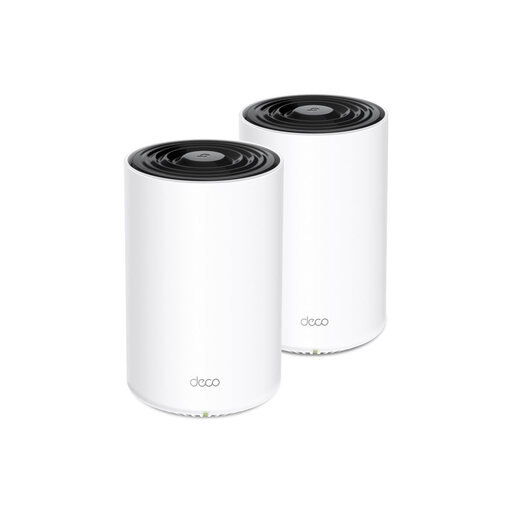
TP-Link Deco X20 AX1800 Wi-Fi 6 (2-pack)
A two-point system to compare if you want to look at Wi-Fi 6 and the option of a wired connection between Deco units.
The product description lists optional Ethernet backhaul and setup and management through the Deco app.
View at Joybuy
 No image available
TP-Link Deco X50 Wi-Fi 6 (3-pack)
A three-point system to compare if several areas in your home need extra coverage.
The product description lists three Gigabit Ethernet ports per unit and Wi-Fi 6.
View at Joybuy
 No image available
Huawei eKit OptiX FG736 BE3600 dual-band Wi-Fi 7
A mesh router to compare if you’re considering a setup that can work with multiple units.
The product description lists Wi-Fi 7 and management through the HUAWEI SmartLife app.
View at Joybuy
Frequently asked questions
How can you check whether your cookery lesson is buffering because of the Wi-Fi or your internet connection?
Compare the connection in the kitchen with the one close to the router, ideally using a device connected by cable as well. If the connection is still poor near the router, investigate your internet connection first; mesh won’t increase its speed.
Where should you put a wireless mesh point?
Don’t put the point right where the signal has already dropped out. Choose an in-between position with as few obstacles as possible, then use the system’s app or indicator to check that the points can connect to each other properly.
Can you connect a main Deco point wirelessly to your existing house router?
Not as a wireless repeater for that router. According to TP-Link, the main Deco must be connected by cable to a modem, router or internet connection. A second Deco can then connect wirelessly to the Deco network.
What changes when you use Deco in access point mode?
Your existing router remains the gateway, but according to TP-Link, some gateway features aren’t available through the Deco app. Which features are affected may depend on the model and software version, so check the specific version you’re considering.
Do you need a licence for standard Wi-Fi in the Netherlands?
According to the Dutch Authority for Digital Infrastructure, Wi-Fi on the designated licence-exempt frequencies doesn’t require a licence, notification or registration; the conditions for use still apply. Equipment sold in the Netherlands must meet the relevant European requirements and carry a CE mark.


