Who is this buying guide for?

Photo uploader with a weak signal

Your connection drops off at the end of the hallway, while the wired connection at the router works well. You want to work out where an extra Wi-Fi node would be useful. The Consumers’ Association advises against placing a Wi-Fi extender right at the far end of the house when coverage is weak; instead, place it closer to the middle.

Photo uploader with an Ethernet cable

You can run a cable to the hallway or the room at the far end and don’t want the connection between Wi-Fi nodes to rely on a wireless signal. ASUS, Google Home and Nest Help, and TP-Link describe Ethernet backhaul as an option with compatible equipment and cabling.

Photo uploader with an existing router

You want to check first whether you can reposition your router and whether a mesh system will work as an access point alongside your existing equipment. The Consumers’ Association offers advice on placement; ACM ConsuWijzer explains your choice of router and the conditions that may apply when using your own equipment.

What should you look for when buying?

What to consider What to look for Who is this important for?
Coverage and placement Test in several locations to find out where an extra node still gets a good connection; keep obstacles between the nodes to a minimum. If I need Wi-Fi at the end of the hallway, I want to know where an extra node can still maintain a good connection. Around 33% of consumers prioritise coverage and placement in the hallway.
Upload speed Compare a wired test at the router with a Wi-Fi test where you upload your photos; also check the speed of the Ethernet ports. When uploading a photo album, I want to know whether Wi-Fi or my internet connection is the limiting factor. Around 27% of consumers prioritise upload speed.
Connection between nodes Check whether the exact system supports Ethernet backhaul, and whether the cables, ports and any PoE power supply are compatible with the models. If there’s a possible cable route, I want to know whether the nodes I’ve chosen support that wired connection. Around 27% of consumers focus on the connection between Wi-Fi nodes.
Existing equipment and costs Check the router or access point mode, the cables and power supply required, and which provider settings you’ll need. If I want to keep my existing router, I’m looking for a solution that works with it without adding unnecessary equipment. Around 13% of consumers prioritise keeping their existing equipment.

Common buying mistakes

  • Assuming a higher Wi-Fi speed means faster photo uploads

    Wi-Fi specifications don’t measure the connection from where you upload your photos to the cloud service. If your internet connection itself is the bottleneck, a mesh system won’t fix it.

    First, test the connection using Ethernet at the router, then test it over Wi-Fi where you want to upload your album.

  • Placing a wireless mesh node right at the far end of the hallway

    The extra node still needs a usable connection to the rest of the network. The signal may already be too weak in the spot with the poorest coverage.

    Try a midway spot with fewer obstacles, then check the connection where you want to upload your photos.

  • Comparing wireless speed alone

    An Ethernet port can limit the connection. For example, the product information for the Deco E4 lists 100 Mbps ports.

    Compare the port speed of the exact version with the speed of the connection that needs to pass through it.

  • Assuming all mesh nodes and PoE connections are interchangeable

    Support varies by model. TP-Link specifies IEEE 802.3at and 802.3bt for the Deco X50-PoE; IEEE 802.3af is not supported. Google also describes limitations on wiring and combining Nest Wi-Fi products.

    Before buying, check the full model names, the supported PoE standard and the compatibility of all the nodes.

    A suitable switch or cable may be needed for a PoE setup; also check that the Wi-Fi nodes you’ve chosen are compatible with one another.

Relevant brands

TP-Link

The Deco X50 is a Wi-Fi 6 mesh option with gigabit ports; the Deco X50-PoE also offers a PoE installation option.

  • TP-Link lists three gigabit ports per Deco X50 node. According to the product specifications, the X50-PoE can be wall- or ceiling-mounted.
  • Check the exact Deco version and its Ethernet ports. According to the product information, the Deco E4 has 100 Mbps ports; the stated wireless speed alone doesn’t tell you what upload speed you’ll get.

ASUS

The ZenWiFi XD5 is a mesh option for anyone looking to use Ethernet backhaul where Ethernet cables are available at home.

  • ASUS describes Ethernet backhaul as an option for the ZenWiFi XD5 with suitable cabling.
  • This doesn’t measure Wi-Fi or upload speed in your hallway. Check that the exact system and your existing cabling are suitable for your setup.

Google

Nest Wifi Pro offers a way to set up a mesh network with wired connections between compatible Wi-Fi routers.

  • Google describes Ethernet backhaul for Nest Wifi Pro.
  • According to Google, standard Nest Wifi points don’t have Ethernet ports. Nest Wifi Pro also can’t be combined in a single mesh network with Nest Wifi or Google Wifi.

FRITZ!

The FRITZ!Repeater 3000 AX is worth considering if you want to extend an existing FRITZ!Box mesh or use a LAN bridge.

  • FRITZ! lists three radio bands and two gigabit LAN ports for this model. It can be connected to a router using an Ethernet cable.
  • The mesh compatibility described depends on FRITZ!OS requirements. Don’t assume it works in the same way with every router.

Joybuy products

This selection includes mesh systems for several areas of your home, with options for wired backhaul, Powerline or connections between Wi-Fi nodes. Check that the setup you choose suits your home and that the supplied radio equipment carries the required CE marking.

TP-Link Deco BE68 mesh system with two nodes

TP-Link Deco BE68 (2-pack)

Suitable for a setup with two mesh nodes and a choice of wired or wireless backhaul.

Per node: 10, 2.5 and 1 Gbps WAN/LAN ports.

View at Joybuy
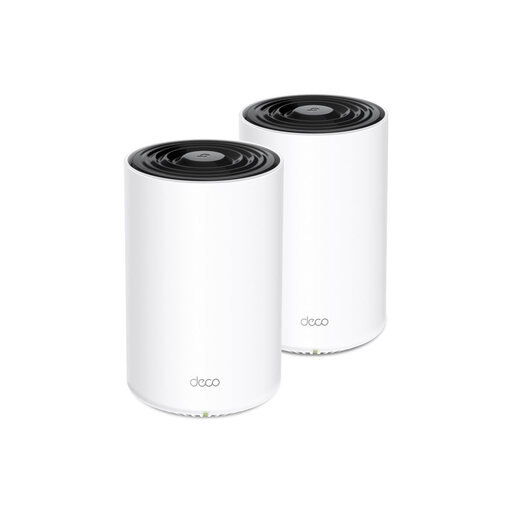
TP-Link Deco PX10 dual-band mesh system

TP-Link Deco PX10, dual-band Wi-Fi 6

An option if you want to use your existing electrical wiring for Powerline or set up the system as an access point alongside your router.

The product description lists gigabit ports and both router and access point modes. The Powerline connection uses your electrical wiring between the nodes.

View at Joybuy

ASUS ZenWiFi BT8 tri-band mesh system with two nodes

ASUS ZenWiFi BT8 (2-pack), tri-band Wi-Fi 7

Suitable if you want Wi-Fi coverage in several areas and would like to integrate compatible ASUS routers using AiMesh.

The product description lists two mesh nodes and control via the ASUS Router app.

View at Joybuy

ASUS ZenWiFi BD4 dual-band mesh system

ASUS ZenWiFi BD4, dual-band Wi-Fi 7

An option if you’re looking for a mesh system that supports wired backhaul.

The product description lists two 2.5 Gbps Ethernet ports and control via the ASUS Router app.

View at Joybuy

TP-Link Deco M4 Wi-Fi 5 mesh system with three nodes

TP-Link Deco M4 (3-pack), Wi-Fi 5

Suitable if you want to use three Deco nodes as a single mesh network and manage setup through the Deco app.

The product description lists 1 Gbps Ethernet ports.

View at Joybuy

Frequently asked questions

How can you tell whether mesh will help with photo uploads?

First, test the connection using Ethernet at the router, then test it over Wi-Fi where you upload your photos. If the wired connection is repeatedly slow too, look into your internet connection with your provider before buying mesh.

Where should you place a wireless Wi-Fi node in a long hallway?

Start around the middle of the area with weak coverage, choosing a spot with as few obstacles as possible between the nodes. Then check the signal and upload speed where you want to send your album.

Can you connect the Deco X50-PoE to any PoE switch?

No. First check the supported power standard. TP-Link specifies IEEE 802.3at or 802.3bt for the Deco X50-PoE and states that IEEE 802.3af is not supported; the supplied DC adapter is another power option.

Do you need to replace your provider’s router?

Not necessarily. ACM ConsuWijzer explains your freedom to choose a router, but using your own equipment may be subject to network and security requirements. If necessary, ask your provider about the connection settings, and keep your equipment up to date.

Do you need a licence to use Wi-Fi at home?

According to the Dutch Authority for Digital Infrastructure (Rijksinspectie Digitale Infrastructuur), you don’t need a licence to use Wi-Fi at home if you use the designated frequencies and comply with the conditions of use. Radio equipment must also meet the applicable European requirements and carry the CE marking.
