Who is this guide for?

Uploading photos from a distant study

You regularly upload large photo albums from a room where distance or obstacles weaken the Wi-Fi signal. Test the upload speed at your desk and with a wired connection at the router to find out where the connection is struggling. The Consumers’ Association (Consumentenbond) recommends running a speed test over a network cable to measure your internet connection.

You have a cable running to the study

You can use an existing network socket and are looking for a way to connect mesh units using a cable. The Consumers’ Association points out that the units need to be positioned carefully and have a usable connection between them to provide good coverage.

You have thick walls and no network cable

You’re looking for a way to get a connection to a distant room, but the walls may interfere with the wireless link between mesh units. A powerline connection is one possible option, but you’ll need to test whether it works in your home.

What should you look for?

Mesh with Ethernet backhaul

Choose this option: if there’s a network cable in or near the study and the Wi-Fi link is slowing down your uploads.

Bear in mind: you’ll need a cable and compatible Ethernet ports on the units involved. Your internet plan’s upload speed will still be the upper limit.

Fully wireless mesh

Choose this option: if you don’t want to run a cable and an intermediate mesh unit can still receive a usable signal from the previous unit.

Bear in mind: distance, walls and ceilings affect the wireless link between units. Don’t place the extra unit where the signal has already dropped out.

Mesh with powerline backhaul

Choose this option: if there’s no cable and walls interfere with the wireless link, provided the units can connect through your home’s electrical wiring.

Bear in mind: you’ll need to test whether it works at home. TP-Link says that powerline backhaul on the Deco PX50 works with compatible PX50 units, not with any powerline products.

What to consider What to look for when buying Who is this important for?
Wi-Fi coverage in the study Take distance and obstacles into account, and work out where an intermediate unit can still connect. I want to upload photos from the study without distance or walls disrupting the Wi-Fi connection. Around 36% of consumers are mainly concerned with getting usable Wi-Fi coverage in that room.
Connection between mesh units Check which Ethernet ports and cables are available. For powerline, check which units can work together to provide the backhaul. If I can use a cable, I want to know whether I can connect the mesh units with it. Without a cable, I’ll look at wireless coverage or powerline. Around 29% of consumers are mainly concerned with the connection between the units.
Internet upload speed Test the connection with a cable at the router, then compare the result with a test in the study and with your internet plan. I want to avoid buying mesh to solve an upload problem that’s actually caused by my internet connection. Around 21% of consumers mainly want to rule out their provider’s upload speed first.
Connection and running costs Check the router or access point mode and the update policy. Also look at power consumption and any paid extra features. I want to know how the mesh system will connect to my existing network and what’s involved in managing it after purchase. Around 14% of consumers mainly consider connectivity, maintenance and running costs.

Common buying mistakes

  • Confusing advertised Wi-Fi speed with your upload speed

    A Wi-Fi speed rating doesn’t tell you what upload speed your internet connection will deliver in the study. Uploading photos uses the upload speed included in your internet plan. The Consumers’ Association recommends testing the connection with a cable at the router.

    Before choosing a mesh system, compare a wired test at the router with a test at your desk.

  • Placing a wireless mesh unit where the signal has already dropped out

    The extra unit also needs a usable connection to the previous mesh unit. In the area with the weakest coverage, that connection may not be strong enough.

    Try an intermediate location where the unit still receives a usable signal. Use existing Ethernet cabling if it’s available.

    Poor positioning could mean you still need an extra mesh unit or a cable.

  • Assuming all powerline adapters and mesh units work together

    TP-Link says Deco PX50 units can provide powerline backhaul together. Don’t assume that any adapters or other models will work for this purpose.

    Check the full model names of the units and test the powerline connection in your own home.

Relevant brands to consider

TP-Link

The Deco X50 is a dual-band Wi-Fi 6 mesh option with optional Ethernet backhaul. The Deco PX50 is a separate range with G.hn powerline for situations where the wireless link between units is obstructed.

  • According to TP-Link Netherlands, each Deco X50 unit has three Gigabit Ethernet ports and the system supports optional Ethernet backhaul.
  • TP-Link says the Deco PX50 also uses your home’s electrical wiring. You’ll need to test whether this works in your home; advertised speeds aren’t a measure of your photo album upload speed.

FRITZ!

The FRITZ!Repeater 3000 AX is one option if you have a compatible FRITZ!Box and want to connect an additional access point in a distant room over LAN.

  • FRITZ! describes a LAN bridge and the option to copy settings from the FRITZ!Box.
  • The Mesh integration described requires a FRITZ!Box running FRITZ!OS 7 or later. Check that it’s compatible with your router.

eero

eero 6+ is a mesh option for anyone who wants app-based setup and understands the difference between routers and wireless extenders.

  • According to eero, the eero 6+ router has two Gigabit Ethernet ports, and eeros can connect over Ethernet or wirelessly.
  • The separate eero 6+ Extender doesn’t have Ethernet ports, according to eero. So check what’s included in the pack you choose before planning Ethernet backhaul.

ASUS

The ZenWiFi XD5 is one mesh option to consider if there’s already an Ethernet connection to the study.

  • ASUS describes Ethernet backhaul for the XD5.
  • The information comes from a US product page. Check the exact version and connections included in the pack on offer.

Mesh products at Joybuy

The selection below features TP-Link Deco mesh products for home use, including Wi-Fi 6 and Wi-Fi 6E models, as well as options with powerline or Ethernet connections. Check each model to make sure its connections suit the route to your study.
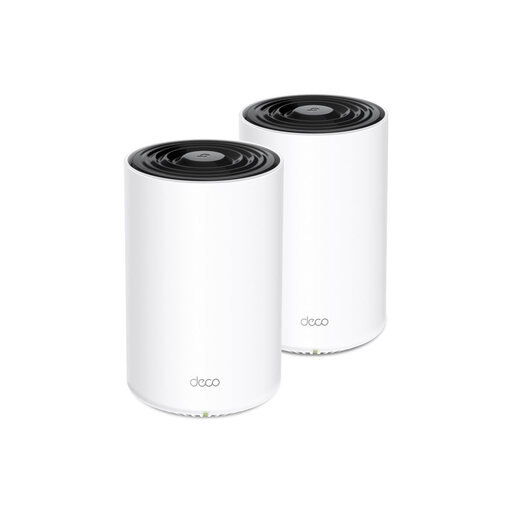
TP-Link Deco PX10 Wi-Fi 6 mesh system

TP-Link Deco PX10

An option for trying powerline backhaul over your home’s electrical wiring. The connection needs to work well in your home.

The product description lists Wi-Fi 6, AV1000 powerline and Gigabit Ethernet ports on each unit.

View at Joybuy

TP-Link Deco X50 mesh system with three units

TP-Link Deco X50 (3-pack)

Worth considering if there’s an Ethernet connection in or near the study. Wired backhaul is optional and requires an available cable.

Wi-Fi 6; three Gigabit Ethernet ports on each unit.

View at Joybuy

TP-Link Deco X50-PoE mesh system with two units

TP-Link Deco X50-PoE (2-pack)

An option for a mesh setup where a PoE connection is useful. Check that it’s compatible with your network.

The product description lists Wi-Fi 6, PoE support and two Ethernet ports on each unit.

View at Joybuy

TP-Link Deco XE75 Pro Wi-Fi 6E mesh system with three units

TP-Link Deco XE75 Pro (3-pack)

An option if you’re looking for a mesh setup with three units. Check which connection between the units will work best in your home.

Tri-band Wi-Fi 6E (2.4, 5 and 6 GHz); three Ethernet ports on each unit and WPA3, according to the product information.

View at Joybuy

TP-Link Deco XE75 Wi-Fi 6E mesh system

TP-Link Deco XE75 (3-pack)

An option if you’re considering a multi-unit Wi-Fi 6E setup. Check that the connections suit the setup you have in mind.

Tri-band Wi-Fi 6E (2.4, 5 and 6 GHz); three Gigabit Ethernet ports on each unit and WPA3, according to the product information.

View at Joybuy

Frequently asked questions

Will mesh help if my photo album uploads slowly even next to the router?

Not if your internet upload speed itself is the bottleneck. Run several wired tests at the router and compare the results with your internet plan. If your upload speed is consistently low, look into your connection with your provider.

Where should I place a unit for a distant study?

With wireless backhaul, place the unit where it still has a usable connection to the previous one, rather than automatically putting it at the far end of the room. The Consumers’ Association recommends choosing a spot with few obstacles and suggests the middle of the home as a possible location if the signal is weak at the back. With Ethernet backhaul, you can place a unit by the study’s network socket.

Do I need to replace my provider’s modem?

Not necessarily. The setup depends on the mesh configuration you choose and the system’s instructions. The Netherlands Authority for Consumers and Markets’ ConsuWijzer confirms that you’re free to choose your router in the Netherlands. Check how the mesh system works with your existing router, and ask your provider about the required settings if needed.

What ongoing costs and maintenance should I expect after buying?

Check the power consumption of all the units, any charges for extra services and how the model you choose receives security updates. Keep your router and mesh units up to date. The actual costs depend on the pack you choose and how you use it.

Do I need a licence for home Wi-Fi in the Netherlands, and what should I look for in the equipment?

According to the Dutch Authority for Digital Infrastructure, Wi-Fi on licence-exempt frequencies doesn’t require notification or registration; the relevant frequency conditions still apply. Radio equipment sold in the Netherlands must meet European radio equipment requirements and carry the correct CE marking. A claim in a product advert doesn’t, by itself, prove that the item supplied meets all the requirements.
