First, use a wired connection to check that your internet connection is working properly at the modem; mesh Wi-Fi can’t improve a slow connection from your provider. If the Wi-Fi is weak mainly where you take lessons, place a wireless mesh node where it can still connect reliably to the previous node, or use Ethernet backhaul if walls or the hallway are disrupting the wireless link. Then compare the number of nodes, the ports and how the system works with your existing router: the stated coverage doesn’t guarantee a signal throughout your home.
Who is this buying guide for?
Student at the end of the hallway
Do you take lessons in a spot where the Wi-Fi signal has to pass through a hallway and walls? Check the signal in that spot, and whether an extra node can still connect reliably to the previous one. The Consumers’ Association recommends a wired test to assess your home network connection.
Household with limited space for equipment
Do you want to keep the walkway clear, but can’t simply put a Wi-Fi node in the most suitable spot? Compare wireless placement with running a cable to a node nearer your lesson area. TP-Link says that the layout of your home, walls and positioning all affect coverage.
User of an existing provider router
Would you like to keep using your current modem or router? Check that the mesh system can work with your equipment in a suitable operating mode. For KPN customers, KPN explains how its own Wi-Fi nodes and placement advice work in the KPN environment.
What should you look for when choosing?
| What to consider |
What to look for when buying |
Who is this important for? |
| Reliable connection for lessons |
Test the connection by wire at the modem and compare it with the connection where you take lessons. Look at coverage and stability, not just the stated top speed. |
If I want to avoid interruptions during lessons, I need to know whether the problem is with the internet connection or the Wi-Fi in my location. Around 31% of consumers prioritise reliable coverage for lessons. |
| Where to place the Wi-Fi nodes |
Check where there’s a power socket and a safe spot outside the walkway; test whether the nodes connect well from those locations. |
With a narrow hallway, I want to keep the walkway clear while still finding a suitable spot for each node. For around 25% of consumers, node placement is the top priority. |
| Cable between nodes |
Check whether Ethernet backhaul is possible, which ports are available and whether you can run the cable conveniently. |
If walls are disrupting the wireless connection between nodes, I want to know whether I can connect them with an Ethernet cable. Around 19% of consumers prioritise a wired connection between nodes. |
| Connection to your existing router |
Check whether the system can work as an access point and what app, account or provider settings you’ll need. |
If I want my current router to manage the network, the right operating mode is important. Around 13% of consumers prioritise keeping their existing router. |
| Number of nodes and how you’ll use them |
Choose the number of nodes based on the locations you can test; also consider cable options and the power consumption of equipment that stays switched on for long periods. |
I want to improve the connection where I take lessons without choosing more nodes or features than my home needs. Around 12% of consumers prioritise this balance. |
Common buying mistakes
-
Buying mesh before checking the connection at the modem
A mesh node can’t fix a problem with your internet provider’s connection.
First, test the connection by wire at the modem and compare the result with the connection where you take lessons.
-
Putting a Wi-Fi node in a dead zone or in the middle of the walkway
A wireless node still needs a reliable connection to the previous node. Walls, obstacles and placement can make this difficult.
Look for a spot outside the walkway where the signal is still usable. If that isn’t possible, check whether you can run a cable between the nodes.
-
Assuming stated coverage or a newer Wi-Fi generation guarantees good performance
A manufacturer’s stated coverage isn’t a measurement of your home. The Wi-Fi generation or peak speed alone won’t tell you whether the connection will be reliable during a lesson beyond the hallway.
Consider where the nodes can go, how they connect to each other and which connections you need; test the signal where you take lessons.
-
Assuming provider nodes and mesh systems are interchangeable
Management and connection options vary between systems and existing routers.
Before buying, check your modem, the operating mode and your provider’s requirements. Don’t assume they’re compatible without checking.
Brands to consider
TP-Link
The Deco X50 is a mesh Wi-Fi range with Wi-Fi 6. The Dutch product specifications list three gigabit ports and control through the Deco app.
- Ethernet ports give you options for connecting wired devices or setting up a wired network.
- TP-Link says that the Deco mobile app and a TP-Link ID are required to set up and manage Deco. Stated speeds and coverage don’t predict the signal in your hallway.
ASUS
According to ASUS, ZenWiFi BD4 is an expandable AiMesh system with dual-band Wi-Fi 7 and two 2.5 Gbit/s ports.
- The stated ports give you options for a wired connection.
- Wi-Fi 7 or a theoretical peak speed doesn’t prove that online lessons will run better in a home with obstacles. Check which pack size you need.
FRITZ!
The FRITZ!Mesh Set 1700 is also available as a three-node pack. The manufacturer says it can be used with a FRITZ!Box or another router.
- The manufacturer lists guest access, parental controls and automatic updates as features of the set.
- Three nodes aren’t automatically necessary for a lesson area beyond a hallway; let your home and tested placement guide how many nodes you need.
KPN
KPN describes SuperWifi as an option for extending its own network, with a Wi-Fi scan and placement advice.
- The provider offers its own options for expanding coverage and help with placement.
- These options are for the KPN environment and don’t prove compatibility with routers from other providers. Check the requirements for your modem.
Mesh Wi-Fi products at Joybuy
This selection includes mesh systems with two or three nodes, including models listed as supporting wired backhaul. Choose the number of nodes and connections to suit your home and the place where you take online lessons.
 No image available
TP-Link Deco BE68 (2-pack)
An option for extending Wi-Fi to a lesson area; the stated wired and wireless backhaul options give you different ways to connect the nodes.
Tri-band Wi-Fi. The product description lists 10, 2.5 and 1 Gbit/s Ethernet ports.
Joybuy
 No image available
ASUS ZenWiFi BT8 (2-pack)
A two-device mesh system for extending Wi-Fi to another part of your home. Check that the stated AiMesh integration suits your existing ASUS setup.
Tri-band with 2.4, 5 and 6 GHz bands; Wi-Fi 7 (802.11be).
Joybuy
 No image available
TP-Link Deco X20 (2-pack)
A two-device mesh system; the product description lists Ethernet backhaul as an option if you can connect the nodes by cable.
Wi-Fi 6.
Joybuy
 No image available
TP-Link Deco X50 (3-pack)
A three-node system for anyone who wants to try different placement options; extra nodes don’t automatically guarantee better coverage where you take lessons.
Dual-band Wi-Fi 6. The product description lists three gigabit ports per device.
Joybuy
 No image available
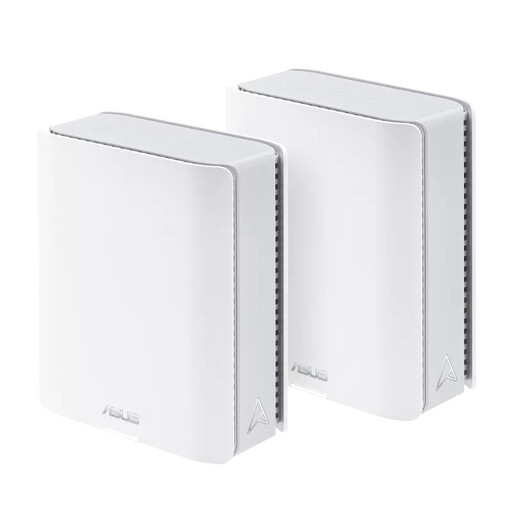
ASUS ZenWiFi BT10 (2-pack)
A two-device mesh system; check that AiMesh works with your existing ASUS setup and that the stated ports meet your connection needs.
Tri-band Wi-Fi 7 (802.11be). The product description lists 10-gigabit Ethernet.
Joybuy
Frequently asked questions
How can you tell whether mesh Wi-Fi will stop your lessons from dropping out?
First, test the connection using a computer connected to your home network with an Ethernet cable. If the connection is repeatedly poor too, look into your broadband connection or contact your provider. If the Wi-Fi is weak mainly where you take lessons, consider the placement or adding an access point.
Does a mesh node need to go in the middle of the narrow hallway?
No. Find a spot outside the walkway where the node can still connect reliably to the previous one. TP-Link says that walls, metal and other obstacles can affect coverage. Connecting the nodes with an Ethernet cable makes placement less dependent on the wireless connection between them.
Can Deco work with your existing router?
TP-Link says Deco can be connected to an existing router with an Ethernet cable. Access point mode is usually the right option if you want that router to continue managing network functions. Check the instructions for your model and the operating mode you need.
How can you keep your network useful and secure after installation?
Check regularly for available device and security updates, and use a strong Wi-Fi password. Check which management features your exact model offers before buying; TP-Link says Deco is set up and managed through the mobile app.
Do you need a permit or registration to use Wi-Fi in the Netherlands?
According to the Dutch Authority for Digital Infrastructure, home Wi-Fi generally doesn’t require a permit or registration, provided you comply with the applicable conditions of use. This doesn’t mean equipment can be sold without the required CE marking or that every use is permitted.
What are your rights if a mesh system bought online doesn’t meet your expectations or breaks?
For online purchases, you generally have 14 days from delivery to change your mind, subject to legal exceptions, as explained by ACM ConsuWijzer. You also have statutory rights if the product doesn’t meet what you could reasonably expect; under the applicable rules, the seller must resolve a fault that wasn’t caused by misuse. A manufacturer’s warranty doesn’t automatically limit these statutory rights.


