Relevant brands to consider
These brands offer product ranges to suit different choices, such as buying a new mesh kit or extending an existing network. The features mentioned apply to the product ranges described and do not, by themselves, tell you about availability or coverage in your home.
TP-Link
The Deco X50 is a Wi-Fi 6 mesh range available with one, two or three nodes, for anyone looking for a kit or wanting to expand a network.
- TP-Link lists three gigabit ports and optional Ethernet backhaul for the Deco X50.
- The stated coverage is a manufacturer claim for specific kit sizes and doesn’t guarantee coverage through a particular hallway. Check which version is in the box.
ASUS
ZenWiFi XD5 is a Wi-Fi 6 mesh system for anyone looking for a kit with the option of Ethernet backhaul.
- ASUS documents Ethernet backhaul for the XD5.
- ASUS says a compatible Wi-Fi 6 device is required to benefit from the Wi-Fi 6 features described. Stated speeds and coverage aren’t measurements taken at your workspace.
FRITZ!
The FRITZ!Repeater 1200 AX is most relevant as an extension to an existing FRITZ! mesh network.
- FRITZ! lists one gigabit LAN port and connection to a FRITZ!Box via LAN or wirelessly.
- A standalone repeater isn’t a replacement for a complete two-node kit. Check separately which mesh features work when connected behind a router from another brand.
Google
Nest Wifi Pro is an expandable Wi-Fi 6E mesh system for anyone considering a new Google kit.
- Google lists a version with two routers.
- Google says Nest Wifi Pro isn’t compatible with earlier Nest Wifi or Google Wifi generations. The stated coverage won’t predict what’s possible in your hallway.
Joybuy products for this situation
These mesh kits and expansion options are relevant for a workspace downstairs and a possible wired or wireless connection through the hallway. Check the number of units, connections and compatibility with your existing network for each version.
 No image available
TP-Link Deco BE68 (2-pack)
A two-unit version for anyone looking for a mesh kit. Check that the connections and backhaul options suit your router and set-up.
View at Joybuy
 No image available
ASUS ZenWiFi BT8 (2-pack), tri-band Wi-Fi 7
For anyone looking for a two-unit mesh kit. The product name specifies tri-band Wi-Fi 7 (2.4 GHz/5 GHz/6 GHz); check that this version suits your router and connected devices.
View at Joybuy
 No image available
TP-Link Deco X50 (3-pack), Wi-Fi 6
A three-unit kit for anyone looking for a set-up with multiple nodes. The product name specifies dual-band (2.4 GHz/5 GHz) Wi-Fi 6 (802.11ax); check whether you need three nodes for your set-up.
View at Joybuy
 No image available
TP-Link Deco X50-PoE (2-pack), Wi-Fi 6
For anyone looking for a two-unit mesh kit and considering PoE. The product name specifies dual-band (2.4 GHz/5 GHz) Wi-Fi 6 (802.11ax); check which connections you’ll need for your set-up.
View at Joybuy
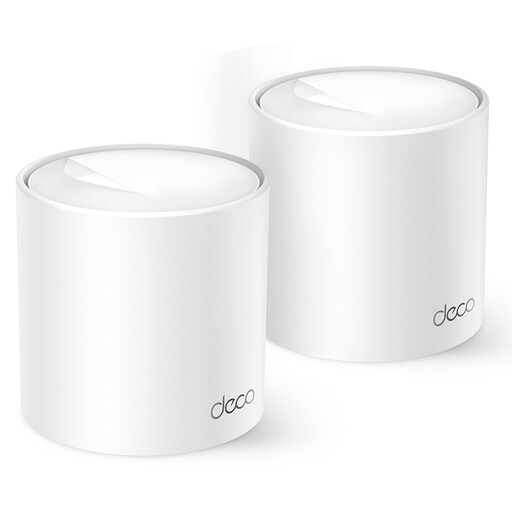 No image available
TP-Link Deco X10, Wi-Fi 6
For anyone considering a Deco X10 mesh system. The product name specifies dual-band (2.4 GHz/5 GHz) Wi-Fi 6 (802.11ax); check which version and connections come with the product.
View at Joybuy
Frequently asked questions
Does the second Wi-Fi node need to go in the middle of the hallway?
No, not necessarily: with a wireless connection, the node itself still needs a good connection to the network. Test its position and the signal at your workspace. With suitable wired backhaul, positioning depends less on the wireless connection between the units.
Can I connect the mesh nodes to my existing modem or router?
That depends on the system you choose and the router or access point mode. TP-Link describes different connection options for Deco depending on the mode. Check the instructions for your devices before connecting the cables.
What should I maintain after installation?
Check that the intended backhaul is active, keep your router and Wi-Fi nodes up to date, and secure your network with a strong password. TP-Link explains how to check the backhaul in the Deco app; Consumentenbond recommends installing updates and using appropriate Wi-Fi security.
What should I consider when it comes to energy use and support?
Before buying, check which management and security features are available, as well as the warranty and support terms for the exact version. Wi-Fi nodes use electricity, and Consumentenbond includes energy consumption in its tests.
What product requirement applies to radio equipment in the Netherlands?
The Dutch Authority for Digital Infrastructure states that radio equipment may only be sold in Europe with a CE marking. Check the marking on the specific device; the general requirement alone doesn’t confirm whether a particular version complies.


