
Presenter working across multiple floors
You move between presentation areas with a laptop or phone and want to check that the connection works wherever you are.


First, choose a mesh setup that reaches the places where you give presentations. If there are network cables between floors, Ethernet backhaul is a sensible option. Without cables, pay extra attention to the wireless connection between mesh points. A strong Wi-Fi signal won’t automatically make your laptop or phone find the presentation screen: test your screen-sharing settings too, and bear in mind that advertised speeds and coverage aren’t guaranteed in your building.
You move between presentation areas with a laptop or phone and want to check that the connection works wherever you are.
You want devices to find the right screen, while making sure a guest network doesn’t unintentionally give them access to other devices. The Cast or AirPlay method you choose will determine what you need to test.
There’s Ethernet between floors, and you want to know whether the mesh points can use those cables, with the right connections on the points you choose.
Choose this option if: there are usable network cables between floors.
Bear in mind: the cables and ports need to be compatible with the mesh points you want to connect.
Choose this option if: you don’t have cabling and can position the points so they stay connected to one another.
Bear in mind: test the connection on the floors themselves; advertised coverage isn’t a measurement of your building.
Choose this option if: there’s no cabling and you want to consider an extra band for connections between points.
Bear in mind: an extra band or a newer Wi-Fi generation doesn’t, in itself, prove you’ll get better coverage through your floors.
First, work out where presentations will take place, how the mesh points will connect to one another, and which screen-sharing method you’ll use.
This advice is for consumers who want to use mesh Wi-Fi to make presentation screens accessible across multiple floors.
| What to consider | What should you check? | Who is this important for? |
|---|---|---|
| Coverage in presentation areas | Work out where you’ll be presenting and test the connection there. Then compare how many points you’ll need and where you can place them. | If I present on different floors, I want to check that my laptop and screen connect in each location. Around 27% of consumers prioritise coverage in all presentation areas. |
| Connection between mesh points | Take stock of existing cables and connections. Check that the exact points support Ethernet backhaul and have the ports you need. | If I have cables between floors, I want to know whether they can carry the connection between mesh points. Around 27% of consumers prioritise this connection. |
| Finding the screen | Test your chosen screen-sharing method with the actual screen. Google Cast Help reports that client isolation can prevent communication; for AirPlay, Apple Support describes a connection to the same Wi-Fi network. | If my presentation device needs to find the screen, I want to test my chosen Cast or AirPlay setup in advance. Around 26% of consumers put screen discoverability first. |
| Setup and use | Check how many points you need, whether cables need to be installed, and whether any features you want to use require a subscription. | If I want to know what setup and everyday use involve beforehand, I look beyond the Wi-Fi generation alone. Around 20% of consumers prioritise installation and ongoing usage considerations. |
A specification or advertised coverage area doesn’t show how the connection will perform in the presentation areas of your building.
Map out the areas and test the connection there before choosing a newer Wi-Fi generation as the solution.
You may still find that you need an extra point or a different cable route.
With Google Cast, client isolation can prevent devices from communicating, even when each device has Wi-Fi access.
Test your chosen screen-sharing method and check your network setup. Don’t casually disable security just to let devices communicate.
According to eero, the 6+ router has Ethernet ports, but the 6+ extender doesn’t. So the contents of a set matter if you want to connect a point by cable.
Check the ports on each individual point, not just the set’s model name.
You may need a different mesh point to use your existing cabling.
The Deco range includes dual-band models and an X50-PoE version for situations where power over a compatible cable could be useful.
The ZenWiFi XT9 is a tri-band Wi-Fi 6 option to consider if you’re looking at a wireless setup and configuration options.
The Orbi 770 series, including the RBE773, is a tri-band Wi-Fi 7 option to consider if you want to compare its extra features with your presentation needs.
The eero 6+ is an app-controlled Wi-Fi 6 option; when buying, note the difference between the router and extender.
This selection includes dual-band mesh systems and a tri-band Wi-Fi 6E system for Wi-Fi in multiple locations. None of the specifications guarantees that a presentation screen will be discoverable on your network; test your chosen screen-sharing settings too.
 No image available
The three mesh units give you several placement options for presentation areas in different rooms.
Dual-band Wi-Fi 5 (2,4 GHz/5 GHz); two network ports per unit, with an advertised maximum speed of 100 Mbps per port.
 No image available
The three mesh units work together to create a mesh network for presentation areas in multiple rooms.
Dual-band Wi-Fi 5 (2,4 GHz/5 GHz); two Gigabit Ethernet ports per unit.
 No image available
The three mesh units give you several placement options; check on site that the connection between points and screen coverage are sufficient.
Dual-band Wi-Fi 6 (2,4 GHz/5 GHz); three gigabit Ethernet ports per unit.
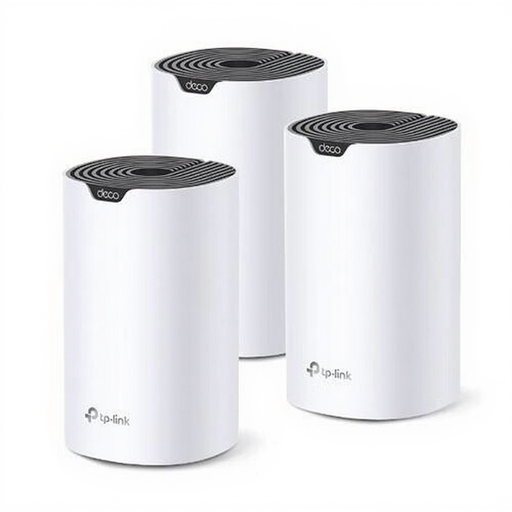 No image available
The three mesh units give you several placement options for presentations in different locations.
Dual-band Wi-Fi 5 (2,4 GHz/5 GHz); three Ethernet ports per unit.
 No image available
The three mesh units give you several placement options; a tri-band setup doesn’t guarantee coverage between specific floors.
Tri-band Wi-Fi 6E (2,4 GHz/5 GHz/6 GHz); three Ethernet ports per unit.
With Google Cast, client isolation can stop devices communicating, for example on an isolated guest network. For AirPlay screen mirroring, check that the sending and receiving devices are connected to the same Wi-Fi network, as described by Apple Support. Test your chosen screen-sharing method with the actual screen; extra mesh points won’t automatically fix a blocked connection between devices.
No, the number of floors alone doesn’t determine how many points you need. Work out where presentations will take place, position the points so they have a usable connection to one another, then test in those locations.
Yes, if the mesh points you choose support Ethernet backhaul and have the ports you need. eero confirms that compatible eero points can be connected via Ethernet; according to eero, the eero 6+ extender has no Ethernet port. So check the connections on the exact version you’re buying.
According to the Dutch Authority for Digital Infrastructure, Wi-Fi in homes and commercial buildings is generally licence-free if you use the designated frequencies and comply with the conditions of use. This concerns the use of Wi-Fi and does not cover other requirements for equipment placed on the market.