If you can run cables between suitable node locations, start by considering a mesh system with Ethernet backhaul, and check where the media server will connect. If you can’t run cables, wireless mesh may be an option, but distance, walls and ceilings can affect coverage and the connection between nodes. If you want to keep your current router, check in advance which features will remain available in the mode you choose.
Who is mesh Wi-Fi for?
A household with cabling and multiple screens
Wants to connect the media server and mesh nodes by cable wherever possible, so Wi-Fi can focus on reaching the screens. TP-Link describes Ethernet backhaul as the connection between Deco units using Ethernet.
A household without network cables
Needs coverage in several areas, so the wireless connection and placement of the nodes are important. Distance, walls and ceilings can affect the signal.
Someone using an existing router
Wants to check first whether moving the router or adding an access point will be enough. Features can vary when using bridge mode; eero, for example, warns that some advanced features won’t work in this mode.
What should you look for?
Mesh with wired backhaul
Best suited to: homes with cables running between suitable node locations, for example on different floors.
Bear in mind: you’ll need cables and sometimes a switch; the correct connection order varies by system and mode.
Mesh with wireless backhaul
Best suited to: homes without cabling, where you want to improve Wi-Fi coverage in other areas.
Bear in mind: walls, ceilings and distance affect the signal. Advertised speeds and coverage don’t guarantee the same results in your home.
First decide how the server and nodes will connect. Then compare coverage where your screens are and check how the system works with your current router.
| What to consider |
What to look for |
Who is this important for? |
| Connection between the server and nodes |
Check whether Ethernet backhaul is supported, how many Ethernet ports are available and what switch setup the manufacturer recommends. |
If I want to connect the server, nodes or screens by cable, I need to know whether the connections and topology will work together. Around 36% of consumers say a stable connection between the server and nodes is their top priority. |
| Coverage where the screens are |
Assess coverage where the screens are and check the connection at the intended location for an additional node. |
Without a cable route, I want a usable connection for my screens in several rooms. Around 29% of consumers prioritise wireless coverage in different rooms. |
| Current router and network mode |
Check whether the system can work as an access point or in bridge mode, and which features will remain available. |
If I want to keep my current router, I want to avoid the new system unintentionally changing the features of my existing network. Around 21% of consumers prioritise keeping their current router. |
| Management and services |
Check which management features work in the mode you choose and whether any services require payment. |
If I want to manage settings and services myself after installation, I need to know in advance what’s included and what comes with extra conditions. Around 14% of consumers give top priority to management and recurring costs. |
Common buying mistakes
-
Assuming advertised Wi-Fi speeds or coverage are guaranteed
Actual throughput and coverage depend on factors including obstacles and the devices connected. So a maximum speed won’t necessarily tell you what connection you’ll get on every screen.
Check coverage where you stream and assess the connection between nodes separately. TP-Link says actual throughput and coverage can vary.
-
Choosing a wireless extender node for wired backhaul
Not every mesh node has Ethernet ports. eero, for example, says that the eero Beacon and eero 6 Extender don’t have Ethernet ports.
Check the ports on each node individually, not just those on the main router.
-
Assuming bridge mode keeps every feature
eero says some advanced features don’t work properly in bridge mode.
First decide which device will act as the router, then check which features are available in the mode you choose.
Brands to consider
TP-Link
The Deco X50 is worth comparing if Ethernet backhaul and the connections on each unit are important to you.
- TP-Link lists three gigabit ports per Deco X50 unit.
- The stated speed and coverage aren’t measurements taken in your home; check the exact model variant too.
ASUS
AiMesh and ZenWiFi are worth considering if you’re looking at a wired connection between nodes or using the system behind an existing router.
- ASUS documents setups with a switch and a router in access point mode.
- The instructions specify requirements for cabling and switch settings, so check the guidance for the system you choose.
FRITZ!
The FRITZ!Mesh Set 4200 and FRITZ!Repeaters are worth considering for expanding a network when you already have a compatible FRITZ!Box.
- FRITZ! explains how to connect repeaters to a FRITZ!Box via LAN.
- According to FRITZ!, adding repeaters to the Mesh network requires a FRITZ!Box running FRITZ!OS 7 or later.
eero
Worth considering if you want your existing router to handle routing and your mesh equipment to run in bridge mode.
- eero explains how to use bridge mode with an existing router.
- eero warns that some advanced features won’t work in bridge mode. The eero Beacon and eero 6 Extender don’t have Ethernet ports.
NETGEAR
The Orbi 770 Series is described in the cited product information as a tri-band mesh system.
- NETGEAR describes the RBE772 as including a router and satellite.
- The information relates to a different sales market and doesn’t indicate availability in the Netherlands or performance in your home.
Mesh products at Joybuy
These mesh products are relevant if you’re considering how to provide Wi-Fi in several areas of your home. Compare the exact model variant and pack contents with your cable route, the number of places where you use screens and the router you want to use.
 No image available
TP-Link Deco BE68, 2-pack
A 2-pack mesh system for providing Wi-Fi in several areas of your home.
Variant: 2-pack.
Joybuy
 No image available
ASUS ZenWiFi BT8, 2-pack, tri-band Wi-Fi 7 (802.11be)
A 2-pack mesh system for providing Wi-Fi at multiple screen locations.
Tri-band; Wi-Fi 7 (802.11be); 2.4 GHz, 5 GHz and 6 GHz.
Joybuy
 No image available
TP-Link Deco M4, 3-pack, dual-band Wi-Fi 5 (802.11ac)
A mesh system with three units for providing Wi-Fi in several areas of your home.
Variant: 3-pack; dual-band Wi-Fi 5 (802.11ac), 2.4 GHz and 5 GHz.
Joybuy
 No image available
TP-Link Deco X50, 3-pack, dual-band Wi-Fi 6 (802.11ax)
A mesh system with three units for extending Wi-Fi to several areas.
Variant: 3-pack; dual-band Wi-Fi 6 (802.11ax).
Joybuy
 No image available
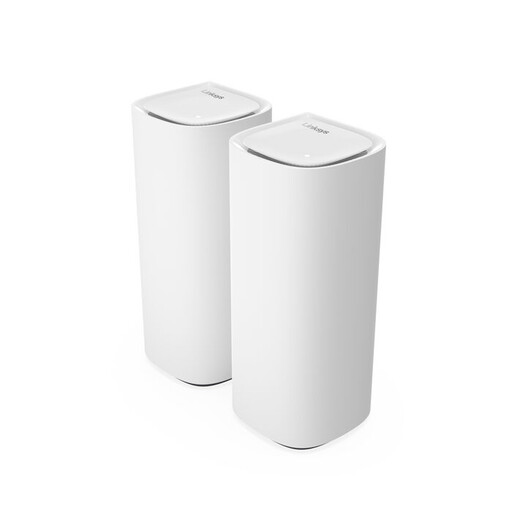
Linksys Velop Pro 7, tri-band Wi-Fi 7 (802.11be)
A mesh product to compare if you want to provide Wi-Fi in several areas of your home.
Tri-band Wi-Fi 7 (802.11be).
Joybuy
Frequently asked questions
Does the media server need to connect via Wi-Fi?
No. If you want to connect the server by cable, check that there’s a free Ethernet port in the right place in your chosen setup. The number of ports alone doesn’t tell you how fast the full connection to each screen will be.
How can you tell whether Deco nodes are communicating via Ethernet?
According to TP-Link, you can select a satellite on the network map in the Deco app to see whether it’s using Ethernet backhaul. Also follow the connection instructions for the router or access point mode you choose.
Can you keep your current router?
It depends on the system and the mode you choose. eero describes bridge mode for use with an existing router, but warns that some advanced features won’t work in this mode. Check which features will remain available in your chosen setup.
Do you need a licence for ordinary home Wi-Fi?
The Dutch Authority for Digital Infrastructure states that Wi-Fi uses licence-exempt frequencies and doesn’t require notification or registration, provided the conditions of use are met. Radio equipment must also meet the applicable product requirements.
What should you check about the CE marking?
Check that the specific version being offered has the correct CE marking. A declaration for a different hardware version doesn’t confirm that the version you’re looking at is the same; the Dutch Authority for Digital Infrastructure describes the applicable requirements for radio equipment.


