First, check whether your internet connection is good at the router. If the connection itself is poor, mesh Wi-Fi won’t fix it. If the main problem is weak coverage at the end of the corridor, work out where the mesh nodes can still maintain a connection with each other, and whether you can connect them using an Ethernet cable.
Who is mesh Wi-Fi suitable for?
Watching a lecture where Wi-Fi coverage is weak
If your lecture keeps buffering mainly at the end of the corridor, you’ll want to know whether the placement and number of Wi-Fi nodes can improve coverage there. The Consumers’ Association of the Netherlands recommends positioning Wi-Fi nodes according to the coverage needed in the areas you want to use.
Watching with a busy home network
When other people are using Wi-Fi at the same time, it’s important to check how the nodes connect to each other and whether the setup can handle simultaneous use.
Keeping your existing router
If you want to keep your provider’s router, check how the mesh system connects to it. ACM ConsuWijzer explains your freedom to choose a router; how you install a mesh system behind an existing router also depends on the equipment you choose.
What should you look for when choosing?
First, compare the connection by your router with the one where you watch your lecture. Then decide whether it would be better to move the router, add another node or connect the nodes to each other using Ethernet.
| What to consider |
What should you check? |
Who should prioritise this? |
| Coverage where you watch your lecture |
Test the connection by the router and at the end of the corridor. Then see where an additional node could still maintain a good connection. |
If I mainly need a usable connection where I watch my lecture, I want to know whether changing the placement or adding a node will help. Around 36% of consumers prioritise coverage. |
| Connection between the nodes |
Check whether a wired backhaul is possible and whether each wireless node can still connect to the previous one. |
If I don’t want to keep worrying about the connection during a live lecture, I also look at how the nodes connect to each other. Around 29% of consumers give connection stability top priority. |
| Connecting to your home network |
Check whether the system can work behind your existing router and which connection method is compatible with your equipment. |
If I want to keep my current router, I want to know in advance how the mesh nodes connect to it. Around 21% of consumers prioritise this. |
| Running costs and security |
Check the system’s energy consumption, the availability of security updates and which features work without an additional subscription. |
If I’m going to use the system long term, I look beyond installation to energy consumption and security support too. Around 14% of consumers give these points top priority. |
Pitfalls to avoid
-
Assuming a higher advertised Wi-Fi speed guarantees uninterrupted video
Actual coverage and speed depend on factors including obstacles, network congestion and the device you’re using.
First, assess the placement and the connection between the nodes. Then test the connection where you watch your lecture during normal use.
-
Putting an extra wireless node exactly where the Wi-Fi signal already drops out
The node needs to be able to connect to the rest of the network itself; otherwise, that location may not help when you’re watching your lecture.
Try a position between the router and the problem area, or check whether you can connect the nodes using an Ethernet cable.
-
Assuming every product with X50 in its name is the same system
A model name can refer to different versions and pack sizes. For example, Deco X50 versions are available with different numbers of nodes, as well as a separate X50-PoE version.
Compare the full model name, version and number of included nodes on the product page.
Brands to compare
TP-Link
The Deco X50 is a Wi-Fi 6 mesh range available in versions with one, two or three nodes.
- TP-Link says each Deco X50 node has three gigabit ports.
- The advertised coverage is a manufacturer specification, not a measurement in your home. Check the version and the connection between the nodes.
ASUS
The ZenWiFi BD4 is a mesh range worth comparing if wired connections and configuration options matter to you.
- ASUS specifies two 2.5-gigabit ports for the BD4, as well as an option for wired backhaul.
- The advertised Wi-Fi and coverage figures are manufacturer specifications. Check how many nodes are included in the version you choose.
FRITZ!
The FRITZ!Mesh Set 4200 is worth considering if you want to keep your existing router and are looking at a system with two mesh nodes.
- FRITZ! describes how to install the system behind a FRITZ!Box and behind a router from another brand.
- Installation varies depending on the connection. The product information doesn’t say what coverage you’ll get at the end of your corridor.
Mesh Wi-Fi with multiple nodes
These Joybuy products are three-node mesh systems for setting up along a corridor. Check that the version you choose is compatible with your router and has the connections you need.
 No image available
TP-Link Deco E4 (3-pack)
This three-unit mesh system is worth comparing if you want to position several nodes along the corridor.
Dual-band Wi-Fi 5; two Ethernet ports per unit, with a maximum speed of 100 Mbps according to the product description.
View at Joybuy
 No image available
TP-Link Deco M4 (3-pack)
With three mesh nodes, you can position several along the corridor. After installation, check the connection where you watch your lecture.
Wi-Fi 5; two Ethernet ports per unit.
View at Joybuy
 No image available
TP-Link Deco X50 (3-pack)
This three-node mesh system is worth comparing if you want to position nodes along the corridor.
Dual-band Wi-Fi 6; three gigabit ports per unit.
View at Joybuy
 No image available
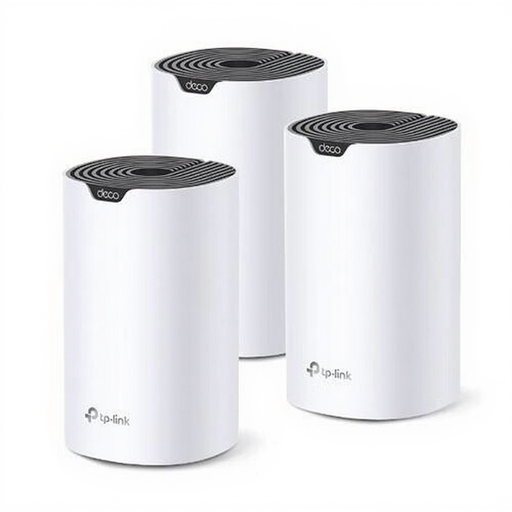
TP-Link Deco S7 (3-pack)
A three-unit mesh system worth comparing if you want to position several nodes in the corridor.
Dual-band Wi-Fi 5; three Ethernet ports per unit.
View at Joybuy
 No image available
TP-Link Deco XE75 Pro (3-pack)
This three-unit mesh system is worth comparing if you want to spread several nodes along the corridor.
Tri-band Wi-Fi 6E; three Ethernet ports per unit.
View at Joybuy
Frequently asked questions
Should I buy mesh Wi-Fi straight away if my lecture keeps buffering at the end of the corridor?
No. First, test the connection by the router and where you watch your lecture. The Consumers’ Association of the Netherlands recommends using a wired connection for a speed test. If that connection is poor too, look into your internet service first. If the problem is limited to local coverage, try moving the router as well.
Where should I place a wireless mesh node?
Don’t automatically put it where the Wi-Fi signal already drops out. Choose a spot where the node can still connect to the previous one, then check the connection where you watch your lecture. Distance and obstacles affect the results.
Can I use my own router in the Netherlands?
According to ACM ConsuWijzer, you’re free to choose your router, but direct connections to your provider’s network may be subject to technical and security requirements. Ask your provider for the necessary settings if needed. Connecting a mesh system behind your existing router is a different setup.
What safety requirements apply to Wi-Fi equipment sold in the Netherlands?
The Dutch Digital Infrastructure Inspectorate sets out the applicable European requirements for radio equipment and the associated CE marking. The additional RED cybersecurity requirements have applied since 1 August 2025. Check the marking and product documentation for the exact version you’re buying.
Does the manufacturer’s warranty cover everything?
No. According to ACM ConsuWijzer, statutory rights apply alongside any manufacturer’s or seller’s warranty. If a product doesn’t perform as you could reasonably expect under normal use, the seller is responsible for providing an appropriate solution.


