
Loft user with a weak signal
You want to work or watch content in your converted loft and are weighing up a cable against a wireless connection between floors.


If you can run a network cable to the loft, choose a mesh system with Ethernet backhaul and count in advance how many ports will be left for the shared screen. If you can’t run a cable, wireless mesh may be an option, but the connection depends on the property and where you place the nodes; concrete and insulation can weaken the signal between floors. Also check that the system is compatible with your modem and existing Wi-Fi points.
You want to work or watch content in your converted loft and are weighing up a cable against a wireless connection between floors.
You want to connect the screen in the living room and check in advance whether a network port will be left free.
You want to expand your setup without assuming that points from different generations or systems will work together as one mesh.
Start by considering the connection between floors: use a cable if that’s practical, or go wireless if you can find a spot where the points can still reach each other. The Consumentenbond describes tests using Wi-Fi and cable connections; Ziggo notes that materials such as concrete and insulation can reduce how well the signal travels.
Choose this when: there’s already a network cable between the floors, or you can install one.
The trade-off: installation takes work, and a port used for the backhaul won’t also be available for the screen.
Choose this when: running a cable isn’t practical and you can find a midway spot where the points can still reach each other.
The trade-off: the connection still depends on your property and where you place the points; product specifications can’t predict how a particular loft floor will affect the signal.
Choose this when: you want to keep your existing equipment and the manufacturer or provider supports the combination.
The trade-off: compatibility varies by model and generation, so check the full model names before buying an extra point.
| What to consider | What to check before buying | Who is this most relevant to? |
|---|---|---|
| Connection to the loft | Check whether Ethernet backhaul is possible; if not, assess the connection from a potential midway spot. | If I want to work or watch content in my converted loft, I want to know whether the connection will reach it before choosing a system. Around 36% of consumers prioritise loft coverage. |
| Connecting the screen | Count the free LAN ports, including a port for any wired backhaul, and check whether the screen supports Ethernet. | If the shared screen needs a wired connection, I want to know whether a port will still be available. Around 29% of consumers give connecting the screen top priority. |
| Modem and existing points | Make a note of the full model names and check the supported connection method and mesh compatibility. | If I want to keep my modem or Wi-Fi points, I want to know in advance whether they’ll work with the new system. Around 21% of consumers prioritise compatibility. |
| Use and maintenance | Check how many points you need, energy consumption information, firmware support and any additional services. | If you’re also considering points that stay switched on all the time and services that may no longer be included after an introductory period, you’ll want to check the terms in advance. Around 14% of consumers consider ongoing costs and maintenance their top priority. |
A product specification can’t describe the construction of your home. Concrete and insulation can weaken the wireless connection between floors.
Assess the route to the loft and find out whether wired backhaul is possible before deciding how many points you need.
Depending on the route you choose, you may need an extra point or have to install a cable.
A port may already be needed for the connection between mesh points. The number of ports also varies by model.
Map out the connections between your modem, points and screen, then count the available LAN ports.
Not every mesh point will form a single system with equipment from another generation. For example, Google says that Nest Wifi Pro doesn’t form a mesh with older Nest Wifi or Google Wifi points.
Check the full model names and compatibility information before buying an extra point.
If your existing points aren’t compatible, keeping them may mean you need a different way to expand your setup.
NETGEAR lists one year of NETGEAR Armor with the Orbi RBK763S; this doesn’t automatically mean the service will still be included after that.
Check the terms for the period after the first year and decide whether you want to continue using the additional service.
The Deco range includes the X50, which supports optional Ethernet backhaul, and a separate X50-PoE version designed for Power over Ethernet installation.
The Orbi RBK763S is a wireless tri-band mesh system with a router and two satellites.
The ZenWiFi XT9 is a tri-band Wi-Fi 6 option whose ports and operating mode may be important for your setup.
Nest Wifi Pro is a Wi-Fi 6E mesh option for anyone looking to expand their setup within Google Home.
SuperWifi is an option for households looking to expand their existing KPN setup.
These mesh systems offer different ways to connect a shared screen downstairs and get a connection to the loft. For the specific version you’re considering, check that it has the correct CE marking: according to the Dutch Authority for Digital Infrastructure, this is required for radio equipment placed on the EU market.
 No image available
A mesh option to consider if you want to connect the points by cable; check in advance that this version and its connections suit your setup.
Wi-Fi 7 (802.11be); dual-band (2.4 GHz and 5 GHz). The product information lists an option for wired backhaul.
 No image available
A set of three mesh stations to consider if you want to connect several rooms wirelessly; the connection in the loft will depend on where you place them and the property itself.
Dual-band (2.4 GHz and 5 GHz); Wi-Fi 5 (802.11ac). The product information lists two Ethernet ports per unit.
 No image available
A mesh system to consider if you can run a cable between floors and want to factor in the connections needed for your screen.
Dual-band (2.4 GHz and 5 GHz); Wi-Fi 6 (802.11ax). TP-Link lists optional Ethernet backhaul and three gigabit ports per point for the Deco X50.
 No image available
A mesh router to include in your comparison; before buying, check how this version works with any additional points in your planned setup.
Dual-band; Wi-Fi 6. The product name identifies this model as a mesh router.
 No image available
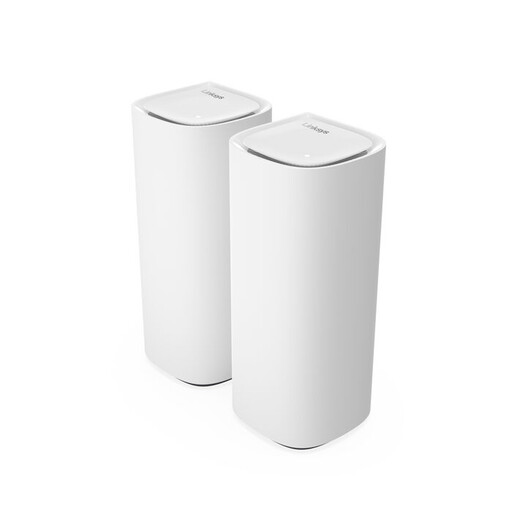
A mesh system to consider if you’re planning to use several points and wired devices; check which ports are available on each point.
Tri-band (2.4 GHz, 5 GHz and 6 GHz); Wi-Fi 7 (802.11be). The product information lists two included nodes and 1 and 2.5 Gbps Ethernet ports.
Place a wireless point somewhere it can still connect to the other point, rather than simply putting it where the signal is weakest. Bear in mind obstacles such as concrete and insulation; Ziggo lists these materials as factors that can reduce how well Wi-Fi travels.
It depends on how many free LAN ports the points you choose have, and whether the screen has an Ethernet port. Google describes both connecting a device such as a TV directly and adding ports with a switch; check the port layout of the system you choose.
Google says that older Nest Wifi and Google Wifi points don’t form a mesh with Nest Wifi Pro. Check this before switching if you want to keep using your existing points.
According to ACM ConsuWijzer, your statutory guarantee is separate from any manufacturer’s guarantee. If a product is faulty despite normal use, the seller must offer an appropriate remedy at no cost; in the Netherlands, there is no general fixed statutory guarantee period of two years.
According to the Dutch Authority for Digital Infrastructure, Wi-Fi is generally licence-exempt for home use when you use the designated frequencies and comply with the conditions of use. Radio equipment placed on the EU market must have the correct CE marking; check this for the specific version you’re buying.