First, measure your internet connection and Wi-Fi signal where you teach. If the Wi-Fi is the only problem, adjusting the placement or settings may be enough. If a second room remains difficult to reach, an expandable mesh setup could be suitable, provided the nodes themselves have a usable connection. Extra Wi-Fi nodes or a newer Wi-Fi standard won’t fix a slow internet connection.
Who might benefit from mesh Wi-Fi?
Teacher with an unreliable lesson connection
Teaches live lessons from home and wants to find out whether the weak link is the internet connection or the Wi-Fi where they teach. The Consumentenbond explains ways to improve Wi-Fi at home, while the Zoom Technical Library outlines the bandwidth needed for video calls.
Renter with a hard-to-reach teaching room
Wants to improve coverage in a second room but would rather use Wi-Fi nodes that can be moved than install a fixed system. The Consumentenbond and TP-Link Nederland outline things to consider when it comes to Wi-Fi coverage and mesh.
Teacher who lets pupils connect
Wants a reliable connection for lessons, as well as the ability to manage guest access and protect their home network. Google and ACM ConsuWijzer cover network features and things to consider when using your own equipment, respectively.
What should you consider when choosing?
Improve your existing Wi-Fi
Choose this if: you already have coverage where you teach and a test points to an issue with placement, settings or your internet connection.
Trade-off: you avoid adding another device, but an adjustment may not help if distance or a wall is weakening the connection.
Connect one teaching device by cable
Choose this if: you usually teach from one fixed spot and can run a cable there safely and practically.
Trade-off: the cable bypasses Wi-Fi for that device, but won’t improve wireless coverage for other devices.
Expandable mesh setup
Choose this if: tests identify a teaching room with weak Wi-Fi and there’s space for an extra node with a power socket and a usable connection.
Trade-off: placement is still key. A cable between nodes may be an option if the system supports it and the cable route is practical.
Test the connection by your router and where you teach, and check your internet connection’s upload speed too. This helps you tell the difference between an internet connection problem and weak Wi-Fi coverage.
| What to consider |
What should you check? |
Who is this important for? |
| Video calls |
Test where you teach and by your router; check your upload connection and whether you can connect your teaching device using Ethernet. |
I don’t want to drop out during live lessons and want to find out first whether the internet connection or Wi-Fi is the problem; around 36% of consumers put uninterrupted lessons first. |
| Coverage and placement |
Check where your modem, power sockets and teaching space are; see whether you can expand the kit later and whether it supports Ethernet backhaul if you have a cable route. |
I want to reach a hard-to-cover teaching room without making permanent changes to my rented home; around 29% of consumers prioritise coverage with equipment they can move. |
| Guest access and security |
Check the guest network feature on the exact kit, the settings available and which features work without a subscription. |
I want to give pupils access without losing sight of how my own network is managed; around 21% of consumers put managing pupil access first. |
| Setup and running costs |
Compare the number of nodes in the box, how they connect to your existing router and whether features you want to use require a subscription. |
I don’t want to pay for nodes or services I don’t need; around 14% of consumers put purchase and running costs first. |
Common mistakes when buying mesh Wi-Fi
-
Buying a mesh kit without checking where the slowdown is happening
Extra Wi-Fi nodes won’t automatically fix a problem with your internet connection or router settings.
Compare the connection by your router and where you teach before deciding whether you need extra coverage.
-
Assuming the stated coverage guarantees a signal in your teaching room
Usable coverage also depends on placement and the conditions in your home. A compact rental home doesn’t automatically need the biggest kit.
Choose the number of nodes based on the weak spot you’ve identified, and check whether you can add more later.
-
Assuming all guest and security features are included
TP-Link distinguishes between basic use and more advanced HomeShield features; some of the additional features may require a subscription.
Compare the features of the exact model with what you need for language lessons, and check which ones work without a subscription.
-
Assuming nodes from different generations will work together as one mesh
Google states that Nest Wifi Pro cannot form a single mesh with older Nest Wifi or Google Wifi nodes. This limitation applies to these models and isn’t a general rule for every brand.
Before buying, check whether the new kit is compatible with the nodes you already use.
Brands to consider
TP-Link
The Deco X50 is an expandable Wi-Fi 6 mesh range. TP-Link Nederland lists three gigabit ports and optional Ethernet backhaul for the X50.
- TP-Link says you can expand the X50 with additional Deco nodes.
- Check how many nodes are included in the box. More advanced HomeShield features may require a subscription, and the stated coverage isn’t guaranteed in your rented home.
FRITZ!
The FRITZ!Mesh Set 1700 is a Wi-Fi 7 option that, according to the manufacturer, can connect to an existing router via LAN.
- The manufacturer lists guest access, updates and a five-year warranty for this kit.
- FRITZ! describes the two-piece kit as suitable for homes with three to five rooms. Check whether you can start with a smaller setup in a compact home.
ASUS
According to ASUS, ZenWiFi BD4 has access point mode and two 2.5Gbit/s ports per unit.
- ASUS also lists a guest network and connectivity options for those who need these features.
- Box contents may vary by region. Check the exact version; 2.5Gbit/s ports don’t mean your internet connection will deliver that speed.
Google
According to Google, Nest Wifi Pro is an expandable Wi-Fi 6E option that can be used with an existing Wi-Fi modem.
- Google lists automatic updates and features for video calls.
- According to Google, Nest Wifi Pro can’t form a single mesh with older Nest Wifi or Google Wifi nodes. The stated coverage doesn’t guarantee a connection in your home.
Joybuy products
These products are mesh options for anyone who needs extra Wi-Fi coverage after checking their connection. The selection includes Wi-Fi 6 and Wi-Fi 7 models in a range of configurations.
 No image available
TP-Link Deco BE68, 2-pack
Could be suitable if tests identify a teaching room with weak Wi-Fi and you’re looking for a mesh kit with two nodes.
The product name specifies Wi-Fi 7 and a two-node kit.
Joybuy
 No image available
ASUS ZenWiFi BT8, 2-pack
Could be suitable if tests show that a mesh kit could help improve Wi-Fi in a room where you teach.
The product name specifies Tri-Band (2.4GHz/5GHz/6GHz) and Wi-Fi 7.
Joybuy
 No image available
TP-Link AX1800 Whole Home Mesh Wi-Fi 6 System, 2-Pack
Could be suitable if you’re looking for a two-node mesh setup after checking coverage where you teach.
The product name specifies Wi-Fi 6 and a two-node kit.
Joybuy
 No image available
Huawei eKit OptiX FG736 BE3600 Dual-Band Wi-Fi 7 Mesh Router
Could be suitable if you’re considering a Wi-Fi 7 mesh router after establishing that you need extra Wi-Fi coverage.
The product name specifies dual-band and Wi-Fi 7.
Joybuy
 No image available
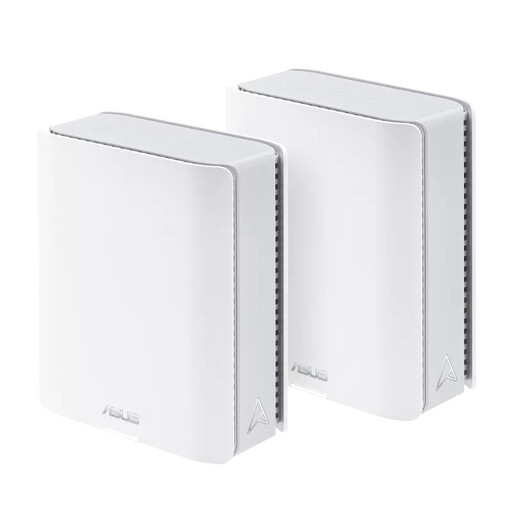
ASUS ZenWiFi BT10, 2-pack
Could be suitable if tests show that a mesh kit could help improve Wi-Fi in a room where you teach.
The product name specifies Tri-Band (2.4GHz/5GHz/6GHz) and Wi-Fi 7.
Joybuy
Frequently asked questions
How can you tell before buying whether mesh could improve your lesson connection?
Test the connection by your router and where you teach, and first check the placement and settings. For a 720p HD group call, Zoom gives a guideline of 2.6 Mbit/s upload and 1.8 Mbit/s download for one participating device. This doesn’t guarantee the capacity needed for all devices using the connection at the same time, or for another teaching service.
Can you keep your provider’s router in the Netherlands?
Yes. In the Netherlands, you’re allowed to choose your own router. ACM ConsuWijzer states that a provider can refuse an unsafe device and that you’ll need the correct connection settings. Check how your chosen mesh kit works with your existing router and internet connection.
What should you consider when installing and maintaining your system?
Place an extra node where it can still get a good connection, then test the teaching room. Use strong login details, check your privacy settings and keep your equipment up to date. The Dutch Data Protection Authority advises replacing a default password with a strong password or passphrase.
What costs and terms should you check after purchase?
Check how many nodes are included in the kit you’ve chosen, which features work without a subscription and what warranty terms apply to that exact version. TP-Link offers subscriptions for more advanced HomeShield features.


