
Film streamer with a study at the far end of the home
You want your film to keep playing on the TV while your study gets usable Wi-Fi. Check the connection in both places; Netflix recommends at least 15 Mbps for its own 4K UHD streams.


For streaming films while using a study at the far end of your home, choose mesh Wi-Fi based on the connection at both your TV and your workspace, and where the nodes can still reach each other reliably. The advertised Wi-Fi speed alone won’t tell you this. If you can run an Ethernet cable to the study, choose a system that supports Ethernet backhaul. Without a cable, placement and the wireless connection between nodes are key.
You want your film to keep playing on the TV while your study gets usable Wi-Fi. Check the connection in both places; Netflix recommends at least 15 Mbps for its own 4K UHD streams.
You want to work out where a wireless mesh node can still get a connection, and whether running an Ethernet cable would be more practical. The Dutch Consumers' Association recommends placing a Wi-Fi node closer to the centre of your home if the signal is weak at the far end.
You stream while working or using other connected devices, and don’t want to rely solely on the maximum speed printed on the box. The Dutch Consumers' Association notes that the Wi-Fi version alone says nothing about performance.
Choose this if: you have a suitable spot between the nodes where the second one can still get a usable connection to the network.
Bear in mind: walls and distance can weaken the wireless connection between nodes.
Choose this if: you already have a suitable Ethernet cable in place, or want to run one to the study.
Bear in mind: you’ll need a cable route and compatible Ethernet ports that are available for use.
| What to consider | What to look for | Who it’s for |
|---|---|---|
| Streaming by the TV | Test the connection where you watch and check whether the TV connects over Wi-Fi or Ethernet. Netflix recommends a stable connection of at least 15 Mbps for its own 4K UHD streams; this isn’t a general requirement for every streaming service. | I want the film to keep playing on the TV while the study remains connected. Around 36% of consumers put stable streaming by the TV first. |
| Coverage in the study | Check the layout of your home, any obstructions and possible spots between the nodes. Once everything is installed, test the connection in the study too. | When I’m working in the room at the far end of the home, I want usable Wi-Fi there. Around 29% of consumers put coverage in the study first. |
| Using several devices at once | Consider the devices in use and look at independent coverage and speed tests, not just the advertised maximum wireless speed. | When people are streaming and working at the same time, I want a connection in both places. Around 21% of consumers put simultaneous use at the top of their list. |
| Installation and running costs | Check whether you can run a cable, how many Ethernet ports the exact model has, and how much power it uses. | I don’t want to run cables or add extra nodes unless I need to. Around 14% of consumers put installation and running costs first. |
An advertised speed or coverage figure doesn’t show what connection you’ll get where you watch. The Dutch Consumers' Association says the Wi-Fi version alone isn’t a reliable indicator of performance, and tests factors including speed and coverage.
Test the connection by your TV and in the study, and check independent reviews of specific models where available.
A wirelessly connected node needs a usable connection to the rest of the network itself.
First, try a spot between the nodes with fewer obstructions. If that doesn’t work, compare it with Ethernet backhaul if running a cable is an option.
If there’s no suitable spot between the nodes, you may need an extra node or to run a cable.
Deco X50, X50-PoE and X50-5G are different model names. A 2-pack and a 3-pack also contain different numbers of nodes.
Before you buy, check the full model name, version, power supply, ports and number of nodes in the box.
The Deco X50 is a dual-band Wi-Fi 6 mesh range with optional Ethernet backhaul.
The ZenWiFi range includes the dual-band Wi-Fi 6 XD5 and dual-band Wi-Fi 7 BD4. Models and node counts vary by pack.
The Orbi 770 Series is a tri-band Wi-Fi 7 mesh option for anyone considering multiple nodes and multi-gigabit connections.
The eero 6+ is a Wi-Fi 6 mesh option that you configure using an app.
This Joybuy selection includes mesh systems in 2-packs and 3-packs to connect your TV and study. Consider how many suitable places you have for the nodes, and check that each model supports the cabling and ports you need.
 Image unavailable
This 2-pack is worth considering if you want to connect two areas of your home with mesh. Check that this model suits your cabling plan.
Pack: 2-pack.
 Image unavailable
This set is an option for connecting two areas of your home; the product name specifies tri-band Wi-Fi 7 on 2.4, 5 and 6 GHz.
Check that its features suit your devices and that this exact set fits your placement plan.
 Image unavailable
This 2-pack is designed for a mesh setup connecting two areas of your home; the product name specifies Wi-Fi 6.
If you want to use Ethernet backhaul, check that this model supports it and see which ports are available.
 Image unavailable
This 3-pack is worth considering if you want to try three node locations; the product name specifies dual-band Wi-Fi 6 on 2.4 and 5 GHz.
Check that there’s a suitable spot for each node and that this exact model works with your connections.
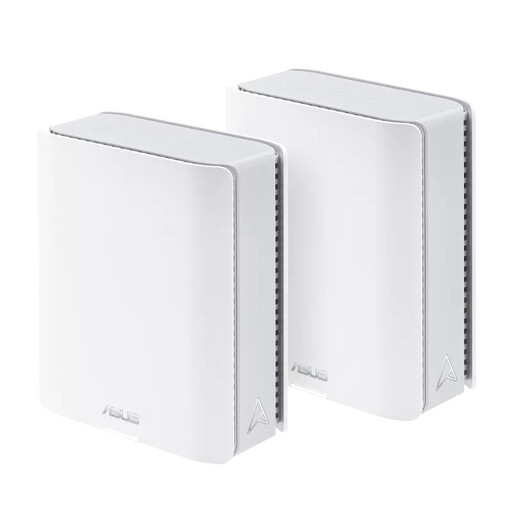 Image unavailable
This 2-pack is an option for connecting two areas of your home; the product name specifies tri-band Wi-Fi 7 on 2.4, 5 and 6 GHz.
Check that your devices support the listed Wi-Fi features and that the set suits your home’s layout.
No, that figure doesn’t automatically apply to every streaming service or to several streams at once. Netflix recommends a stable connection of at least 15 Mbps for its own 4K UHD playback. Check your service’s requirements too, and test the connection at the playback device.
Don’t automatically put a wirelessly connected node where the existing signal has already dropped out. The Dutch Consumers' Association recommends placing it closer to the centre of your home if the signal is weak at the far end. Then check the connection by both your TV and in the study.
Use a strong password and keep your router and Wi-Fi devices up to date. Before you buy, check that the model supports the security updates and settings you need; a guest network can also be useful.
If a product is faulty, the seller is responsible under the Netherlands’ statutory warranty. ACM ConsuWijzer explains that there is no fixed two-year period: what matters is what you could reasonably expect from the product.
According to the Dutch Authority for Digital Infrastructure, you can use Wi-Fi at home without a licence as long as you follow the rules for the designated frequencies and their use. Radio equipment sold in the Netherlands must meet the applicable requirements; check that the specific model carries the correct CE marking.