
Home workers with poor coverage
You present from a room where the signal from your existing router is too weak, and want to work out how many mesh units will suit your home.


Mesh Wi-Fi is worth considering if the Wi-Fi signal in your workspace is weak. First, check whether the dropouts are caused by the signal rather than your internet connection or meeting app. If you can connect the units using Ethernet, a system that supports wired backhaul is an option. If not, positioning and the wireless connection between units become even more important. You don’t automatically need Wi-Fi 7 just to share presentations.
You present from a room where the signal from your existing router is too weak, and want to work out how many mesh units will suit your home.
You can connect your workspace or mesh units using cables, and want to use this option to rely less on wireless backhaul.
Other people use your home network while you’re presenting. That’s why you’re considering the connection between the mesh units and the ports available.
Choose this if: you have Ethernet cabling between the mesh units.
Bear in mind: you’ll need a cable, as well as Ethernet ports for your laptop if you want to connect it by wire.
Choose this if: you can’t run a cable between the units and can position one where it still gets a good enough signal from the previous unit.
Bear in mind: distance, walls and other network traffic can affect the connection to your home office.
First, check the signal in your workspace. Then choose the number of units, how they’ll connect and which ports you need.
| What to consider | What to look for when buying | Who is this important for? |
|---|---|---|
| Coverage where you present | Assess the signal in your workspace and at a potential position for an additional unit. Don’t assume the stated coverage is guaranteed in your home. | If you present in a room with poor coverage, you’ll want a usable connection there. Around 36% of consumers focus mainly on coverage in their workspace. |
| Connection between units | Check support for Ethernet backhaul and the ports you’ll need. If you’re not using a cable, compare the wireless backhaul options and position the units where they have a good signal from each other. | If you have cables between units, or want to optimise the wireless connections, the link between those units is a priority. Around 29% of consumers say this is their main concern. |
| Multiple users and ports | Count the devices that will be active at the same time, and check the number and speed of the Ethernet ports on each unit. Specifications can’t predict the exact speed you’ll get at home. | If other members of your household are online while you present, you’ll want to know which devices will be connected at once and what you can connect by cable. Around 21% of consumers focus mainly on multiple users and connections. |
| Compatibility and management | Check how the system works with your existing router or modem, and which management and update features apply to the exact model you’re considering. | If you want to keep your current router and manage the system easily, check compatibility and maintenance requirements first. Around 14% of consumers consider this their most important factor. |
The Consumers’ Association (Consumentenbond) recommends positioning mesh units so that as few obstacles as possible lie between them. With wireless placement, backhaul matters: Tweakers explains that devices connected to a satellite depend on the quality of that link. So the Wi-Fi generation or combined speed alone won’t tell you how a system will perform in your home.
The unit also needs a connection to the rest of your network. If there’s no usable signal where you place it, it can’t simply restore that connection.
Try placing it somewhere it still gets a good signal from the previous unit. The Consumers’ Association recommends minimising obstacles between the units.
Depending on your home, you may need an additional unit or a network cable.
Wi-Fi version, backhaul, ports and conditions in your home are all different factors. The stated combined speed isn’t a measurement of your connection during a presentation.
Compare the connection between the units and the ports you’ll actually use, and bear in mind your home and the demands of other devices on the network.
A product range may include different numbers of units and different models.
Check the full model code, number of units, included items and terms for the exact version you’re considering.
The Deco X50 is a Wi-Fi 6 mesh option available with one, two or three units, so you can compare coverage and connections.
The ZenWiFi XT9 is a tri-band Wi-Fi 6 option for comparing wireless backhaul and connections.
The FRITZ!Mesh Set 1600 is designed to add mesh Wi-Fi to an existing router or modem.
The Orbi 970 series is a technical comparison option for larger homes and fast connections, but that doesn’t mean it’s automatically necessary for sharing slides.
These mesh systems available from Joybuy are designed to provide Wi-Fi coverage around your home. They come with two or three units and offer Wi-Fi 7, Wi-Fi 6E or Wi-Fi 6.
 No image available
You can position the two mesh units around your home if you need Wi-Fi in several areas.
The system supports the 2.4GHz, 5GHz and 6GHz bands.
Product information lists two gigabit ports and two 2.5-gigabit ports per unit.
 No image available
With three mesh units, you can extend Wi-Fi to several areas of your home.
Product information lists three gigabit ports per unit.
TP-Link says the Deco X50 supports optional Ethernet backhaul.
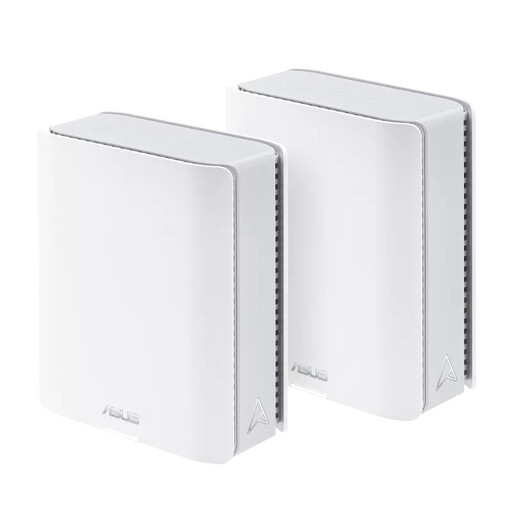 No image available
The two units are designed to provide Wi-Fi in two areas of your home.
Product information lists two 10-gigabit ports and one gigabit port per unit.
The system supports tri-band Wi-Fi.
 No image available
With three mesh units, you can extend coverage to several areas of your home.
Product information lists support for the 2.4GHz, 5GHz and 6GHz bands.
Product information lists three Ethernet ports per unit.
 No image available
This three-unit mesh system can provide Wi-Fi coverage in different areas of your home.
Product information lists support for the 2.4GHz, 5GHz and 6GHz bands.
Product information lists three gigabit ports per unit.
Not necessarily. Mesh units can improve Wi-Fi coverage in your home, but if you experience dropouts, check your internet connection and meeting app too. For example, Microsoft Teams provides separate information on network, audio and screen-sharing quality.
Don’t wait until you reach the point where your existing signal disappears. The Consumers’ Association recommends keeping obstacles between Wi-Fi units to a minimum. Placing a unit closer to the centre of your home may help extend coverage to a weak spot further away.
Not necessarily: some systems can be connected to an existing router or modem. ACM ConsuWijzer confirms that, in principle, you can choose your own router in the Netherlands. Ask your provider which settings you need and check that the system you choose is compatible with your connection.
Radio equipment must meet the applicable European requirements. The Netherlands’ Inspectorate for Digital Infrastructure (Rijksinspectie Digitale Infrastructuur) says that equipment must carry the CE marking. Check the marking and conformity information for the exact version you’re buying.
Check that the number of mesh units and ports suits your setup, whether you need Ethernet cabling, and which warranty and update terms apply to that version. FRITZ! offers a five-year warranty on the Mesh Set 1600; this term doesn’t automatically apply to other systems.