Joybuy mesh Wi-Fi products
These Joybuy product picks are mesh kits that could provide a Wi-Fi route to your converted loft. Before deciding, check the exact version, the number of nodes included and the connection options for each model.
 No image available
TP-Link Deco X50 (3-pack), dual-band Wi-Fi 6
The three-node kit gives you several possible placement options; the connection in your loft depends on where you place the nodes and how well they connect to one another.
TP-Link lists optional Ethernet backhaul and three gigabit ports per node for the Deco X50. Ethernet backhaul requires a suitable network cable between the nodes.
The product name specifies dual-band Wi-Fi 6, with 2.4 GHz and 5 GHz bands.
Joybuy
 No image available
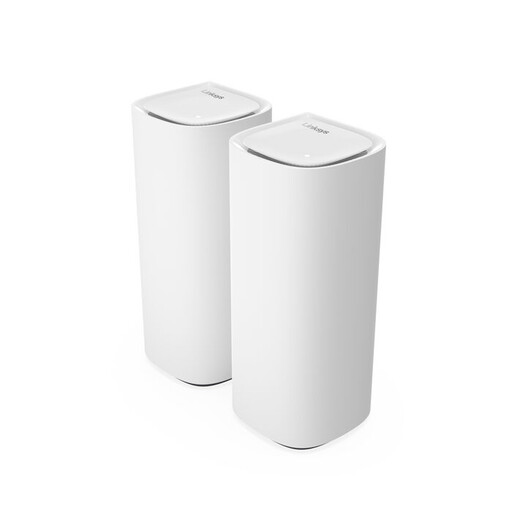
Linksys Velop Pro 7, tri-band Wi-Fi 7
An option to compare if you’re looking for a tri-band mesh model; the connection to your loft will still depend on where you place the nodes and your home’s layout.
The product name specifies Wi-Fi 7 and 2.4 GHz, 5 GHz and 6 GHz bands.
Joybuy
 No image available
TP-Link Deco XE75 Pro (3-pack), tri-band Wi-Fi 6E
With three nodes included, you can try different positions between your router and loft; the kit doesn’t guarantee coverage where you watch.
The product name specifies tri-band with 2.4 GHz, 5 GHz and 6 GHz bands, and Wi-Fi 6E.
Joybuy
 No image available
TP-Link Deco XE75, tri-band Wi-Fi 6E
A mesh option to compare if you’re considering a model with a 6GHz band; the connection you get in practice depends on your home and where you place the nodes.
The product name specifies tri-band Wi-Fi 6E with 2.4 GHz, 5 GHz and 6 GHz bands.
Joybuy
 No image available
TP-Link Deco X50-PoE (3-pack), dual-band Wi-Fi 6
The three-node kit gives you several placement options; check that the connection method suits your network and planned cable route.
The product name specifies PoE, two Ethernet ports and dual-band Wi-Fi 6, with 2.4 GHz and 5 GHz bands.
Joybuy
Frequently asked questions
How can you check whether mesh will fix a documentary that keeps buffering in the loft?
First test your internet connection using a network cable, then check the connection on the playback device in your loft. If your broadband connection itself is too slow, mesh can’t fix it. Netflix recommends a stable connection of at least 5 Mbps for Full HD and 15 Mbps for 4K on its service.
Where should you put a wireless mesh node for your loft?
Don’t put the node right where you watch if it can barely receive a signal there. Find an intermediate spot with a power socket and use the setup guide to check that the nodes connect well to one another. Walls and ceilings can still affect the signal.
Can you use your own mesh router alongside your broadband provider’s router?
Yes, but the right setup depends on your equipment and settings. ACM ConsuWijzer confirms that you can choose your own router in the Netherlands. Check whether your mesh kit should be set up as a router or an access point behind your existing router; if you’re replacing your provider’s equipment, ask for the required network settings if needed.
What are the rules on warranties and extra security costs in the Netherlands?
As well as any manufacturer’s warranty, you have a statutory guarantee from the seller for as long as the product must meet what you could reasonably expect; this isn’t automatically a fixed two-year period. Check whether extra security features require a subscription: TP-Link, for example, charges for HomeShield Pro.
Do you need a licence for Wi-Fi at home, and what product requirements apply?
According to the Rijksinspectie Digitale Infrastructuur, using Wi-Fi within the designated licence-exempt frequency bands doesn’t require a licence, notification or registration; the terms of use still apply. Radio equipment placed on the market in the Netherlands must meet the relevant European requirements. The Dutch government’s Ondernemersplein explains that the manufacturer assesses conformity, draws up an EU declaration of conformity and applies the required CE marking.


