
Uploading photo albums from the loft
You mainly want a reliable connection in your converted loft. Floors, walls and insulation can weaken the Wi-Fi signal between floors.


First, use a network cable to measure your upload speed next to the router, then measure it again in the loft. Mesh can improve a weak Wi-Fi connection, but it can’t fix a low upload speed caused by your broadband package. ACM ConsuWijzer recommends a wired test to assess your internet connection. If there’s a cable running upstairs, compare wired mesh with an access point. If not, wireless mesh may be suitable, provided the connection between the nodes remains strong enough in the locations you choose.
You mainly want a reliable connection in your converted loft. Floors, walls and insulation can weaken the Wi-Fi signal between floors.
You already have a cable running to the loft, or could install one, and want to know whether wired mesh or a separate access point is better suited to your setup.
You want to check what’s in the box, whether there are any subscription fees and what management options are available before choosing a system.
First, check the wired upload speed next to your router. Then take measurements in the loft and at possible intermediate locations, and decide whether you can use a cable between floors.
When to choose it If you don’t have a network cable running to the loft and can find suitable locations for the mesh nodes.
Trade-off You won’t need to install a cable, but floors and insulation can also weaken the connection between the nodes.
When to choose it If you have, or can install, a cable between floors and want to use a single mesh network.
Trade-off The cable provides the connection between the nodes, but installing it takes extra work. Also check that your chosen model supports the connection you need.
When to choose it If the loft is the main area that needs better Wi-Fi and there’s a network cable available there.
Trade-off You could consider a separate access point instead of a full mesh system, but you’ll need to check the connection and configuration.
| What to consider | What should you check? | Who is this important for? |
|---|---|---|
| Loft coverage | Measure at the upload location and possible intermediate locations; check how many nodes are included in the exact package. | If I want to upload photos from the loft, I need to know whether the connection will remain reliable there. Around 33% of consumers prioritise reliable loft coverage. |
| Actual upload speed | Compare wired measurements next to the router with measurements in the loft and the upload speed included in your contract. | If an album takes a long time to upload, I want to know whether the issue is with Wi-Fi or the internet connection. Around 27% of consumers start by finding out what’s causing a slow upload. |
| Cabling and existing equipment | Check whether there’s a suitable cable, which ports the model has and how it works with your router. | If I already have a cable running upstairs, I want to factor it into my choice between mesh and an access point. Around 20% of consumers prioritise making use of an existing cable route. |
| Package and management | Check what’s included in the exact package and whether the management features you want come at an extra cost. | If I don’t want to buy extra nodes or paid features I don’t need, I want to know upfront what’s included with the model. Around 13% of consumers focus mainly on cost and management. |
The advertised Wi-Fi speed of a system isn’t the same as the upload speed of your internet connection. A mesh system can’t fix a limitation with that connection.
First, measure the speed next to your router using a network cable, then take a separate measurement in the loft. If the speed next to the router remains low, compare it with the details of your contract.
Floors and insulation can weaken the connection between the router and a wireless mesh node. Simply placing a node in the loft won’t automatically solve this.
Take measurements at intermediate locations too, and check whether a cable route is available before deciding how many nodes you need.
Different versions can vary in model, hardware version, ports and what’s included in the box. Consumentenbond warns that products with the same model name may have different hardware versions.
Compare the full model name, hardware version and package contents of the version you’re considering. Radio equipment placed on the market in the Netherlands must meet European requirements. Check that the exact version meets the applicable requirements and carries a CE mark, as explained by the Dutch Authority for Digital Infrastructure.
According to TP-Link Netherlands, the Deco X50 range includes Wi-Fi 6 mesh systems with one, two or three nodes.
According to ASUS, the ZenWiFi BD4 is a dual-band Wi-Fi 7 system with router, access point and AiMesh node modes.
FRITZ! describes the Mesh Set 1700 as an expandable system that can be connected to an existing router or modem.
The eero 6+ is a mesh router for home networks.
These mesh systems suit the choice between wireless nodes and a wired connection in a loft. Check the stated version and connection options for each model.
 No image available
A two-node mesh system to assess possible placement options in your loft.
Tri-band: 2.4 GHz, 5 GHz and 6 GHz; Wi-Fi 7 (802.11be).
 No image available
An option to compare if you want to make use of a network cable between floors; check whether the exact version supports wired backhaul.
Dual-band: 2.4 GHz and 5 GHz; Wi-Fi 7 (802.11be).
 No image available
A three-node system for assessing different possible Wi-Fi coverage locations.
Dual-band: 2.4 GHz and 5 GHz; Wi-Fi 5 (802.11ac).
 No image available
A three-node system for anyone looking to assess different possible Wi-Fi coverage locations.
Dual-band: 2.4 GHz and 5 GHz; Wi-Fi 6 (802.11ax).
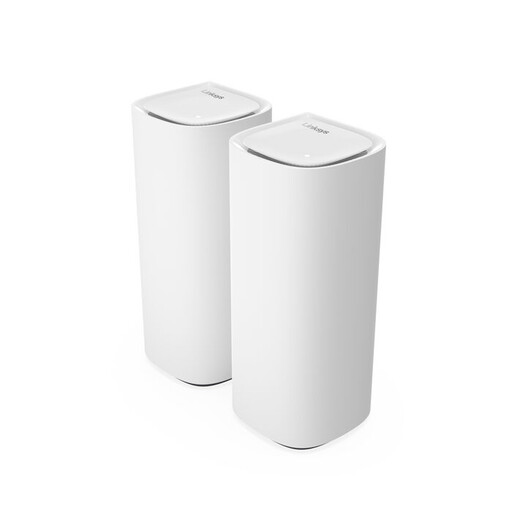 No image available
An option for anyone looking to extend coverage with a mesh setup; check which additional nodes work with the version you choose.
Tri-band: 2.4 GHz, 5 GHz and 6 GHz; Wi-Fi 7 (802.11be).
No. First, measure the upload speed using a computer connected by network cable close to the router. If the speed is already low, compare your measurements with your contract and contact your provider if the difference persists. Then take a separate measurement in the loft.
Measure the signal in the loft and at possible intermediate locations before placing the nodes. Walls, floors and insulation can weaken the connection; a node in the loft won’t automatically restore a weak wireless connection to the rest of the network.
That depends on the features and configuration of the system you choose. ASUS specifies an access point mode for the ZenWiFi BD4, and FRITZ! describes connecting the Mesh Set 1700 to an existing router. Check the instructions for the exact version and your provider settings.
Compare the full model name, number of nodes and package contents for the specific version. For radio equipment, also check that the version meets the applicable European requirements and carries a CE mark.
Home Wi-Fi doesn’t require a licence as long as you follow the rules for the designated frequencies and their use, according to the Dutch Authority for Digital Infrastructure. This doesn’t mean that every individual version automatically meets the requirements for radio equipment.