
Anyone handling batches of forms
You process forms in batches and want to compare input capacity, double-sided scanning and the stated speed. Epson Netherlands lists different input capacities for the models reviewed.


A USB sheet-fed scanner is a good fit for one managed computer. If authorised staff need to scan from different workstations, a wired network scanner is a more suitable choice. Then compare the input capacity and how each model handles unusual originals, and set access permissions for stored forms separately.
You process forms in batches and want to compare input capacity, double-sided scanning and the stated speed. Epson Netherlands lists different input capacities for the models reviewed.
You want to scan from different workstations while deciding which staff can access the stored forms. The Dutch Data Protection Authority stresses the importance of setting access permissions.
You process forms made from different types of paper and want to match the feed and scan destination to them. Epson Netherlands describes a slow mode for fragile documents on the DS-770II.
First decide whether one managed computer is enough or whether staff need to scan from different workstations. Then compare the feed and document support with the forms you actually process.
| What to consider | What should you check? | Who is this important for? |
|---|---|---|
| Feeding batches of forms | Compare the input capacity in sheets, double-sided scanning and the stated speed in pages or images per minute. | If I regularly process batches, I want to refill the feeder less often. Around 29% of consumers prioritise batch processing. |
| Scanning from multiple workstations | Check whether the connection is USB or wired network, which scan destinations are supported and what access permissions apply to the storage location. | When staff need to work in different locations, I want them to be able to send scans to the right destination. Around 29% of consumers prioritise shared use. |
| Unusual or fragile originals | Compare the supported media and check how the manufacturer recommends feeding fragile or unusual documents. | If my forms vary in paper quality, I want to avoid making high feed speed the only factor in my decision. Around 21% of consumers prioritise preserving a variety of originals. |
| Finding and sharing scans | Check file formats and scan destinations; set out file-naming conventions, scan checks and access permissions in your workflow. | To keep membership records in order, I want to know where scans are stored and who can access them. Around 21% of consumers prioritise how scan destinations and files are organised. |
A network connection and permissions for stored personal data are two separate things. A shared scan destination does not automatically control who can access the forms.
First decide who can scan and view forms. Then check that the chosen scan destination supports those permissions.
Allow time to set up and manage access permissions.
The stated speed is a model specification. Preparing forms, checking scans and saving files are separate steps.
Compare speed alongside input capacity and the full scanning process; don’t treat the stated speed as a guarantee of how long the studio’s work will take.
A product specification doesn’t tell you whether a model is still available new. Canon Netherlands Store lists the imageFORMULA R40 as discontinued and no longer available.
Before buying, check the current availability and support for the exact model.
The WorkForce DS-410 reviewed is designed for a compact USB scanning station. According to Epson, the DS-770II has a larger input capacity and a slow mode for fragile documents.
The ADS-4300N reviewed is designed for a shared scanning station with a wired network connection.
The imageFORMULA R40 reviewed is a USB desktop scanner for loose sheets.
The ScanJet Pro 3000 s4 reviewed is designed for a dedicated scanning station.
The Joybuy products below are sheet-fed scanners with automatic document feeders for digitising forms; some models combine this with a flatbed.
 No image available
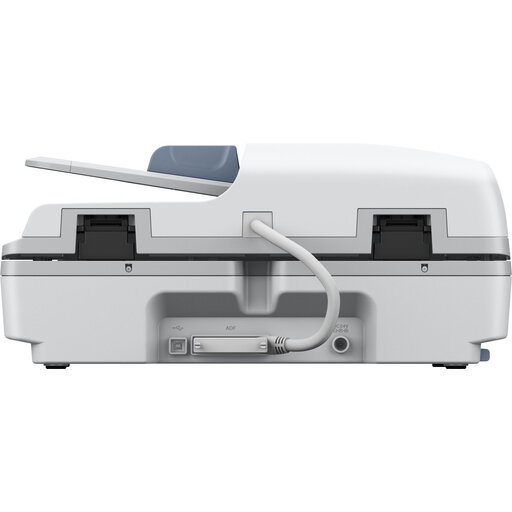
The combination of a flatbed and automatic document feeder is a good option if you need to process both fed sheets and originals on the flatbed.
 No image available
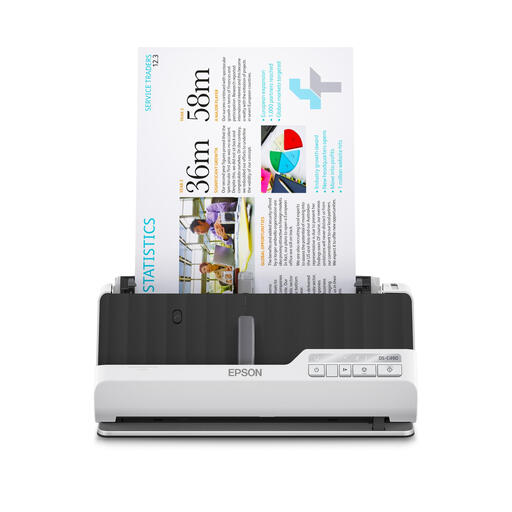
An option for a compact scanning station where you need to process different types of documents.
The product information mentions a U-shaped paper path and paper protection; check that the feed suits the originals you use.
 No image available
This model is worth considering if automatic double-sided scanning is important to you.
The product information lists a double-feed sensor and U-shaped and straight paper paths; check which path is right for your originals.
 No image available
An option if you process larger batches and want to save scans as searchable PDFs.
The product information lists a flatbed, automatic document feeder and single-pass double-sided scanning. The network interface is optional; you’ll need it for shared network use.
 No image available
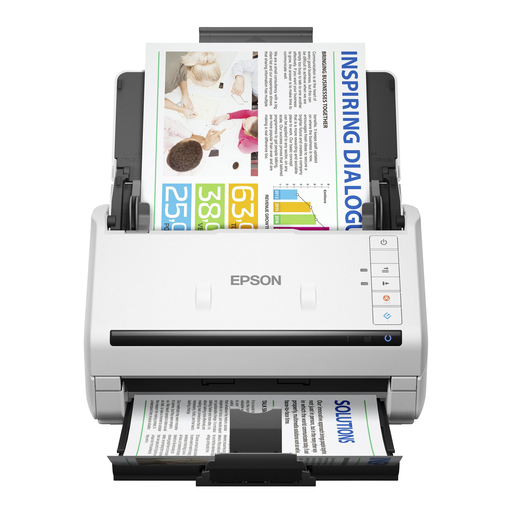
This USB sheet-fed scanner could suit larger batches or fragile originals. Epson Netherlands lists a 100-page feeder and a slow mode for fragile documents.
Check the guidance for the specific type of paper before feeding it through the scanner.
No. If authorised staff process the forms on one managed computer, a USB model may be suitable. If staff need to scan from different workstations, compare a network model and set permissions for the scan destination separately.
Check that the size, paper weight and condition of the originals are within the chosen model’s specifications. Epson lists a slow mode for fragile documents on the DS-770II; follow the model’s manual for the paper you want to scan.
Allow for possible replacement of the feed rollers and time for software and administration. Brother lists a separate feed roller kit for the ADS-4300N; when buying, also check which service applies to the exact model.
Membership records containing personal data must be handled carefully. According to the Dutch Data Protection Authority, an organisation needs an appropriate legal basis, must set access permissions and must not keep personal data for longer than necessary. If an external service provider processes data on the studio’s behalf, also consider whether a data processing agreement is needed.