What should you look for?
Start with your main task and the desk space available. Then compare screen positioning and the connections you actually need.
| What to consider |
What should you check? |
Who is this important for? |
| Reading and workspace |
Compare 1920 × 1080, 1920 × 1200 and 2560 × 1440 at the screen size you’re considering. Check that text remains readable at your preferred scale. |
If you want to view source material and draft minutes side by side, extra document space could be a deciding factor. Around 33% of consumers give workspace for documents top priority. |
| Desk space |
Measure the available width and depth, then compare them with the monitor’s dimensions, including the stand. Also check that the screen can sit directly in front of you. |
When your laptop, keyboard and notes all have to share a small workspace, the stand matters just as much as the screen size. Around 27% of consumers focus mainly on available desk space. |
| Adjustability |
Check the adjustment options for the complete model variant and whether you can position the screen to suit your workspace. |
If you often work on minutes for long periods, you’ll want to adjust the screen to suit your seated position. Around 20% of consumers rank adjustability above other purchasing priorities. |
| Connecting and charging |
Check that both your laptop and the monitor support USB-C video and that the charging power is suitable for your laptop. Also check which cable you need. |
If you connect your laptop frequently, you’ll want to know whether the connection delivers the video signal you need and, if required, enough power. Around 20% of consumers make the laptop connection their main priority. |
Joybuy products for taking minutes and working with documents
This selection of Joybuy products includes compact Full HD models, screens with extra document space and QHD options for text-based work. Check that each model’s dimensions and connections suit your workspace.
 No image available
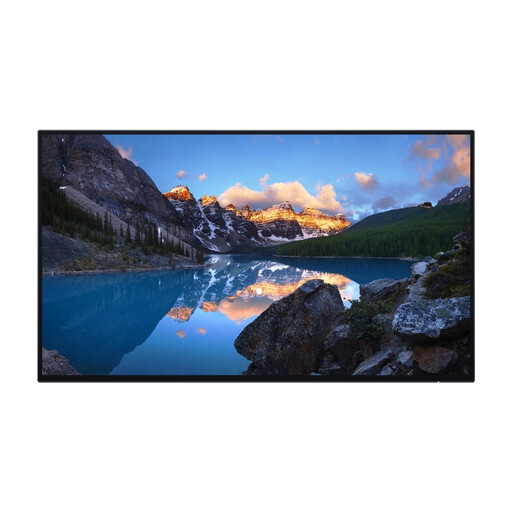
Dell UltraSharp U2424H
A compact Full HD option to compare if you mainly work on one document.
23.8 inches; 1920 × 1080; Full HD.
View at Joybuy
 No image available
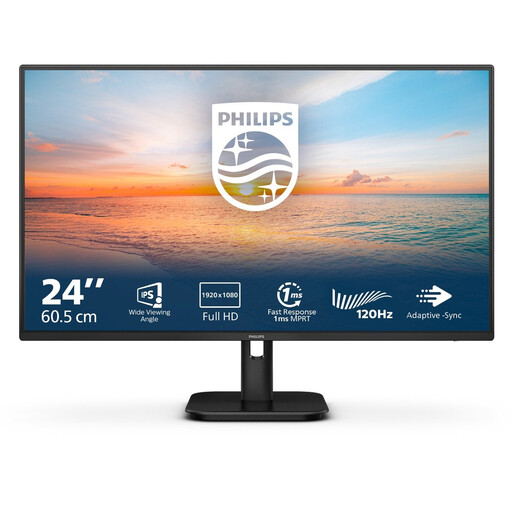
Philips 24E1N1100A
A Full HD model to compare if you mainly work on one document on a compact screen.
24 inches; Full HD; IPS; 100 Hz; speakers.
View at Joybuy
 No image available
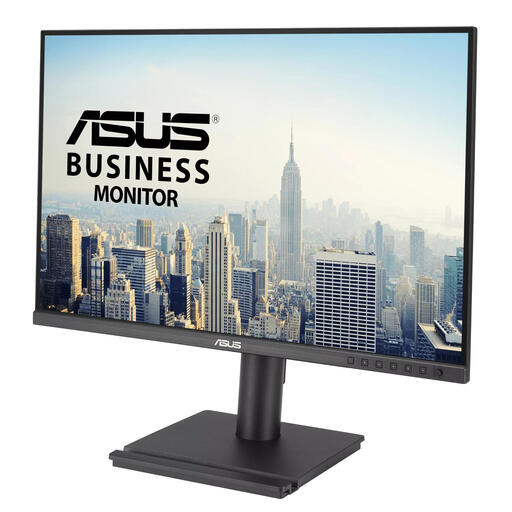
ASUS BE248QF
A 16:10 option to compare if you’re looking for extra vertical space for working with documents.
24.1 inches; 1920 × 1200; WUXGA.
View at Joybuy
 No image available
Dell Pro Plus P2425DE
A QHD USB-C hub monitor to compare if you’re looking for extra screen resolution and a suitable laptop connection.
24 inches; 2560 × 1440; Quad HD. Check that the USB-C features suit your laptop.
View at Joybuy
 No image available
Dell Pro Plus P2425D
A QHD option to compare if you want more pixels for documents and windows.
24 inches; 2560 × 1440; Quad HD.
View at Joybuy
Frequently asked questions
Is Full HD enough for editing meeting minutes?
Can I connect any USB-C monitor with one cable and charge my laptop?
No, USB-C features vary by model. Dell lists the P2425 as having a USB-C downstream port that supports data only, while LG specifies 65 W USB-C Power Delivery for the 24BA650-B. Check your laptop’s video output and power requirements, the monitor variant and the cable you need.
How should I set up a monitor for longer editing sessions?
Arboportaal advises positioning the screen directly in front of you, with the top just below eye level, and changing your posture regularly. An adjustable stand gives you options for changing the screen position; make sure the rest of your workspace is set up appropriately too.
How can I compare energy costs without guessing an amount?
Compare the EU energy label and model information for the screens you’re considering. The European Commission describes an A to G label scale for monitors; to estimate your own costs, you’ll also need to take your usage and electricity tariff into account.
What are my rights when buying online in the Netherlands?
Online purchases generally come with a statutory 14-day cooling-off period after delivery, subject to legal exceptions. ACM ConsuWijzer also states that if a product doesn’t meet the expectations you could reasonably have for normal use, you have a statutory warranty claim against the seller. This right isn’t automatically limited to a fixed manufacturer’s warranty period.
Do the rules for working with display screens automatically apply to every student room?
No, employers’ obligations don’t automatically apply to every student buying a monitor for independent study. Arboportaal does, however, offer practical setup advice that you can use when arranging your own workspace.


