Choose a personal headset if you’re speaking through your own computer and remote participants need to hear you. A mono headset leaves one ear free so you can stay in touch with colleagues; stereo can make it harder to hear conversations in the room. Whether you choose wired or wireless depends mainly on where you sit and how much freedom to move you need. If one device needs to pick up everyone around the table, use room audio: a personal headset microphone is designed for the person wearing it. Also check which microphone and speaker are active. Microsoft Support explains how to select your audio source in Teams.
Who is a personal headset suitable for?
The individual speaker
You join the meeting on your own computer and want remote participants to hear your voice clearly. Jabra recommends positioning the microphone close to your mouth, while Microsoft Support explains how to select your audio source in Teams.
The participant between the table and the screen
You want to follow both colleagues in the room and remote participants. Jabra’s mono and stereo models have different wearing styles; Microsoft Support also explains how to use room audio in Teams.
The mobile meeting-goer
You move between locations or devices, weighing freedom to move against charging and connection management. EPOS describes wireless IMPACT 1000 models, including mono and stereo versions.
What should you consider when choosing?
| What to consider |
What to look for |
Who is this important for? |
| Making sure people can hear you clearly |
Check the microphone position, mute controls and which microphone is selected in the meeting app. |
If I speak through my computer, I want remote participants to hear me clearly. Around 33% of consumers prioritise how well their voice comes across. |
| Staying connected to the room |
Compare mono and stereo models for your setup, and choose carefully which devices play audio. |
I want to keep up with colleagues around the table without multiple devices playing meeting audio at once. Around 27% of consumers prioritise staying connected to the room. |
| Connection and controls |
Check the exact model, whether it has a USB-A or USB-C connection, and whether it also has a 3.5mm jack. |
I want a connection that works with my computer and controls I can use during the meeting. Around 20% of consumers put connection and controls at the top of their list. |
| Comfort and freedom to move |
Check the wearing style, cable length or charging options, and the accessories included with the model. |
I want to join the meeting comfortably and, if needed, move around while it’s in progress. Around 20% of consumers prioritise comfort or freedom to move. |
Pitfalls to avoid when buying a meeting headset
-
Expecting a headset for one speaker to work for the whole table
A personal microphone and a microphone for a shared space serve different purposes. If everyone around the table needs to be heard online, you may also need suitable room audio equipment.
Decide who needs to be heard online, then test your chosen audio source with participants in their usual seats. Choose room audio if everyone around the table needs to speak through one system.
-
Leaving meeting audio active on multiple devices
Multiple audio sources in the same room can cause echo. Zoom says that muting the microphone alone may not be enough if a speaker is still active.
Choose between personal and room audio, and switch off any unnecessary audio sources before the meeting starts.
-
Confusing a product range name with the exact model
Models within the same product range can differ in whether they’re mono or stereo, their connections and the charging accessories included.
Before ordering, check the full model name and included accessories against your computer and the way you’ll be joining the meeting.
Brands to compare
Jabra
The Evolve2 40 SE is available in mono and stereo versions, as well as different USB variants, including a Teams version.
- Jabra lists three microphones and passive noise isolation for this product range.
- These are Jabra’s claims, not independent measurements in your meeting room. Check the exact model and position the microphone as the manufacturer recommends.
Logitech
The wired Zone Wired 2 for Business is worth comparing if you’re looking for a USB headset with controls on the ear cup.
- Logitech specifies two microphones with algorithmic noise cancellation, USB-C with a USB-A option, and a 1.9 m cable.
- The stated microphone features don’t tell you how well noise in your room will be reduced. Also check that the cable reaches where you sit.
Poly
The Blackwire 3225 model 8X229AA is listed with USB-C, a USB-A adapter and a 3.5mm jack.
- HP lists a noise-cancelling microphone and in-line controls for this model.
- Check that the connections work with the devices you use for meetings. These features don’t tell you how the microphone will perform in your room.
EPOS
The IMPACT 1000 series is a wireless option worth comparing, with both mono and stereo versions available.
- EPOS lists Bluetooth and a USB-A dongle; charging options vary by model.
- Check which connection and charging accessories come with the version you choose. Manufacturer figures for range and talk time aren’t measurements taken in your meeting room.
Joybuy products for personal meetings
Below are audio devices for personal use. Check each model to make sure its microphone, connection and wearing style suit your meeting computer and setup.
 No image available
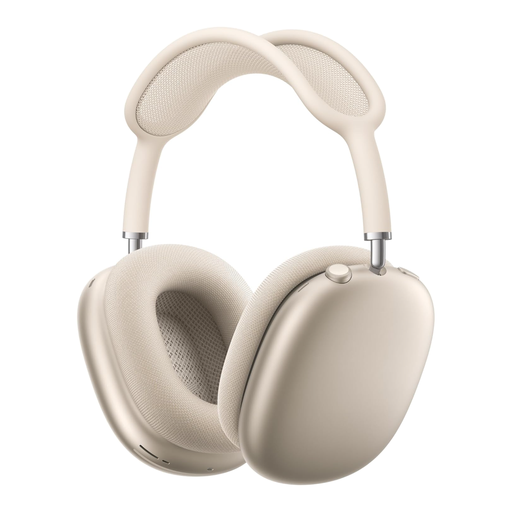
AirPods Max 2 - Starlight
For anyone considering over-ear headphones. Before using them, check that the microphone and meeting features work with your devices and software.
The product description identifies these as over-ear headphones.
View at Joybuy
 No image available
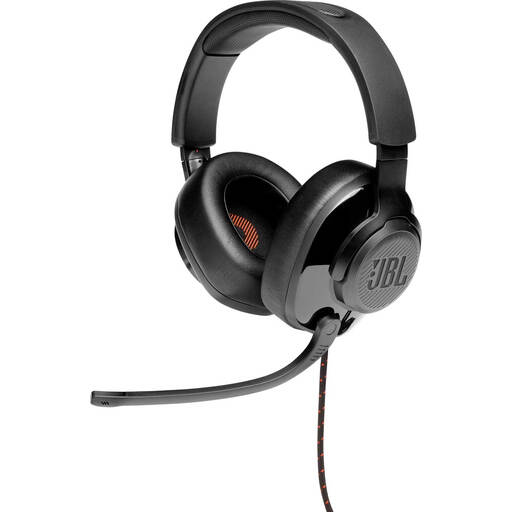
JBL Quantum 300 - Hybrid wired over-ear gaming headset with flip-up mic - Black
A wired headset with a microphone worth comparing if you speak through your computer. Check that its connection works with your meeting device.
The product information lists a directional boom microphone, a 3.5mm jack and an included USB audio adapter.
View at Joybuy
 No image available
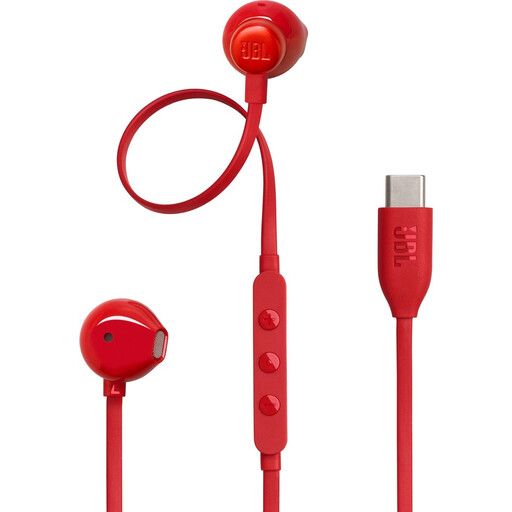
JBL Tune 305C - Red
For personal use with a device that has USB-C. Check that this wearing style suits your meeting setup.
The product information lists USB-C earphones with a built-in microphone and three-button controls.
View at Joybuy
 No image available
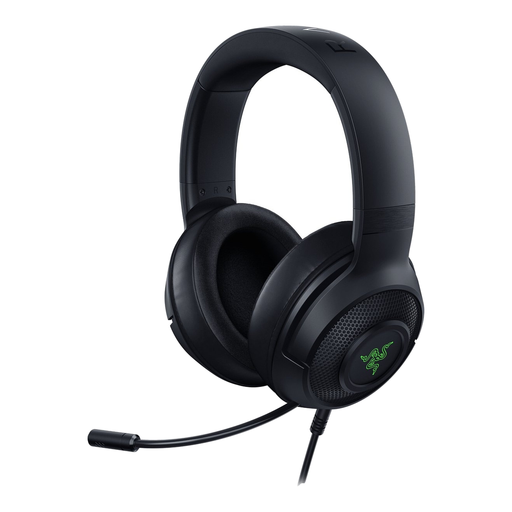
Razer Kraken V3 X - Headset - Black
The product information describes personal use with a PC or PS4. Check that it connects to your meeting computer.
Wired USB headset with stereo sound, a 180 cm cable and a cardioid microphone.
View at Joybuy
 No image available
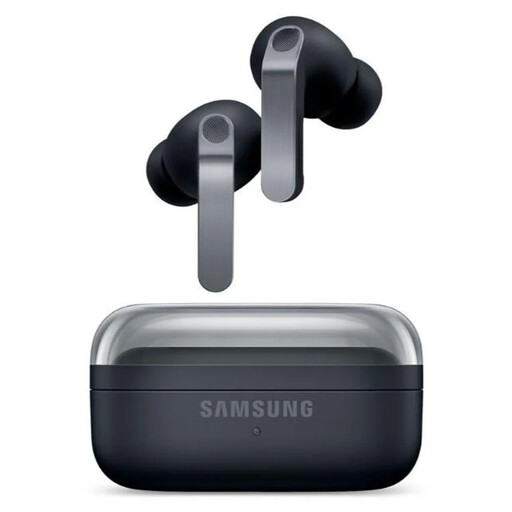
Samsung Galaxy Buds4 Pro True Wireless in-ear Active Noise Cancelling Headphones
A wireless in-ear option worth comparing if you’re looking for a personal headset. Active noise cancellation may make it harder to stay in touch with colleagues in the room.
The product information lists Bluetooth 6.1, active noise cancellation and six microphones with Deep Neural Network technology for calls.
View at Joybuy
Frequently asked questions
Can one headset microphone replace microphones for everyone around the table?
Don’t assume it can: a personal headset is designed for the person wearing it. If everyone around the table needs to speak through one audio source, choose and test the room’s audio equipment. Teams offers a separate room audio source for this.
How can you prevent echo when several people join from the same room?
Before the meeting starts, check which microphone and speaker are active. With room audio, you can join on personal devices without also playing meeting audio through them. Zoom says that muting the microphone alone may not be enough if a second speaker remains active.
What should you do if the meeting app keeps using your laptop’s microphone?
In the app’s audio or device settings, select your connected headset specifically as both the microphone and speaker. Microsoft Support says you can change this setting before or during a Teams meeting; the options available may depend on your organisation’s policies.


