What should you look for when choosing?
For a planning meeting with several participants, the key considerations depend on the table layout: who needs to be in shot, where voices need to be picked up from and how the meeting will be started.
| What to consider |
What to look for |
Who is this important for? |
| Everyone in shot |
Map out the camera position and the furthest seats. Check that the field of view and any group framing on the exact model are suitable. |
If I want participants at the ends of a wide table to be visible too, I’ll choose based on the actual viewing direction and layout. Around 36% of consumers give image coverage top priority. |
| Clear audio |
Compare the furthest seat with the stated microphone range and check that voices can be understood from different positions. |
If the speaker moves around while planning, I don’t want people in the distance to be difficult to hear. Around 29% of consumers focus mainly on clear audio from different seats. |
| Connectivity and management |
Decide whether you use a laptop, a room PC or a dedicated Rooms system. Then check the connections, power supply and support for the meeting mode you need. |
If I regularly connect a laptop, or use a permanent room setup, the camera needs to suit the way I hold meetings. Around 21% of consumers prioritise connectivity and management. |
| Participants all around the table |
Check video and audio coverage from every seat, and decide whether there’s a suitable spot in the middle of the table. |
If participants sit all around the table, I want the camera to suit the layout without getting in the way of shared planning materials. Around 14% of consumers give an all-round setup top priority. |
Meeting cameras at Joybuy
These product choices are designed for computer-based video meetings and meeting rooms. For each model, check that the camera, connection and placement suit your table layout and meeting software.
 No image available
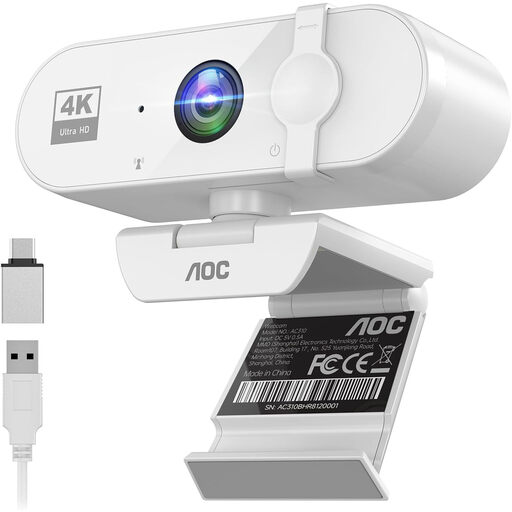
AOC webcam for PC with microphone, 4K and 99° field of view
A webcam option for computer-based meetings where the stated field of view and built-in microphone are useful features.
The product description lists 4K video, a 99° field of view and a noise-cancelling microphone.
View at Joybuy
 No image available
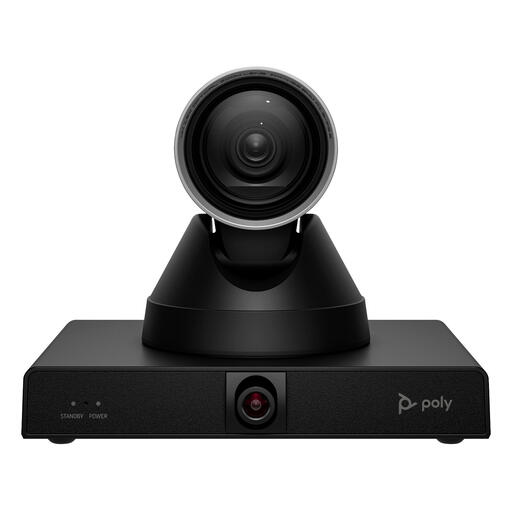
HP Poly Studio E60 Smart Camera, 4K with 12× optical zoom
This camera is described as being for large meeting rooms; check that your room and mounting position are suitable.
The product information lists 4K, 12× optical zoom, pan-tilt-zoom control, presenter tracking and smart group framing. Professional installation and secure mounting are recommended; power is supplied via the adapter or PoE+.
View at Joybuy
 No image available
Philips 4000 Series 4K UHD Webcam, SPL6408BT/00
A webcam for computer-based meetings; check beforehand that the USB connection is compatible with your equipment.
The product information lists 4K UHD video, autofocus, two built-in microphones with noise reduction and USB-A.
View at Joybuy
 No image available
Logitech MeetUp, 3840 × 2160 pixels, 30 fps
The product information describes this model as being for small meeting rooms and computer use. Check that MeetUp works with your setup.
The description lists a 120° field of view, built-in microphones and a USB connection to a computer. This is MeetUp, not MeetUp 2.
View at Joybuy
 No image available
Insta360 Link 2C Standard Bundle, Graphite Black, 4K
A webcam option for video calls on PC or Mac, with automatic framing for individuals or groups according to the product description.
The description lists a 1/2" sensor, HDR, gesture control and a microphone with AI noise cancellation. This model isn’t compatible with ARM-based Windows systems.
View at Joybuy
Frequently asked questions
Is a wide field of view enough to include everyone in a planning meeting?
No, a wide field of view alone isn’t enough. Also consider the camera position, the furthest seat, microphone coverage and the space needed for planning materials. A front-facing video bar and a 360° camera in the middle of the table are designed for different layouts.
What do you need to connect before holding a meeting with a USB video bar?
Check how the exact version connects, then test the camera, microphone and speaker in the meeting app you use. HP says the Studio R30 connects to mains power and to a PC via USB; Logitech lists PC and BYOD use for MeetUp 2.
Do you need to maintain the camera or software after installation?
Check which management and update method suits your chosen model and IT setup. Logitech lists Sync for MeetUp 2, while HP lists Poly Lens for managing USB video bars. Also check the meeting app and room settings.
What additional components should you check?
Check whether the setup needs a room PC, cable, mount or other accessory, and what warranty applies to the exact version. For example, Logitech lists an active USB cable, sold separately, for a one-cable setup with MeetUp 2; this doesn’t tell you what other models need.
Can you record a planning meeting with colleagues?
First check the applicable privacy requirements with the responsible organisation. The Dutch Data Protection Authority states that processing personal data requires a lawful basis under the GDPR, and consent is one possible basis. For employees, the power imbalance in the relationship can make it difficult to give consent freely. So discuss the purpose, access and retention period; rules for workplace CCTV don’t automatically apply in the same way to an ordinary video meeting.


