Choose your camera setup based on where the trainer and participants sit: a USB video bar suits a laptop-led session, a standalone room system suits a fixed room setup, and a 360° camera suits conversations around a table. Logitech, Yealink, Jabra and Owl Labs describe these different options, but their product specifications don’t automatically tell you how well the picture and sound will work in your room. Test the setup from the actual seats, and check separately how you’ll share presentations.
Who is this guide for?
Trainer with remote participants
Wants explanations and questions to be audible from different parts of the room, so pays attention to microphone placement and the overall audio setup. Logitech and HP describe relevant connectivity and audio features for their models.
Team around a small training table
Wants participants at the sides to remain in shot too, and compares a camera at the front with one in the middle of the table. Jabra and Owl Labs describe a panoramic video bar and a 360° camera respectively.
Training room manager
Needs to decide whether the session will start from a laptop or use a fixed room setup, and how participants will view presentations. Logitech and Yealink describe different connection options and room configurations.
What should you consider when choosing?
First decide where the camera will go and who will start the session. Then choose based on the seating, audio setup and separate presentation-sharing method.
USB video bar at the front
Best for: sessions started by the trainer from a laptop, with participants seated mainly in front of the camera.
Keep in mind: you’ll still need the laptop. Check the cables, the distance to the furthest speaker and how you’ll share your screen. HP specifies a microphone range of up to 4,57 m for the Studio R30, but this doesn’t guarantee clear audio in every room.
Standalone video bar
Best for: rooms with a fixed setup that doesn’t rely on a laptop for every session. Yealink describes the MeetingBar A10 as having a built-in computer, camera and audio.
Keep in mind: check the platform configuration you need and how the trainer will share content.
Panoramic video bar
Best for: participants seated well to the sides, who might otherwise be out of shot with a camera at the front. Jabra specifies a 180° field of view for the PanaCast 50.
Keep in mind: a wide view won’t automatically give you a close-up of the trainer; check the camera position and framing.
360° camera in the middle of the table
Best for: training sessions focused mainly on interaction between people around a table. Owl Labs specifies a panoramic view and automatic focus on active speakers for the Meeting Owl 4+.
Keep in mind: allow space and power on the table, and check how the computer and presentation will connect.
| What to consider |
What should you check? |
Who is this important for? |
| Clear audio |
Check the microphone setup and test a call from the seat furthest away. |
If I ask questions from the back of the room, I want remote participants to hear me and the trainer clearly. Around 33% of consumers prioritise clear explanations and questions from different parts of the room. |
| Seating in shot |
Compare the camera position and its horizontal and diagonal fields of view. |
When participants sit at the sides or around the table, I want to know whether everyone will be in shot. Around 27% of consumers give top priority to seeing every seat. |
| Connecting and getting started |
Check the meeting software you use, laptop ports and any cables or accessories you’ll need. |
I want to start the session smoothly with the laptop or fixed room setup we use. Around 20% of consumers say a suitable, repeatable connection process matters most. |
| Sharing presentations |
Check how the trainer will share content and what connections or accessories are needed. |
If remote participants need to see training materials, I want to know how these will be shared alongside the camera feed. Around 20% of consumers prioritise a practical way to share presentations. |
Things to consider before buying
-
Treating MeetUp and MeetUp 2 as the same product
The Logitech MeetUp and MeetUp 2 are separate models. Features described for the MeetUp 2 don’t necessarily apply to the MeetUp.
Before choosing a model, compare its full name and the features you need with the product information.
-
Assuming a stated field of view or microphone range is a guarantee
HP lists a 110° horizontal field of view, a 120° diagonal field of view and a maximum microphone range of 4,57 m for the Studio R30. These product specifications don’t tell you how the picture and speech will come across from every seat or in every acoustic environment.
Check which field of view is being quoted, and test the picture and sound from the planned seats.
-
Leaving the presentation setup until after you buy
The camera feed alone won’t automatically show remote participants the presentation. In a BYOD setup with the MeetUp 2, Logitech’s described single-cable connection requires a separate Active USB Cable.
Decide in advance which laptop, ports, screens and sharing method the trainer will use.
If you want to use the described single-cable setup, check whether the optional Active USB Cable is included in your chosen bundle.
Brands to consider
Logitech
The MeetUp 2 is a USB video bar for small rooms where a laptop or PC runs the meeting. The MeetUp is a separate model.
- Logitech describes flexible mounting and framing for the MeetUp 2.
- The optional Active USB Cable is required for the described single-cable BYOD connection; this doesn’t necessarily apply to every MeetUp model.
HP Poly
The Studio R30 is a USB video bar for small meeting rooms where a computer runs the meeting.
- HP specifies a 120° diagonal field of view, a 110° horizontal field of view and a microphone range of up to 4,57 m for the Studio R30.
- These are stated specifications, not a real-world test in your intended training room.
Jabra
The PanaCast 50 is a panoramic video bar for rooms where seats far to the sides also need to be in shot. The Video Bar System is a different configuration.
- Jabra specifies a 180° field of view and eight microphones for the PanaCast 50.
- Jabra’s claims about engagement or meeting quality aren’t independent performance measurements for your training session.
Yealink
According to Yealink, the MeetingBar A10 offers a standalone Android room setup and an appliance mode for small rooms.
- The specification sheet lists a built-in computer, camera, microphones and speaker, as well as content-sharing options.
- Before buying, check the platform configuration you need and which accessories are required.
Owl Labs
According to Owl Labs, the Meeting Owl 4+ combines a camera, microphone and speaker for conversations around a table.
- Owl Labs specifies a 360° view and automatic focus on active speakers.
- The product specifications don’t confirm availability in the Netherlands or whether every bundle is suitable for your presentation setup.
Joybuy products
This selection includes the Logitech MeetUp for laptop-led meetings in small rooms and the HP Poly Studio E60, which the product description positions for large meeting rooms. This makes the E60 a less direct fit for a small training room.
 No image available
Logitech MeetUp Black, 3840 × 2160 pixels, 30 fps
For a laptop-led session in a small meeting room: this meeting camera connects to a computer via USB.
The product information lists built-in microphones and a speaker.
Logitech lists 3840 × 2160 pixels and 30 fps.
View at Joybuy
 No image available
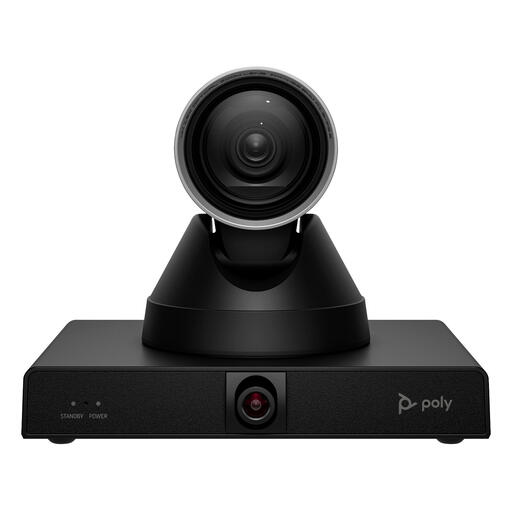
HP Poly Studio E60 Smart Camera, 4K, 12× optical zoom
The product description positions this model for large meeting rooms, making it a less direct fit for a small training room.
The product name lists 4K and 12× optical zoom; the description mentions PTZ control, presenter tracking and group framing.
View at Joybuy
Frequently asked questions
Is a high camera resolution enough to follow the training session properly?
No. Also check whether the trainer and participants are in shot from their actual seats, and whether questions are easy to hear. Resolution and field of view are product specifications, not a measure of performance in your room.
What should I test before installation?
Test a meeting on the platform you intend to use, from the usual camera position. Ask someone to speak from the furthest seat, check the view from the sides and share a presentation. Then compare the results with the connections and accessories for the model you’ve chosen.
Does a MeetUp 2 always need just one laptop cable and no accessories?
No. Logitech describes a standard BYOD setup using two cables; for the single-cable connection described, Logitech lists the separate Active USB Cable. Check which accessories are included with your chosen bundle.
Can a Dutch organisation record a training session without any further checks?
First check which rules apply to processing personal data in the recording. According to the Dutch Data Protection Authority, this requires an applicable legal basis under the GDPR, and people involved must be told in advance how and why their data will be used. Don’t assume that taking part automatically counts as consent; the rules for security camera surveillance don’t automatically apply to a live training conversation.


