
Team around a wide table
You’re looking for a camera position and field of view that show everyone in a small meeting room, even when people are sitting close to the camera. Logitech and Jabra describe cameras with wide fields of view for meetings.


Start by choosing a camera set-up that captures every seat and picks up voices around the room. A USB video bar could work for meetings using a laptop or room PC; then check the cables, power supply and how it works with your meeting platform. Resolution alone won’t tell you whether the field of view suits your table.
You’re looking for a camera position and field of view that show everyone in a small meeting room, even when people are sitting close to the camera. Logitech and Jabra describe cameras with wide fields of view for meetings.
You want people in the room to be heard clearly and to hear colleagues joining remotely. So, as well as the picture, consider the microphones, speaker and distance between the camera and the seats.
You’re setting up the room for use with different laptops or a dedicated PC. The connections, controls and device management should suit the way the room is used; Logitech describes management through Sync for MeetUp 2.
Start with the table layout and where the camera will go. Then decide how people will connect it and which audio and management features the room needs.
| Consideration | What should you check? | Who is this important to? |
|---|---|---|
| Everyone in the picture | Map out the seats and camera mounting position. Only compare fields of view if it’s clear whether they’re measured horizontally or diagonally. | I want everyone in view from the planned position, including around a wide table. Around 31% of consumers say capturing the whole group is their top buying priority. |
| Clear voices | Check the microphone set-up, the distance from the speakers and whether the camera has a speaker for two-way conversations. | When meeting with remote colleagues, I want people in the room to be heard clearly and to hear everyone else. Around 31% of consumers prioritise clear speech. |
| Connect and get started | Decide whether people will use their own laptop, a dedicated room PC or a wireless set-up. Also check the cables, power supply and screen connection. | In a shared room, I want to get started with different laptops without having to work out which cables to swap. Around 23% of consumers give easy connection the highest priority. |
| Management and camera framing | Check who manages the settings and whether the frame shows the parts of the room you want. Also find out which secure video-calling option your organisation provides. | If I manage equipment in a shared room, I want to be able to control the settings and what’s visible. Around 15% of consumers prioritise management and privacy. |
A high resolution doesn’t guarantee that everyone will fit in the frame from your chosen mounting position. An extremely wide view may also show more of the surroundings than you want.
Map out the seats and mounting position, and check how the field of view is measured. Only then consider resolution and automatic framing.
Logitech describes the standard BYOD set-up for MeetUp 2 as using two cables; the one-cable connection described requires an optional active USB cable.
Before buying, check which cables are included with the version you’ve chosen and make sure they suit your laptop and screen set-up.
The one-cable set-up described may require an additional connection accessory.
The Jabra PanaCast 50 USB video bar and the separate PanaCast 50 Video Bar System with built-in computer are different products.
Check the full model name and decide whether the meeting room needs a laptop or PC.
Logitech describes MeetUp 2 as a USB video bar for small rooms, used with a laptop or room PC.
HP presents Studio R30 as a USB video bar for small meeting rooms.
Jabra describes PanaCast 50 as a USB video bar for situations where an extra-wide view is needed.
Barco positions ClickShare Bar Pro for wireless meetings and content sharing in small meeting rooms.
AVer describes VB342 Pro as a video bar for small to medium-sized rooms, with motorised PTZ and optical zoom.
This selection includes webcams and conference cameras for video calls using a PC or laptop. For a small meeting room, check that the field of view, audio and connection suit all the seats and your chosen meeting set-up.
 No image available
For video calls using a PC or laptop; the product name lists USB Plug & Play, 1080P and a microphone.
 No image available
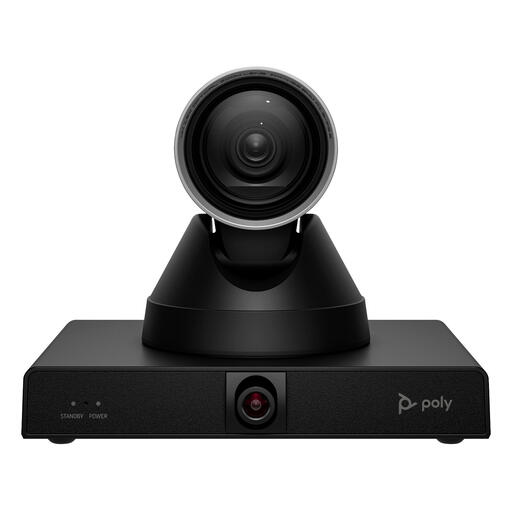
For a set-up where you want to zoom in on specific areas; the product name lists 4K, MPTZ and 12× optical zoom.
When mounting it, make sure the fixing can support its 1.79 kg weight, and secure the cables to prevent trip hazards.
 No image available
For video calls where you want to cover the camera when you’re finished; the product name lists 4K UHD, autofocus, two built-in microphones and a privacy cover. EU version, black.
 No image available
For video calls using a desktop or laptop; the product name lists 2K QHD, a noise-cancelling microphone and a clip mount. EU version, silver.
 No image available
Logitech MeetUp is designed for small meeting rooms. The product name lists 3840 × 2160 pixels at 30 fps; check that the connections suit your laptop or room PC.
It depends on the video bar and the room set-up. Logitech describes MeetUp 2 for BYOD use and with a room PC, with a standard set-up using two cables or a one-cable connection via an optional active USB cable. Also check the power supply, screen connection and support for your meeting platform.
Plan the mounting position and cable route around the seating, and agree who will manage the settings and updates. HP describes Studio R30 as connecting to mains power and to a PC via USB; Logitech mentions management through Sync for MeetUp 2.
Check whether the cables and mounting hardware you need are included with the version you’ve chosen. Logitech says the active USB cable for the one-cable BYOD set-up described for MeetUp 2 is optional, and lists a limited two-year hardware warranty. For a private purchase, a manufacturer’s warranty is not the same as your statutory right to a product that is fit for purpose; the Dutch Government explains that the seller must provide a solution if there’s a problem with the product.
No. The Dutch Data Protection Authority says organisations must provide secure options for video calls or chat; stricter requirements apply in some sectors. Ask your organisation to assess the service it has chosen and how it handles personal data, as this guidance does not assess any specific camera and app combination.