
Organisers with remote speakers
You want the talk and questions in a small room to be easy to hear. Logitech and HP describe audio features for their meeting cameras; check the microphone placement against your room.


For a local history talk in a small room, a USB video bar with a camera and built-in audio is a practical option if both the speaker and audience need to be seen and heard. Check, though, that the microphones suit the seating arrangement. Logitech and HP describe models designed for small rooms, while Jabra specifies a 180° field of view for the PanaCast 50, making it suitable for a wide table. For historical photos or documents, a separate image source or screen sharing is often a better choice than relying on the room view alone.
You want the talk and questions in a small room to be easy to hear. Logitech and HP describe audio features for their meeting cameras; check the microphone placement against your room.
You want to show the speaker and audience at the same time, so consider the field of view, camera position and framing. Jabra and Huddly publish field-of-view specifications for their camera models.
You want remote participants to be able to view photos and documents too. You may need a separate image source or screen sharing; a wide camera view does not guarantee that details will be legible.
Start with the main task: making conversations easy to hear, showing the group, connecting everything easily or displaying historical details. A camera will not automatically do all of these equally well.
| What to consider | What should you check? | Who is this important for? |
|---|---|---|
| Clear audio | Check the microphone placement, speaker and any expansion microphone for the exact model. | If the speaker moves around or audience members ask questions, you want remote participants to be able to follow the conversation. Around 36% of consumers prioritise clear audio. |
| Group view | Compare the stated field of view and framing with the table layout and camera position. | If you want the speaker and audience in the same shot, the framing needs to suit the seating arrangement. Around 29% of consumers prioritise covering the group. |
| Connectivity | Check the USB and power connections, cable, and compatibility with the computer and meeting app you use. | If you want to start the session without a complicated set-up, the right connections are important. Around 21% of consumers prioritise easy connectivity. |
| Document details | Decide whether you need screen sharing or a separate image source to show photos and small text. | If historical documents are part of the talk, you want participants to be able to see the details, not just the room. Around 14% of consumers prioritise displaying detail. |
According to Logitech, the output from the MeetUp is limited to 1080p when using the supplied USB 2.0 cable. You need to buy a USB 3.0 cable separately for 4K.
Check the cable and the capabilities of your computer and meeting app before relying on a stated resolution.
A separate USB 3.0 cable is required for the stated 4K connection on the Logitech MeetUp.
The microphone array on the Huddly IQ is optional. If the model you choose does not include one, you will need to arrange audio separately.
Check the exact model and test whether both the speaker and questions from the room are easy to hear.
You may need a separate microphone or speaker if the camera model does not provide suitable audio.
A wide shot that keeps people in view will not automatically make small text legible.
Plan to use screen sharing or a separate image source if historical details are important to the talk.
You may need separate equipment to display documents.
According to Logitech, MeetUp is an all-in-one USB meeting camera for small rooms. MeetUp 2 is a separate model for BYOD and PC-based set-ups.
HP positions the Studio R30 as a USB video bar for small meeting rooms.
Jabra positions the PanaCast 50 as a panoramic video bar for groups seated along a wide table.
AVer offers the VB130 as a video bar for small meeting rooms, with an adjustable field of view and automatic framing.
Huddly IQ is a compact USB conference camera for small rooms, for use when you choose the camera separately from other room equipment.
Below are webcams and conference cameras for video calls on a computer. For each model, check that its audio, placement and suitability for the room are right for your talk.
 Image unavailable
A webcam for video calls on a PC or laptop; check that the built-in microphone is suitable for the distance to the speaker.
The product information lists Full HD 1080P, a 120° field of view, an omnidirectional microphone and USB Plug & Play.
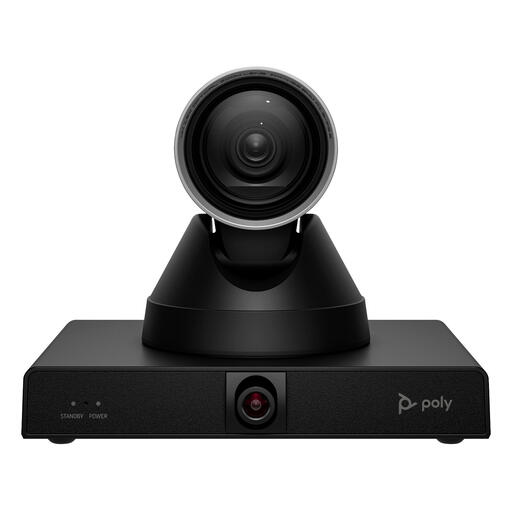 Image unavailable
The product description says this model is designed for use in large meeting rooms, so check carefully that it suits the dimensions and layout of a small talk venue.
The product information lists 4K video, 12x optical zoom, presenter tracking and group framing. It describes mounting on a screen, tripod or ceiling; power can be supplied via an adapter or PoE.
 Image unavailable
A desktop webcam for video calls; check that the mounting and microphones suit the position you choose and the distance to the speaker.
The product name lists 4K UHD and autofocus. It also mentions built-in dual microphones; the product information lists a USB-A connection.
 Image unavailable
An all-in-one meeting camera for a small room, ideal if you want to use the camera and audio in a single set-up.
The product information lists a 120° field of view, built-in microphones and a speaker. According to Logitech, output is limited to 1080p with the supplied USB 2.0 cable; you need to buy a USB 3.0 cable separately for 4K.
 Image unavailable
The product description mentions automatic framing for individuals or groups, which could be useful if you need the camera to keep participants in view during a video call.
The product name lists 4K. According to the product description, this model is not compatible with ARM-based Windows systems; check your computer before buying.
Do not assume so: wide-angle views and group framing are designed to show people in the room. Check whether your meeting app supports screen sharing, or choose a separate image source to display details.
Test the camera, microphone and speaker in the intended position, using the computer and meeting app you will use for the talk. For the Poly Studio R30, HP describes connecting it to a power supply and to a PC via USB; follow the manufacturer’s instructions for other models.
According to Logitech’s specifications, it does not: output is limited to 1080p with the supplied USB 2.0 cable. You need to buy a USB 3.0 cable separately for 4K; the rest of your equipment and the meeting app also affect the final picture.
Before ordering, check which power supply, cables, mounting hardware and any expansion microphone are included with the exact model. Logitech, for example, lists an optional expansion microphone for MeetUp; the specified 4K option requires a separate USB 3.0 cable.
According to the Dutch Data Protection Authority, an organisation needs a lawful basis to film identifiable audience members or publish footage. Consent may be an appropriate basis for event footage; tell visitors why you are filming and how the footage will be used. Assess each recording and publication separately.