What should you look for when choosing?
First decide whether the camera needs to show just one presenter or the whole table. The main differences are the area covered by the image, the audio set-up and the connection.
Personal webcam
Best for: one person presenting from a computer when the other people in the room don’t all need to be in shot.
Bear in mind: a webcam for one presenter won’t automatically provide coverage or audio for a whole meeting table. Manufacturers’ low-light claims aren’t measurements taken under comparable conditions.
Meeting camera or video bar for a small room
Best for: when several colleagues need to be seen and heard alongside the presenter, with a computer handling the video call.
Bear in mind: a wide field of view can make the speaker appear smaller. For the original Logitech MeetUp, Logitech says that 4K requires a separately purchased USB 3.0 cable; the supplied USB 2.0 cable supports up to 1080p, according to Logitech.
Panoramic video bar
Best for: when participants are spread around a wide table and room coverage matters more than a close-up of the presenter. Jabra specifies a 180-degree field of view for the PanaCast 50.
Bear in mind: the PanaCast 50 and the PanaCast 50 Video Bar System are separate products. A wide field of view says nothing by itself about low-light performance.
| What to consider |
What to look for |
Who it matters most to |
| Visibility in low light |
Check the exposure settings and image processing of the exact model; if possible, test it with the lighting at the intended location. |
If I’m presenting from my computer on my own, I want my face to remain visible in the dim room. Around 36% of consumers make visibility their main priority. |
| Everyone in shot |
Compare the stated field of view and framing with the table layout and seating positions. |
When colleagues are spread around the table, I don’t want anyone to be out of shot. Around 29% of consumers make group coverage their main priority. |
| Clear audio |
Check which audio components the exact model has and try a conversation from the furthest seat. |
If colleagues are responding from the room, I want their voices to come across clearly from a distance. Around 21% of consumers make clear audio their main priority. |
| Connecting and sharing slides |
Check the USB connection required, the cables supplied, the video-conferencing software and the screen-sharing function of your existing set-up. |
If I’m connecting the camera to my existing presentation set-up, I want to know in advance which cable and method of sharing slides I’ll need. Around 14% of consumers make connections and sharing their main priority. |
Joybuy products
This selection from Joybuy includes personal webcams for presenting from a computer and a meeting camera for a small room.
 No image available
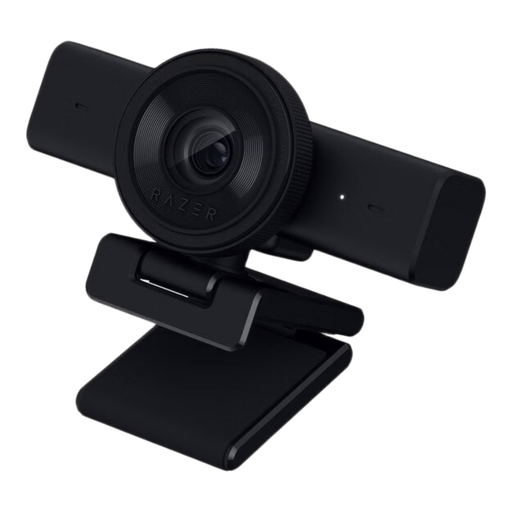
Razer Kiyo V2 X webcam
A personal webcam for presenting from a computer.
The product name specifies 1440p and 1080p at 60 FPS. The description lists Windows 10 (64-bit) and Windows 11 as supported operating systems.
View at Joybuy
 No image available
AOC 4K PRO webcam
A personal webcam for presenting on a computer. Check that your chosen set-up suits the location and the field of view you need.
The product name specifies a Sony IMX363 sensor, PDAF autofocus, two microphones, a lens cover, a 75° field of view and USB-A/USB-C connections.
View at Joybuy
 No image available
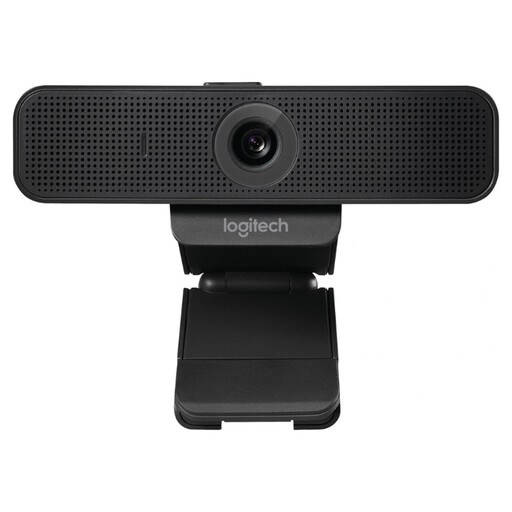
Logitech C925e webcam, black
A personal webcam for a project update from a computer.
The product name specifies 30 fps and model number 960-001076. Check the picture quality with the lighting in your own room.
View at Joybuy
 No image available
Logitech MeetUp
A meeting camera for a small room where several people need to be in shot.
The product name specifies 3840 × 2160 pixels at 30 fps. According to Logitech, the supplied USB 2.0 cable supports up to 1080p; 4K requires a separately purchased USB 3.0 Type-A-to-Type-C cable.
View at Joybuy
 No image available
Insta360 Link 2 standard bundle
A personal webcam for a presenter working from a computer. According to Insta360, the Link 2 is designed for changing light conditions; test the picture in your own room.
The product name specifies 4K, a 1/2-inch sensor, AI tracking, HDR, gesture control and a microphone with AI noise cancellation.
View at Joybuy
Frequently asked questions
Does 4K help when you’re presenting slides with small text?
Assess the camera picture and the shared slides separately: use screen sharing for the slides and test whether the text is readable. For the original Logitech MeetUp, the supplied USB 2.0 cable supports up to 1080p, according to Logitech; 4K requires a separately purchased USB 3.0 cable.
How should you set up the camera before the project update?
Test it from the actual seat or standing position, with the lighting as it will be during the update. Check that the speaker stays in shot and try the audio from the furthest seat if others will be speaking; manufacturer information about field of view and light compensation is no substitute for this practical test.
What should you check after buying, and what should you do if something is faulty?
Check the cables supplied and the seller’s and manufacturer’s terms. The Government of the Netherlands explains that, for a consumer purchase, the seller is responsible for providing a solution if a product is faulty; if you’re buying on behalf of a business, don’t assume the same consumer rights apply.
Can you record a project update with colleagues?
Having a camera for a video call doesn’t automatically mean that recording or ongoing monitoring is permitted. The Dutch Data Protection Authority states that organisations must offer secure video-calling options and that conditions apply to monitoring employees; the rules for a particular recording depend on factors including its purpose, the participants and how the footage is processed.


