Start by considering where people sit. A camera in front of the group is generally better suited to speakers who sit mainly at the front, while a central 360° camera may suit a team gathered around one table. Then check the distance to the furthest speaker, how you’ll share any whiteboard content and whether the meeting will be started on laptops or a dedicated computer. Stated viewing angles and microphone ranges alone cannot guarantee good results in your room.
Who is this guide for?
Teams with speakers spread around the room
If colleagues also speak from the back or sides of the room, start by checking the microphone setup and the distance to those seats. Logitech gives the MeetUp 2 a microphone range of up to 7 m; Owl Labs lists an audio radius of 5.5 m for the Meeting Owl 4+. These are model specifications, not a guarantee that speech will be clear in a particular room.
Teams gathered around one table
If participants face one another and take turns speaking, compare a central camera with one positioned in front of the group. Owl Labs describes the Meeting Owl 4+ as a 360° camera; the right choice also depends on where it is placed and the distance between the seats.
People managing a shared room
If different colleagues use the room, check how the device connects to their laptops or to a dedicated computer. Also consider permanent mounting and how a whiteboard or presentation will be shared.
What should you look for?
Start with the seating plan, then choose where to position the camera. Next, check separately whether the audio setup will work for the furthest speaker and how you’ll share whiteboard content.
| Concern |
What to look for |
Who it matters most to |
| Making sure everyone can be heard |
Measure the distance between the microphone position and the furthest seat, then compare it with the model’s setup. |
If I’m sitting at the back, I want to follow the discussion without the group having to keep adjusting the setup. Around 31% of consumers would prioritise clear audio when making a purchase. |
| Getting participants in shot |
Map out the seating and camera position, then compare a camera in front of the group with a central 360° setup. |
If people are sitting at the edges, I want to know they’ll stay in shot; around a table, having an overview is what matters. Around 25% of consumers would make getting participants in shot their main priority. |
| Connecting easily |
Decide whether colleagues will use their own laptops or whether there’s a dedicated computer; check the connections, power supply and cable routing for the model you choose. |
If several colleagues use the room, I want to get started quickly using the computer available. Around 25% of consumers would prioritise easy connection when making a purchase. |
| Sharing a whiteboard or presentation |
Decide whether the whiteboard needs to be in shot or will be shared separately; check that the required feature works with the exact model and software. |
If meetings often refer to a whiteboard, I want colleagues joining remotely to be able to follow the content. Around 19% of consumers would prioritise whiteboard or presentation content when making a purchase. |
Common mistakes
-
Choosing based only on resolution or viewing angle
An image specification won’t tell you whether the furthest colleague can be heard clearly or whether whiteboard text will be easy to read when shared.
Check the distance to the microphone, the seating plan and how the whiteboard will be used as separate considerations.
-
Assuming a 360° camera will cover every room layout
The stated image and audio ranges may differ. A speaker or whiteboard outside the relevant setup won’t automatically be covered by both.
Compare the planned camera position with all the seats in use, and decide whether the whiteboard needs to be shared another way.
Brands to compare
The features mentioned apply to the models and ranges described. They are not a general assessment of the brand or a guarantee of the acoustics or layout in your room.
Logitech
Logitech describes MeetUp 2 as an all-in-one solution for smaller meeting rooms. Rally Bar Mini is another range for small to medium-sized rooms.
- For MeetUp 2, Logitech lists a 120° diagonal field of view and a microphone range of up to 7 m.
- These stated figures don’t guarantee that speakers spread around a particular room will be easy to hear.
HP Poly
HP describes the Studio R30 as a USB video bar for small meeting rooms that connects to a PC.
- HP lists a 120° field of view, three microphones and automatic framing for the Studio R30.
- These features don’t prove that the video bar will cover a large classroom.
Owl Labs
Owl Labs describes the Meeting Owl 4+ as a central 360° setup with a camera, microphones and speakers.
- Owl Labs lists an image radius of 3 m and an audio radius of 5.5 m for this model.
- Those ranges are important when assessing a spread-out setup; a whiteboard at the front of the room may need a separate way to share its content.
Jabra
The PanaCast 50 is a video bar that Jabra describes as offering a wide horizontal view and a whiteboard streaming feature.
- Jabra specifies a 180° horizontal field of view and lists whiteboard streaming as a feature.
- Check that the whiteboard feature works for your setup with the exact model and software you use; a wide viewing angle alone says nothing about how clearly people can be heard.
AVer
AVer describes the VC520 Pro3 as a solution with a controllable PTZ camera and a separate speakerphone solution.
- AVer lists 36× total zoom and HDMI output.
- Zoom doesn’t prove that everyone will be visible or audible at the same time. Check that the complete set and its connections will work in your room.
Webcam options for online team meetings
These webcams are designed for computer-based team meetings. For each model, check that its position and listed features suit the seating in your room; the product names alone don’t show that it will cover an entire room.
 No image available
Razer Kiyo V2 X webcam, 1440p/1080p at 60 FPS, Quartz
A webcam option for computer-based video calls; check that its position suits the seating and distance to participants.
The product name lists 1440p/1080p at 60 FPS and USB.
Joybuy
 No image available
AOC 4K PRO webcam with Sony IMX363 sensor
A webcam for computer-based meetings; compare its field of view with the seats that need to be visible during the meeting.
The product name lists PDAF autofocus, dual microphones, a lens cover, a 75° field of view and USB-A/USB-C.
Joybuy
 No image available
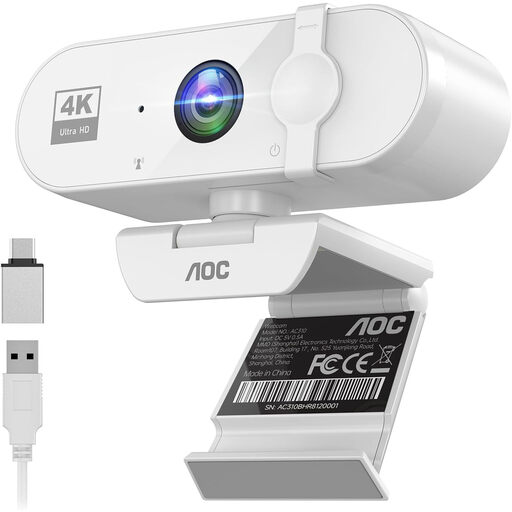
AOC webcam for PC with microphone, 4K, 99° field of view, white
A webcam option for computer-based video calls; consider whether the stated field of view suits the group and camera position.
The product name lists 4K, a privacy cover, plug and play, a noise-cancelling microphone and a 99° field of view.
Joybuy
 No image available
Philips 4000 Series 4K UHD webcam, EU Version, black, SPL6408BT/00
A webcam option for online meetings; check that its connection and position suit the computer and room setup.
The product name lists 8 MP, autofocus, dual built-in microphones, a privacy cover and USB-A.
Joybuy
 No image available
Philips 2K QHD PC webcam, EU Version, Silver, SPL6308S/00
A webcam option for video calls; check that the mount suits the position where the camera will be placed during meetings.
The product name lists 2K QHD, a noise-reduction microphone and a clip mount.
Joybuy
Frequently asked questions
Where should you position the camera for a team meeting?
First map out the seats in use and any whiteboard. A camera in front of the group and a central 360° camera suit different layouts; also assess the distance to the furthest speaker separately for audio.
Can you connect a USB video bar to a laptop without any further setup?
Check the requirements for the exact model. HP describes the Studio R30 as using mains power and a USB connection to a PC; also check the ports, cable routing and meeting software before setting up the room.
What extra equipment and support should you check?
Check whether the setup you’ve chosen needs a mount, microphones or cabling, and what warranty and support apply to the exact version. Logitech, for example, offers an optional extended warranty for MeetUp 2; it isn’t automatically included with every purchase.
Can a school film or record pupils during a meeting like this?
That depends on how the footage is used and whether pupils appear in it. The Dutch Data Protection Authority (AP) says a DPIA is mandatory for processing that poses a high privacy risk. For lesson recordings, the AP warns that pupils or students should not, in principle, appear on camera; this warning doesn’t automatically apply as a rule to every team meeting.


