What should you look for when choosing?
Start by considering what remote participants need to see and hear. Then look at the seating and how the classroom starts the connection.
| What to consider |
What to look for when buying |
Who is this important for? |
| Making questions from the class easy to hear |
Compare the microphone setup with the furthest speaking position; also test the audio coming into the classroom. |
I want questions from the back of the room to come through clearly too, not just a camera with a wide field of view. Around 33% of consumers prioritise making questions from the class easy to hear. |
| Keeping the speaker in view |
Check whether the speaker stays in one place or moves around the classroom; AVer describes automatic tracking and preset positions for the DL30. |
If the speaker moves during the lecture, I want remote participants to be able to keep following them. For around 27% of consumers, seeing the speaker is the top priority. |
| Showing the group on camera |
Choose the camera setup based on the seating: around a table or spread out in front of the camera. Owl Labs describes a 360° view; Jabra specifies a 180° field of view for the PanaCast 50. |
I want several participants in different places to be visible when they speak. Around 20% of consumers give the group view top priority. |
| Starting the connection easily |
Choose between a USB connection to a laptop and a standalone room setup; also check power, mounting, the meeting service and screen sharing. |
If different people use the classroom, I want to know in advance how they will start the meeting and present. A reliable connection is the most important consideration for around 20% of consumers. |
Meeting cameras at Joybuy
These Joybuy products are designed for video calls via a computer. Check each model to see whether its microphones can pick up questions from across the classroom.
 No image available
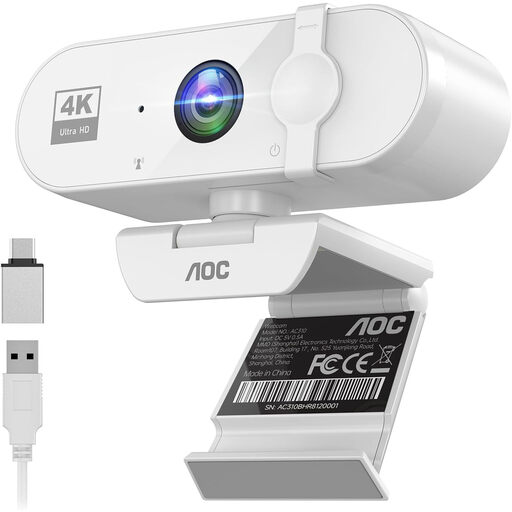
AOC 4K PRO Webcam
An option for video calls via a computer, where autofocus and a USB connection are useful features.
The product name lists a Sony IMX363 sensor, PDAF autofocus, dual microphones, a lens cover, a 75° field of view and USB-A/USB-C.
View at Joybuy
 No image available
AOC Webcam for PC with Microphone
For anyone looking for a webcam for computer meetings; test the sound from the seats in the classroom.
The product name lists 4K, a 99° field of view, a built-in microphone, noise reduction, plug-and-play and a privacy shutter.
View at Joybuy
 No image available
Philips 4000 Series SPL6408BT/00, EU Version, Black
A webcam option for a meeting held via a computer; check separately whether the microphones are suited to the distance between participants.
The product name lists 4K UHD, 8 MP, autofocus, dual built-in microphones, a privacy shutter and USB-A.
View at Joybuy
 No image available
Logitech MeetUp, black, 3840 × 2160, 30 fps
Logitech positions MeetUp for small rooms; the USB camera can be connected to a computer. Test whether the audio reaches the furthest speaking position in the classroom.
The product name lists 3840 × 2160 pixels and 30 fps.
View at Joybuy
 No image available
Insta360 Link 2C Standard Bundle, Graphite Black
A webcam option for video calls via PC or Mac; decide in advance whether automatic framing suits the speaker and classroom setup.
The product name lists 4K, a 1/2" sensor, automatic framing, HDR, a microphone with AI noise reduction and gesture control.
View at Joybuy
Frequently asked questions
Is a wide field of view enough to include everyone in the classroom?
No. Compare the seating with the camera view, and separately test whether questions from the furthest speaking position are easy to hear. Manufacturers describe picture and audio features for specific models and setups; this doesn't guarantee results in your classroom.
Can the camera start the history lecture as a video call on its own?
That depends on the type of setup. Logitech MeetUp and HP Poly Studio R30 connect to a computer via USB; Yealink describes the MeetingBar A10 as having a built-in computer for a room setup. Also check how slides or other presentation content will be shared.
How do I check the setup before the lecture?
Test the chosen meeting app, microphone, speaker and picture from the actual seating positions. HP describes mounting the Studio R30 using a monitor clamp and connecting it to power and USB; follow the instructions for the version you use for operation and maintenance.
Who can help if a product breaks after a consumer purchase in the Netherlands?
According to ACM ConsuWijzer, if a product breaks sooner than expected under normal use, the seller must offer an appropriate remedy free of charge, such as a repair, replacement or refund. This consumer guidance does not determine which terms apply to a purchase by a school, association or business.
Can an organiser film identifiable visitors during the lecture or publish a recording?
According to the Dutch Data Protection Authority, an organiser filming identifiable people must have a valid legal basis under the GDPR. The authority identifies consent as the most obvious legal basis for filming and publishing, and highlights the need to inform visitors. Which legal basis is appropriate for this event depends, among other things, on the organiser, the people shown and how the footage will be used. The Dutch Data Protection Authority also provides specific guidance for schools on filming pupils and making and keeping recordings.


