If you’re leading the meeting on your own, compare webcams with a dedicated lighting feature. For colleagues gathered around a meeting table, a group camera or video bar is a more suitable choice. You can also reduce changing backlight by adjusting the camera position and the room set-up: Zoom Support warns that daylight can affect the camera’s exposure if the window isn’t properly covered. HDR, a wide field of view or high resolution alone won’t show you how faces will look by your window, so test the picture at your usual meeting time.
Who are these cameras for?
Meeting chair by the window
You lead most of the meeting on your own and want to remain clearly visible as the daylight changes. Compare a camera with a lighting feature against changing the camera position or window covering. Zoom Support points out that daylight can affect the camera’s exposure if the room isn’t properly covered.
Team around the meeting table
You want colleagues sitting beside and opposite one another to be visible and audible to remote participants. So, consider the group view, microphones and the distance between the seats and the camera. Manufacturers such as Logitech, Jabra and HP describe different imaging and audio features for their respective models.
Meeting room manager
You’re setting up a room that’s used regularly and want to plan how the camera connects to and is positioned with the computer or room PC. Yealink, Logitech and HP describe different connection and management options for their models, so check what will work with your permanent set-up.
What should you look for when choosing?
Webcam for one meeting chair
Best suited to: leading the meeting alone from a laptop while everyone else joins remotely. Logitech lists HDR for the Brio 4K, but you should still test the picture by the window and at your usual meeting time.
Keep in mind: a webcam designed for one person won’t automatically show colleagues around the table clearly at the same time or pick up their voices.
Group camera or video bar
Best suited to: meetings where several people are speaking around the same table. Compare the field of view, audio and any lighting feature for each exact model. For example, Yealink lists Smart Area Exposure for the UVC40 E2, while Jabra specifies Vivid HDR for the PanaCast 50.
Keep in mind: a group view may also show more of the bright window. Manufacturer features don’t prove how the camera will perform in your room.
| What to consider |
What should you check? |
Who should pay particular attention? |
| Faces in changing daylight |
Check the lighting feature on the exact model and take a test shot at your usual meeting time. Zoom Support points out that daylight can affect the camera’s exposure when the window isn’t properly covered. |
If I’m leading the meeting by the window, I want to remain clearly visible as the light changes; around 29% of consumers prioritise visibility against backlight. |
| Everyone at the table in view |
Match the field of view and camera position to the table and seating. Check during a test set-up that faces remain clearly visible. |
If colleagues are spread around the meeting table, I want remote participants to be able to see them; around 29% of consumers give the group view top priority. |
| Every speaker clearly audible |
Check whether the exact model has microphones and test voices from every seat. For a larger table, see whether you need an expansion microphone. |
When colleagues speak from different places, I don’t want their distance from the camera to make the conversation difficult; around 24% of consumers prioritise group audio. |
| Connection and room management |
Decide whether you’ll use a laptop or room PC, then check the required connections, power supply, cable routing and mounting position. |
If the room needs to work the same way every time, I want to know in advance how the camera will be connected and managed; around 18% of consumers name connection and room management as their main requirement. |
Common buying mistakes
-
Assuming a 4K or HDR label guarantees protection against backlight
Resolution and lighting are different features. Daylight and reflections can change the picture in the room, and a product specification can’t predict how faces will look by your window.
Take a test shot at your usual meeting time and assess the faces, not just the stated resolution. You may also need to adjust the window covering, lighting or camera position.
-
Using a webcam for one person to cover the whole group
A camera for the meeting chair won’t automatically show everyone around the table or pick up their voices. Logitech specifies a microphone pick-up range of up to 1 metre for the Brio 4K; that doesn’t mean it can capture group audio from further away.
Decide in advance whether only the meeting chair or every speaker at the table needs to be visible and audible at the same time.
-
Assuming a one-cable set-up comes as standard
Logitech lists an optional active USB cable for the one-cable set-up with MeetUp 2. MeetUp and MeetUp 2 are different models.
Before buying, check the full model name, the cables included and the connection route.
Brands to consider
Yealink
Yealink describes the UVC40 E2 as a USB video bar for small meeting rooms. It may be worth considering if both group framing and face lighting matter to you.
- Yealink lists a 120° field of view, Smart Area Exposure and eight microphones for the UVC40 E2.
- These manufacturer specifications don’t show how the model will perform by a bright window in your room, so test the set-up yourself.
Jabra
Jabra describes the PanaCast 50 as a video bar for a wide view of the table and, if needed, a whiteboard.
- Jabra’s EMEA specifications list a 180° horizontal field of view, Vivid HDR and eight microphones.
- HDR doesn’t prove that faces will stay well lit in a particular meeting room; assess the picture during a test call.
Logitech
Compare the Brio 4K for one meeting chair with the separate group models MeetUp and MeetUp 2; their features aren’t interchangeable.
- Logitech lists HDR for the Brio 4K and a microphone pick-up range of up to 1 metre. For MeetUp, Logitech describes a 120° field of view; according to Logitech, MeetUp 2 can connect to a room PC or directly to a laptop.
- The Brio specifications don’t apply to MeetUp. With MeetUp 2, also check the cables and set-up you’ll need.
HP Poly
HP describes the Studio R30 as a USB video bar for small rooms with several participants.
- HP lists a 120° field of view, automatic framing and three microphones for this model.
- These specifications don’t prove any particular HDR or backlight performance by a bright window.
Cameras for individual and group meetings
This selection of Joybuy products includes webcams for individual speakers and cameras for small or larger meeting rooms. For each model, check that the field of view, connection and position suit your meeting table and window.
 No image available
AOC 4K PRO Webcam with Sony IMX363 sensor
Worth comparing if one speaker leads a meeting from a PC; the product name specifies a 4K webcam.
The product name lists a Sony IMX363 sensor, PDAF autofocus, two microphones, a lens cover, a 75° field of view, and USB-A and USB-C connections.
View at Joybuy
 No image available
AOC Webcam for PC with Microphone, 4K
Worth considering for a PC or laptop meeting if you’re looking for a webcam with a built-in microphone.
The product name specifies a 99° field of view and a privacy cover.
View at Joybuy
 No image available
Logitech HD Pro Webcam C920e
According to the product information, this webcam is designed for individual use, making it an option to compare if you’re a meeting chair who needs to appear on screen alone.
The product information lists a fixed 78° field of view and a microphone pick-up range of up to 1 metre. These are worth bearing in mind if several people need to be visible and audible around the table at the same time.
View at Joybuy
 No image available
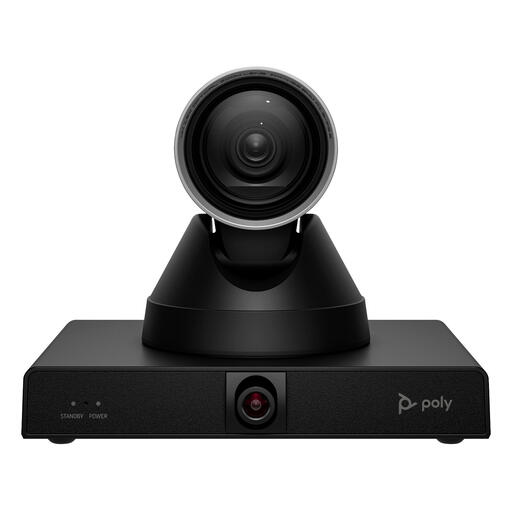
HP Poly Studio E60 Smart Camera, 4K MPTZ with 12× optical zoom
Worth comparing for a larger meeting room or meetings with different speakers; the product name specifies 4K video and 12× optical zoom.
The product information advises avoiding direct sunlight, so don’t position the camera where the sun will shine directly on it.
View at Joybuy
 No image available
Logitech MeetUp
Worth comparing for a small meeting room with several participants; the product information describes the model as connecting to a computer via USB.
The product name specifies 3840 × 2160 pixels at 30 fps. The product information advises avoiding direct sunlight.
View at Joybuy
Frequently asked questions
Does 4K automatically help with a bright window?
No. Resolution and lighting are different features. Zoom Support warns that changing daylight can affect the camera’s exposure. First manage the light, then test how faces appear on screen. Assess HDR for the exact model.
How can you check the camera set-up before your first meeting?
Test the picture when the window is at its brightest and check it from the participants’ seats. Then check in your meeting app that the right camera, microphone and speaker are selected. Microsoft Support explains how to choose devices and make a test call in Teams.
In the Netherlands, do you need consent for every video meeting or recording?
For an ordinary meeting that isn’t recorded, you can’t simply infer a general consent requirement from the information provided by the Dutch Data Protection Authority. An organisation processing personal data must identify an appropriate legal basis and inform the people concerned. Assess recordings separately in terms of purpose, legal basis, information and retention period; consent isn’t automatically the right legal basis.
Does consumer law also apply if you buy the camera for business use?
Not automatically. The Netherlands Authority for Consumers and Markets describes the statutory guarantee for sales to consumers. According to ACM ConsuWijzer, someone who uses a contract mainly for business purposes generally isn’t covered by consumer protection. For a business purchase, check the agreed warranty and service arrangements.


