
Team seated by a bright window
You want colleagues to remain recognisable when the window is much brighter than their faces. Camera position and a backlight test matter at least as much as the stated resolution.


Choose a meeting camera based on your seating, the room’s audio requirements and how you start meetings. Then test the picture in the brightest window light. Share small draft text through your meeting app rather than relying on the camera alone, and weigh up a simple USB setup against the configuration of a standalone room system.
You want colleagues to remain recognisable when the window is much brighter than their faces. Camera position and a backlight test matter at least as much as the stated resolution.
You discuss small text with remote participants and want to show both the room and the document separately.
You want people in several seats to be visible and audible, and need to choose between connecting to a computer and using a standalone room system.
A good fit when: a laptop or room PC runs the meeting and handles sharing the draft.
Bear in mind: you’ll still depend on the computer and the meeting app you choose.
A good fit when: you want to start a meeting in a dedicated space without using a laptop as the meeting computer each time.
Bear in mind: check in advance that the platforms, connections and content-sharing options work with your chosen setup.
A good fit when: colleagues at either end of a wide table, or a physical whiteboard, need to be in shot.
Bear in mind: a wide shot won’t automatically make small text readable. If needed, share a digital draft directly through the meeting app.
| What to consider | What should you check? | Who is this important for? |
|---|---|---|
| Faces in bright window light | Test the picture from the seats at a bright time of day. Check the camera position and, for the Poly Studio R30, the available backlight setting. | If you want colleagues to remain recognisable on camera while strong light comes through the window, a practical test is essential. Around 31% of consumers rank window light as their top buying priority. |
| Readable draft text | Test sharing the right document or window in your meeting app, and check the steps for the app you use. | If remote participants need to follow small details in a document, you’ll want to share the text directly with them. Around 31% of consumers prioritise readable draft content. |
| Group picture and sound | Try the furthest seat and the seats at either end. Check at the same time that speakers remain large enough in shot and can be heard clearly. | If several colleagues join from different seats, you’ll want to assess the picture and sound from across the whole table. Around 23% of consumers make group picture and sound their top priority. |
| Connecting and getting started | Decide whether a laptop, room PC or standalone system will run the meeting. Check the connections, platform support and sharing method you need. | If you want meetings to be easy to start and manage, choose a setup that suits the room’s regular way of working. Around 15% of consumers prioritise ease of connection. |
A camera shows the room; its specifications don’t tell you how remote participants will receive a digital document.
Test sharing the document in your meeting app before choosing a camera based on its resolution.
Viewing angle and microphone pickup are different features. Manufacturer specifications are no substitute for testing from the seats in your own room.
Ask someone to speak from each relevant seat, and check at the same time that the speaker remains large enough in shot.
Logitech describes MeetUp and MeetUp 2 as options for small rooms with a computer. According to Logitech, Rally Bar Huddle also offers a standalone appliance mode.
HP describes the Poly Studio R30 as a USB video bar for a small meeting room.
According to Jabra, the PanaCast 50 is worth considering for a wide table or when you need to show a physical whiteboard.
Yealink describes the MeetingBar A10 as an all-in-one system for a small meeting space.
These Joybuy products are webcams for use with a computer. Assess the picture and sound in your own room, and share small draft text separately through your meeting app where needed.
 No image available
An option for video calls on a Windows PC if you’re looking for a webcam with a built-in microphone.
The product name lists 1440p/1080p at 60 FPS. The product description lists USB 2.0, an 80° field of view, a built-in omnidirectional stereo microphone and compatibility with Teams. The operating systems listed are Windows 10 64-bit and Windows 11.
 No image available
A PC webcam to try out in a video meeting setup.
The product name lists a Sony IMX363 sensor, PDAF autofocus, dual microphones, lens cover, 75° field of view and USB-A/USB-C connections.
 No image available
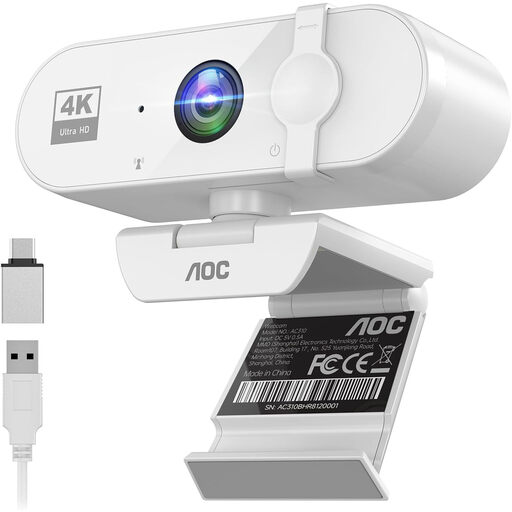
A PC webcam with a built-in microphone to try out in a call from your own seats.
The product name lists 4K, a 99° field of view, noise reduction and a privacy cover. The description lists HDR and automatic light correction.
 No image available
A desktop webcam to consider if you hold video meetings on a computer.
The product name lists 4K UHD, 8 MP, autofocus, built-in dual microphones and a privacy cover. The description lists USB-A. This version is listed as EU version, black.
 No image available
A computer webcam to consider if you want to use a noise-reducing microphone for video meetings.
The product name lists a 2K QHD webcam and a noise-reducing microphone. The description mentions a clip for mounting on a laptop or desktop screen, or on a tripod. This version is listed as EU version, silver.
Share the relevant document or window through your meeting app. Microsoft explains how to present a window or other content in Teams; check the steps separately if you use a different app.
Check the picture from the actual seats when the daylight is brightest. HP lists adjustable backlight compensation for the Poly Studio R30, and Yealink recommends paying attention to window light and curtains. This information can’t guarantee a particular result in your room.
According to HP, the Poly Studio R30 needs power and a USB connection to a PC. Before installation, check that the room’s computer and meeting app are suitable for the setup.
For a consumer purchase, the seller is responsible under the statutory guarantee, according to the Authority for Consumers & Markets, if the product doesn’t meet what you could reasonably expect with normal use. A commercial guarantee is separate. This consumer rule doesn’t necessarily apply to a business purchase, so check the terms and conditions for business purchases.
Yes, the purpose and use of the footage matter. The Dutch Data Protection Authority says organisations must provide secure options for video calls or chat, and that workplace camera surveillance is only permitted when strictly necessary. These rules on camera surveillance don’t mean that every ordinary video meeting automatically counts as surveillance; assess recording or monitoring separately.