
Formatting work with limited room for your mouse
If you often switch between typing and precise pointing while formatting, you’ll want to keep your mouse close. TNO’s 2025 factsheet on screen work recommends a narrow keyboard for many types of work.


Choose a compact mechanical keyboard if you want to keep your mouse close and don’t need a separate number pad. Go for a full-size model if you enter figures often and don’t mind the extra width. TNO recommends a narrow keyboard for people who spend a lot of time working at a screen, while Logitech lists the number pad as a feature of the MX Mechanical. Having two screens connected to one computer doesn’t, in itself, mean you need a keyboard that can switch between devices.
If you often switch between typing and precise pointing while formatting, you’ll want to keep your mouse close. TNO’s 2025 factsheet on screen work recommends a narrow keyboard for many types of work.
If you type a lot of recipe text while others are working in the same room, it’s worth considering the sound and feel of the switches you choose. Logitech offers several switch options for the MX Mechanical.
If you often navigate or use keyboard shortcuts in your formatting software, check in advance which keys are readily available and whether customisable functions suit the way you work. Keychron lists remapping support for the K3 Max.
| What to consider | What to look for | Who is this important for? |
|---|---|---|
| Size and room for your mouse | Compare the width and check that the arrow keys, function row and, if applicable, number pad suit your formatting work. | If I often switch between my keyboard and mouse while formatting, I want to keep my mouse close without losing any navigation keys I need. Around 33% of consumers give size and mouse space their highest priority. |
| Sound and typing feel | Check the switch type for the exact model; the word ‘mechanical’ doesn’t tell you how loud it is. | When I do a lot of typing in a shared space, I want a comfortable typing feel without disturbing others unnecessarily. Around 27% of consumers give sound and typing feel their highest priority. |
| Dedicated keys and customisation | Make a list of the shortcuts you use most and check the physical keys, key combinations and any software compatibility. | When I often navigate or enter figures in my formatting software, I want to reach the keys I need easily or set up functions myself. Around 20% of consumers give dedicated keys and customisation their highest priority. |
| Connection and switching between devices | Check whether your screens are connected to one computer or several, then check the connection options on the version you’re considering. | If my screens are connected to different computers, I want to be able to switch between those devices. If I use one computer, this feature isn’t a deciding factor for me. Around 20% of consumers give connectivity and switching between devices their highest priority. |
Switching between devices is designed for computers or other connected devices; the number of screens you have doesn’t tell you how many computers you use.
First check which computer controls each screen, then choose the connection that suits your workspace.
A smaller keyboard may leave out dedicated keys, and ANSI and ISO layouts differ physically. As a result, the available keys and symbol positions may not be what you’re used to.
Look at the layout diagram for the exact version and check the arrow keys, function row, Enter key, Shift key and symbols you need.
Switch types can differ in feel and sound, even within the same keyboard model. So the word ‘mechanical’ doesn’t guarantee quiet typing.
Check which switch type you’re choosing and consider whether it suits your workspace, especially if you share the room.
Keychron describes the K3 Max as a compact 75% keyboard with several connection options and customisable keys.
Logitech offers the MX Mechanical in a full-size format and the more compact MX Mechanical Mini.
CHERRY describes the KC 200 MX as a wired mechanical keyboard for a permanent workstation.
This selection includes compact mechanical keyboards and a full-size model. For each version, check the physical key layout and whether the available keys suit your formatting work.
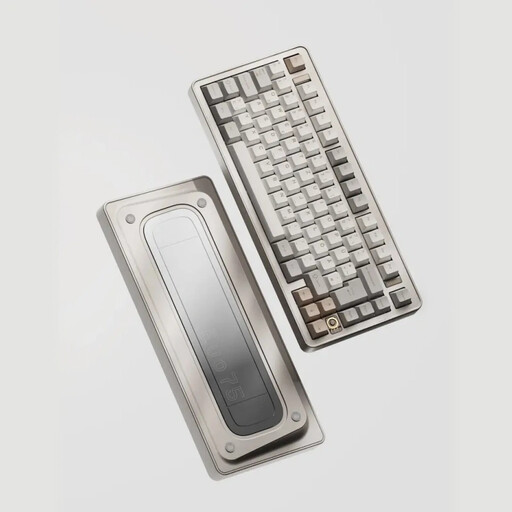 No image available
The 75% layout is designed for anyone looking for a compact keyboard; check that the available keys suit the way you work with formatting.
The product title lists tri-mode connectivity, hot-swap, VIA compatibility and a US layout. The description mentions USB-C, Bluetooth and 2.4 GHz.
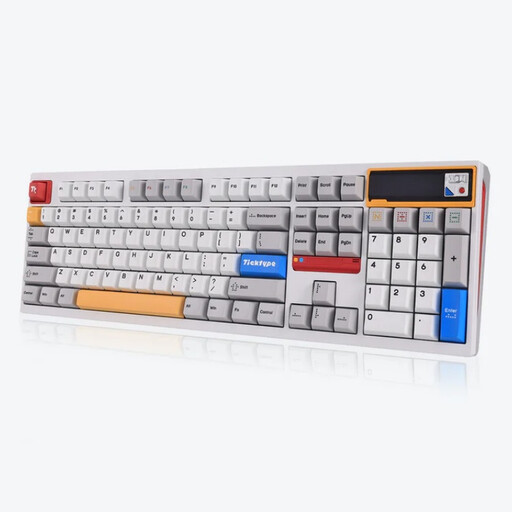 No image available
A full-size layout with 108 keys could suit you if you want plenty of dedicated keys; bear in mind the extra width beside your mouse.
The product title lists tri-mode connectivity and hot-swap. The description mentions Bluetooth, 2.4 GHz and USB-C.
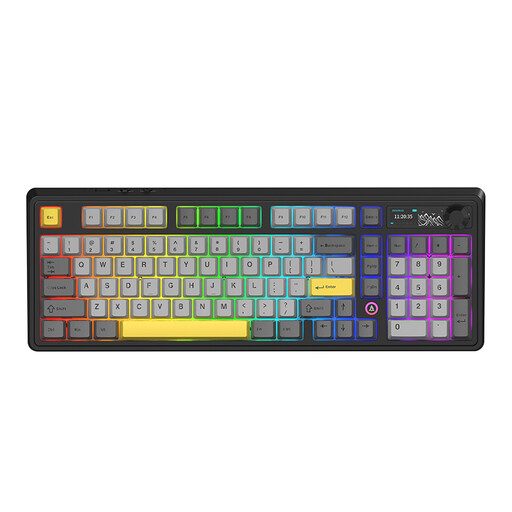 No image available
The 98% layout combines a more compact design with plenty of keys; check that their placement works with the shortcuts you’re used to.
The product title lists a control knob, TFT display and 10,000mAh battery. The description mentions Bluetooth, 2.4 GHz, USB-C, hot-swap and programmable functions.
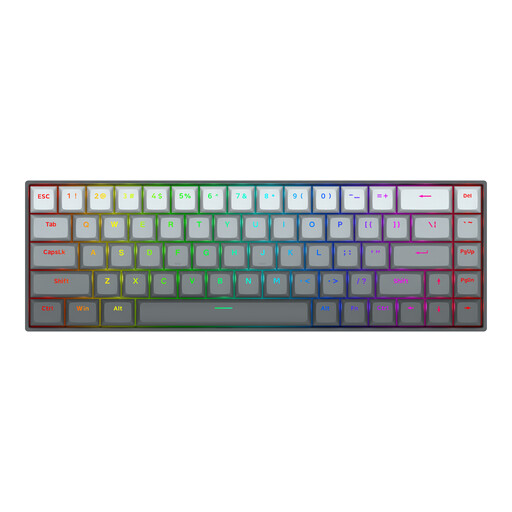 No image available
With 68 keys, this is a compact option; check in advance that the missing dedicated keys won’t get in the way of your formatting work.
The product title lists magnetic switches and a US layout. The description mentions linear switches and a detachable USB-C cable.
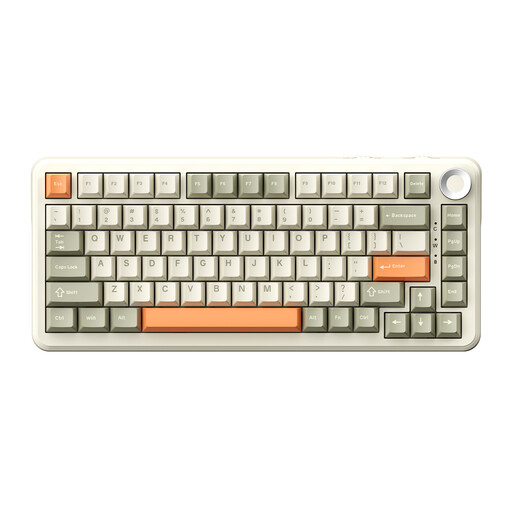 No image available
The 75% layout could suit you if you want to leave space beside your keyboard; check that the available keys meet your needs.
The product title lists tri-mode connectivity, Flying Fish switches, a volume knob and hot-swap. The description mentions onboard memory for macros and key functions.
Not just because you use two screens: first check whether they’re connected to the same computer. Switching between devices is mainly useful if you also type on other computers or devices; Keychron and Logitech list this feature on certain models.
Check that the connection on the version you choose works with your computer, and compare the physical ANSI or ISO layout with the keys you’re used to. Pay particular attention to Enter, Shift, Alt Gr and the position of symbols; the QWERTY label alone doesn’t explain all these differences.
Follow the instructions for your model. Keychron recommends disconnecting the keyboard first, then removing dust and crumbs with a brush or compressed air. Take care when removing keycaps and make sure no liquid gets inside the keyboard.
For many online purchases from a business, you have a 14-day cooling-off period; the Netherlands government notes that exceptions may apply. If a product is faulty, contact the seller about your statutory guarantee. The Netherlands doesn’t have a fixed statutory guarantee period of two years.
For employees who work at a screen for more than two hours a day, Arboportaal explains that the screen and keyboard must not be attached to each other; employers have options for making responsible exceptions. This isn’t a general requirement for private buyers to purchase a particular mechanical keyboard.