
Manuscript version manager
Wants to keep the manuscript, earlier versions and any scans as files that can be restored. Start by checking their size and where they are stored, as the Dutch Digital Heritage Network also recommends.


A portable HDD is a good fit for a manuscript backup that will usually stay in one place and where capacity is the priority. An SSD is a practical option if you often carry the copy between computers. Before choosing, take stock of your files and versions, then check that the drive works with your archive computers. Keep a separate backup too, and test that you can restore your files.
Wants to keep the manuscript, earlier versions and any scans as files that can be restored. Start by checking their size and where they are stored, as the Dutch Digital Heritage Network also recommends.
Carries a copy between archive computers and checks for suitable cables, a compatible file system and careful handling during transport.
If the manuscript contains personal data, the organisation must decide on appropriate security measures. The Dutch Data Protection Authority stresses that these measures should match the risks.
Choose this when: the copy will usually stay in one place and storage capacity matters to you. First, take stock of the collection and the versions you want to keep.
Bear in mind: in July 2022, the Dutch Consumers' Association reported that an HDD is more vulnerable to knocks than an SSD. Also check the connection and file system of the exact variant.
Choose this when: you regularly take your backup with you or transfer files between archive computers. Connecting cables may be useful, as long as they match the available ports.
Bear in mind: stated transfer speeds alone do not tell you how quickly files will copy on your computer. An SSD is no substitute for a separate backup or a restore test.
| Point to consider | What should you check? | Who should pay particular attention? |
|---|---|---|
| Restorable versions | Decide which versions and files you want to keep, where the other copy will be stored and how you will test restoring files. | If your main concern is losing an earlier manuscript version, map out the copies and restore steps in advance. Around 31% of consumers put the ability to restore files first. |
| Space for the archive | Measure the folders, scans and versions, then compare their total size with the capacity of the exact drive variant. | If you also want to keep scans and older versions, check that they will all fit on the drive. Around 25% of consumers prioritise archive storage space. |
| Computers and transport | Check the USB port, cable and file system for each computer before formatting. | If you transfer files between archive locations, you will want to connect and read the drive on the available computers. Around 25% of consumers prioritise portability and transport. |
| Access to confidential files | Check whether files contain personal data, who will have access and how passwords and recovery will be managed. | If manuscripts contain personal data, access and security should reflect the risks and the organisation's policies. Around 19% of consumers make access management their main concern. |
If the external drive is lost along with the working files, the copy could be lost too. And a successful copy operation does not prove that you will be able to restore the right version later.
Decide where the other copy will be kept and test restoring important manuscript files.
An interface rating is not the same as the actual copying speed. The contents of your archive and the ports on the computers you use also make a difference.
Measure your files, check the exact variant and make sure the cables and ports are compatible with your computers.
According to Toshiba, the Toshiba Canvio Basics variant reviewed is formatted as NTFS for Windows and needs reformatting for use with a Mac. Apple also warns that setting up a drive for Time Machine may require erasing it.
Check the file system first and make a separate copy of everything you want to keep before formatting.
The Canvio Basics and Canvio Ready are portable HDD ranges for local file copies, while the Canvio Flex is designed to work with different types of device.
The Portable SSD T7 is a range of portable SSDs for copying files and carrying them between compatible devices.
Expansion Portable includes portable HDD variants.
The X9 Pro is a range of portable SSDs; Crucial documents, among others, the 1 TB CT1000X9PROSSD9 variant.
This selection includes portable HDDs and SSDs for local manuscript backups. Compare the stated capacity with your archive, and check the connections and file system for the computers you use.
 No image available
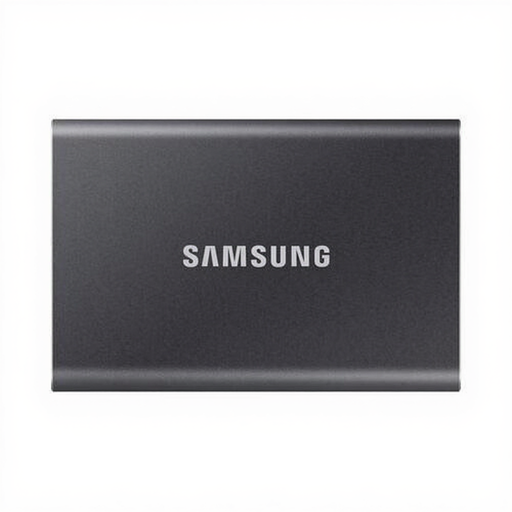
A portable SSD for a manuscript copy that fits within the stated storage capacity.
2 TB storage. The product information lists USB-C-to-C and USB-C-to-A cables.
 No image available
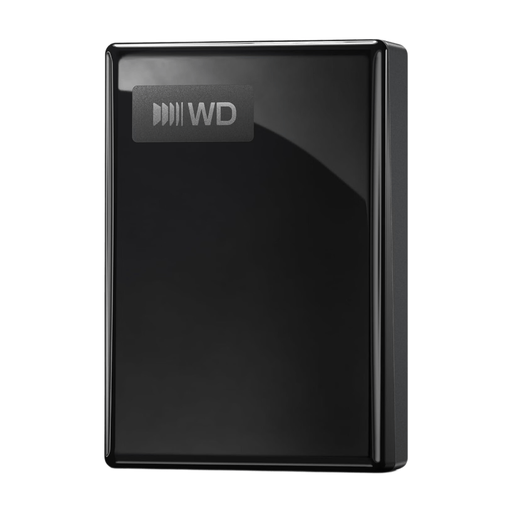
A portable SSD for a manuscript copy that fits within the stated storage capacity.
1 TB storage. The product information lists USB-C-to-C and USB-C-to-A cables, plus AES-256 password protection.
 No image available
A portable HDD for a manuscript archive, provided its files and the versions you want to keep fit within the capacity.
5 TB storage, USB-C, exFAT and password protection with AES-256 hardware encryption, according to the product information. In July 2022, the Dutch Consumers' Association reported that an HDD is more vulnerable to knocks than an SSD, so bear this in mind when transporting it.
 No image available
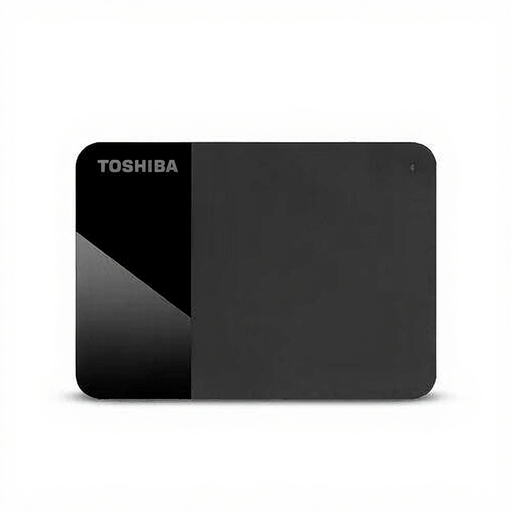
A portable HDD for a manuscript archive, provided its files and the versions you want to keep fit within the capacity.
4 TB storage, USB-C, exFAT and password protection with AES-256 hardware encryption, according to the product information. In July 2022, the Dutch Consumers' Association reported that an HDD is more vulnerable to knocks than an SSD, so bear this in mind when transporting it.
 No image available
A portable HDD for a manuscript archive, provided its files and the versions you want to keep fit within the capacity.
4 TB storage, USB-powered with a Micro-USB B connection. The product information says reformatting is required for macOS; make a separate copy of any existing data first. In July 2022, the Dutch Consumers' Association reported that an HDD is more vulnerable to knocks than an SSD, so bear this in mind when transporting it.
Do not use one external drive as your only backup. The National Cyber Security Centre advises keeping multiple versions of important data on different media, with one copy stored elsewhere. Also check that you can actually restore the right manuscript files. This is backup advice, not a legal minimum specification for a drive.
Start by taking stock of your manuscript files, scans, formats, current storage needs and the versions you want to keep. Then compare their total size with the capacity of the exact drive variant. For a full Time Machine backup on a Mac, Apple recommends a drive with at least twice the Mac's storage capacity. This is not necessarily a minimum requirement for a manuscript folder alone.
It depends on the drive and how you plan to use it. For example, Toshiba says the Canvio Basics variant reviewed is formatted as NTFS for Windows and needs reformatting for use with a Mac; the 1 TB Samsung T7 reviewed comes with USB-C-to-C and USB-C-to-A cables. Check the file system and ports, and keep existing data somewhere else before formatting.
The Dutch Data Protection Authority does not specify one product standard for every manuscript. If an organisation processes personal data, it must decide on security measures that are appropriate to the risks. Consider what access controls and encryption, if any, are needed; an SSD's password feature is no substitute for that assessment.
According to the Dutch Data Protection Authority, the GDPR does not set a specific general retention period for personal data. Organisations must not keep personal data for longer than necessary and must determine the appropriate period for their circumstances. This applies when the stored files contain personal data; it does not set a general retention period for all manuscripts.