If you mainly work on your manuscript at one home workstation, an external HDD is a good fit if local backup space matters more to you than maximum transfer speed. A portable SSD makes more sense if you often take your copy with you or move large project files around. Before buying, check the capacity, connection and formatting requirements for your computer and backup method. Then test that you can actually restore a manuscript file; a drive kept in one place is no substitute for a separate copy elsewhere.
Which drive is right for you?
Writer using one home computer
If you want to restore earlier manuscript versions without copying files manually each time, first check that your backup software includes the right folder. Microsoft Support explains how to add folders outside the default libraries to File History; the National Cyber Security Centre advises testing a restore.
Writer with a large project folder
If you keep image or audio files alongside your text, check how much space you need for your full backup and the versions you want to keep. Toshiba lists 1 TB, 2 TB and 4 TB versions of Canvio Basics; check the capacity of the specific model.
Writer who takes their copy with them
If you move the drive between workstations, consider its connection, portability and protection against unauthorised access too. Samsung lists optional password protection for the T7; Apple Support explains the formatting requirements for Time Machine.
What should you look for?
External HDD for a fixed workstation
Choose this if: the drive will usually stay at home and backup space matters more to you than maximum transfer speed.
What to consider: you may need to reformat it for macOS or Time Machine. Toshiba and Seagate state this for their respective product ranges; also check whether there are already files on the drive.
Portable external SSD
Choose this if: you regularly take your copy with you or move large project files as well as text.
What to consider: Samsung and Kingston list high maximum sequential speeds for specific SSD models. These are manufacturer claims, not measurements of a manuscript backup. Speed may not be a deciding factor for small text files.
A second copy stored elsewhere
Choose this if: you also want to allow for the possibility of losing the drive or an incident at your home workstation, whether you use an HDD or SSD.
What to consider: keeping a second copy requires a separate process that you maintain and test. The National Cyber Security Centre’s advice on keeping multiple copies is intended for organisations.
If you mainly work on your manuscript at home, check not just the drive, but also which folders your software copies and whether you can restore them.
| Priority |
What to look for when buying |
Who this matters to |
| Restorable versions |
Check which folders and earlier versions your backup software keeps, and test a restore. |
I want to be able to restore an earlier manuscript version and know that my folder is included. Around 36% of consumers prioritise restorable versions. |
| Storage space |
Decide whether you’re copying just manuscript files or also other project files and multiple versions. |
If my project folder also contains image or audio files, I want enough space for the backup I’ve chosen. Around 29% of consumers prioritise the storage space they need. |
| Connection and formatting |
Check your computer’s port, the cable or adapter supplied, the operating system and the formatting required for your backup method. |
I want to use the drive with my Windows PC or Mac without any surprises. Around 21% of consumers prioritise connection and compatibility. |
| Portability and confidentiality |
Decide whether you’ll take the drive with you, and check any security features for the model and how you’ll manage access. |
If I take my copy with me or others could access it, I want to manage portability and access carefully. Around 14% of consumers prioritise portability and confidentiality. |
Common mistakes
-
Using the external drive as your only manuscript copy
An external drive is a backup as long as you keep your original working file. If your only copy is lost or the drive fails, you could lose your writing.
Keep your working file and make a copy that you can check. You could also keep a separate copy somewhere else.
-
Trusting the ‘backup complete’ message without checking
The software may miss a folder if your manuscript is outside the folders you’ve set up. Microsoft Support explains which libraries File History includes by default; the National Cyber Security Centre advises testing a restore.
Once you’ve set it up, check which folder is included and open a manuscript file you’ve actually restored.
-
Formatting a drive without checking what’s already on it
Apple Support states that a drive with a Windows format can’t be used as-is for Time Machine. Reformatting deletes the existing data on that drive.
Copy any existing files elsewhere first, then check that the chosen format is right for your Mac and backup method.
-
Making the stated SSD speed your main selection criterion
The maximum sequential speeds Samsung and Kingston list for specific models don’t tell you whether your backup routine keeps earlier manuscript versions.
First, choose a process that includes the right files and versions. If you’ll be carrying the drive around or transferring larger project files, factor that into your decision about an SSD.
Brands to consider
These product ranges come in different versions and have different usage requirements; a brand being mentioned doesn’t mean a specific version is available.
Toshiba
Canvio Basics is a USB-powered HDD range for local storage at a fixed workstation.
- Toshiba lists 1 TB, 2 TB and 4 TB versions and states that they work straight away with Windows 11.
- Toshiba says reformatting is required for macOS. Check the capacity and requirements of the exact version; the drive can’t determine whether your backup is restorable.
Seagate
Expansion Portable is a portable HDD range for local file storage.
- For STKM2000400, Seagate lists a 2 TB version and describes USB 3.0 and drag-and-drop file copying.
- Seagate states that reformatting is required to use it with Time Machine. Check the features and requirements of each version.
Samsung
The Portable SSD T7 1 TB Gray, MU-PC1T0T/WW, is a portable SSD version.
- Samsung lists USB 3.2 Gen 2, maximum read and write speeds of 1.050 MB/s and 1.000 MB/s respectively, two types of USB cable and optional AES 256-bit password protection.
- These are manufacturer claims; for small text files, any potential speed gain may not be a deciding factor.
Kingston
Kingston identifies the red 1 TB version of the XS1000 as SXS1000R/1000G.
- For the range, Kingston lists maximum read and write speeds of 1.050 MB/s and 1.000 MB/s respectively via USB 3.2 Gen 2, plus a cable and adapter for USB-A and USB-C.
- These speeds are manufacturer claims under suitable usage conditions, not measured speeds for manuscript files.
Products for manuscript backups
This selection includes portable external HDDs and SSDs for local manuscript and project backups. Compare the storage space, connection and requirements of the specific version, and consider whether you’ll take your copy with you.
 Image unavailable
SanDisk Portable SSD 1 TB
A good fit if you want to keep a portable copy and take files between workstations.
- 1 TB of storage.
- The product information lists read speeds of up to 800 MB/s.
- The product information mentions drop protection from heights of up to 2 m and a rubber attachment loop.
View at Joybuy
 Image unavailable
My Passport for Mac 2 TB Blue
A good fit for a Mac user considering a portable HDD for Time Machine backups.
- 2 TB of storage.
- The product information states that the drive is formatted for Mac and ready for Time Machine.
- The product information mentions password protection, hardware encryption and a USB-A cable with a USB-C adapter.
View at Joybuy
 Image unavailable
My Passport 2 TB Red
A good fit if you want a portable HDD for local copies of manuscript and project files.
- 2 TB of storage.
- The product information lists USB 3.0 and plug-and-play use.
- The product information mentions password protection and 256-bit AES hardware encryption.
View at Joybuy
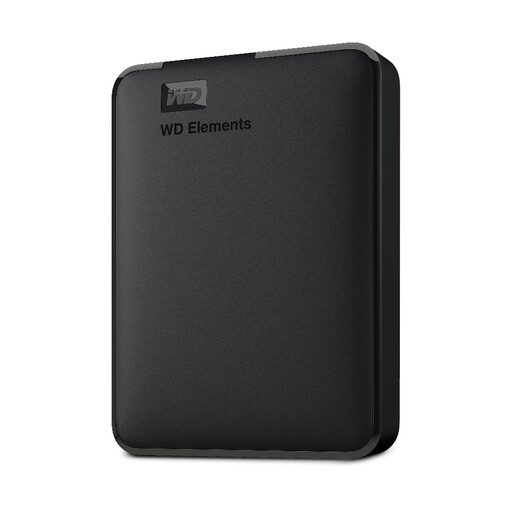 Image unavailable
WD Elements Portable 2 TB
A good fit if you’re looking for a portable external HDD for documents and other files.
- 2 TB of storage.
- The product information lists USB 3.2 Gen 1 and plug-and-play use.
- The title mentions use with PC and Mac; check that the formatting is right for your backup method.
View at Joybuy
 Image unavailable
Portable SSD 1 TB with USB-C
A good fit if you want to take a portable SSD with you and use files on a Windows computer or Mac.
- 1 TB of storage.
- The product information lists read speeds of up to 1.000 MB/s.
- The product information mentions USB-C, compatibility with Windows and macOS, and drop protection from heights of up to 2 m.
View at Joybuy
Frequently asked questions
How do you set up a manuscript backup on Windows?
File History lets you keep versions of files on an external drive. Microsoft Support lists default libraries such as Documents; if your manuscript is stored elsewhere, add that folder to a library and then try restoring an earlier version.
Can a drive formatted for Windows be used straight away with Time Machine?
No, not with that format. Apple Support states that Time Machine doesn’t save backups to a drive with a Windows format and recommends APFS or APFS Encrypted. Reformatting deletes existing data on the drive, so copy it elsewhere first.
How do you check that a manuscript backup works?
Restore a file and open the restored manuscript version. The National Cyber Security Centre advises organisations to test a restore; doing the same at your own workstation shows whether you can restore the right folder and version.


