
Editors with limited desk space
You want to fit your computer on or behind your existing desk, while allowing room for cables, a monitor and connected storage. Apple lists the Mac mini’s footprint as 12,7 × 12,7 cm.


Start with your editing software and the resolution of your theatre recording. For HD editing without demanding effects, a compact desktop with more modest specifications may be suitable, while 4K and intensive effects may call for more memory and graphics power. Adobe recommends 32 GB RAM or more for 4K and above in Premiere. Also check the exact configuration, storage, connections and the space available for your monitor and peripherals.
You want to fit your computer on or behind your existing desk, while allowing room for cables, a monitor and connected storage. Apple lists the Mac mini’s footprint as 12,7 × 12,7 cm.
You work with 4K footage or lots of effects, so you choose a configuration based on your editing software, memory and graphics requirements—not just the size of the case. Adobe recommends 32 GB RAM or more for 4K and above in Premiere.
You want to keep source files, project files and backups organised. Compare SSD capacity and connections with your storage plan; the right capacity depends on your files and how you store your backups.
Suitable if: you want to use macOS and a small footprint matters; Apple lists dimensions of 12,7 × 12,7 cm and hardware acceleration for formats including H.264, HEVC and ProRes.
Bear in mind: Apple lists 16 GB unified memory as the starting point for M6 models; Adobe recommends 32 GB or more for 4K in Premiere. Compare the model you choose with your editing workload.
Suitable if: you use Windows software or are looking for a configuration with dedicated graphics memory. The HP Z2 Mini G1i configuration reviewed has 32 GB RAM, a 1 TB SSD and an NVIDIA RTX 2000 Ada with 16 GB graphics memory.
Bear in mind: these specifications are not measured proof that it will be faster for your project. Check software compatibility and whether your editing workload can make use of the discrete GPU.
Suitable if: you want a small Windows desktop and are happy to assess the exact combination of memory, storage and graphics hardware yourself. Lenovo offers several ThinkStation P3 Tiny Gen 2 configurations, while Dell sells the Pro Max Micro as a compact desktop.
Bear in mind: a model name does not refer to one fixed configuration. Check the exact model number and don’t assume it is suitable for editing just because it is called a workstation.
| What to consider | What should you check? | Who should pay particular attention? |
|---|---|---|
| Space and connections | Check the dimensions, placement and connections for your existing monitor and storage. Apple lists Thunderbolt and HDMI for the Mac mini. | If I have a small workspace, I want to leave room for my monitor, cables and drives. Around 33% of consumers give desk space top priority. |
| Editing requirements | Check the resolution, codec, effects and requirements of your editing software. Adobe recommends 16 GB RAM for HD in Premiere and 32 GB or more for 4K and above. | If you work with 4K or intensive effects, you’ll want to match the configuration to your software and footage. Around 27% of consumers prioritise demanding editing work. |
| Storage and backups | Work out how much space your source footage and project files take up. Compare SSD capacity and plan your backups separately. | For long recordings, I want to know where my source files, projects and backups will be stored. Around 20% of consumers give storage top priority. |
| Software and complete setup | Check platform and software compatibility, included peripherals and any paid software features. Compare the total cost, not just the computer. | If I already have a monitor and editing software, I want to know whether they’ll work with the desktop and what else I’ll need. Around 20% of consumers prioritise costs and software compatibility. |
Compact desktops can come with different memory configurations. Adobe recommends 32 GB RAM or more for 4K and above in Premiere.
First, check your recording format and software requirements, then compare them with the exact memory configuration.
A configuration with more memory may cost more to buy.
How much footage fits on an SSD depends on the size of your source files and project versions.
Work out how much space you need for source footage and working files, then decide separately how you’ll store your backups.
You may need separate storage for working files and backups.
For the ThinkStation P3 Tiny Gen 2 configuration reviewed, the monitor, keyboard and mouse are sold separately. The software features you want may also depend on the version you choose.
Make a list of the equipment you already have and check which software features your editing actually requires.
A monitor, input devices or software features you want may mean extra purchases.
A performance, music and performers’ contributions may be protected by copyright and related rights.
Before publishing, check the agreements and permissions needed for the piece, music and performance.
The Mac mini is an option if you’re looking for a compact macOS system; Apple offers several configurations.
The Z2 Mini G1i is a compact Windows workstation that should be assessed based on its exact configuration.
The ThinkStation P3 Tiny Gen 2 is a compact Windows workstation available in several configurations.
Dell describes the Pro Max Micro as a compact desktop for anyone considering a small Windows setup.
This selection includes three Mac mini M6 configurations and two Lenovo mini desktops for a compact workspace. Check software compatibility and the configuration of each model; Adobe recommends 32 GB RAM or more for 4K and above in Premiere.
 No image available
A compact macOS option if you mainly edit in HD and its storage capacity suits your files.
The product name lists an M6 chip with a 12-core CPU and 12-core GPU, 16 GB memory and a 256 GB SSD. Adobe recommends 16 GB RAM for HD in Premiere, and 32 GB or more for 4K and above.
No image available
A compact macOS option if you mainly edit in HD and want more internal SSD capacity than the 256 GB model offers.
The product name lists an M6 chip with a 12-core CPU and 12-core GPU, 16 GB memory and a 512 GB SSD. Adobe recommends 16 GB RAM for HD in Premiere, and 32 GB or more for 4K and above.
No image available
A compact macOS option if you want more memory and internal storage than the 16 GB models offer, while keeping your software’s editing requirements in mind.
The product name lists an M6 chip with a 12-core CPU and 12-core GPU, 24 GB memory and a 512 GB SSD. Adobe recommends 32 GB RAM or more for 4K and above in Premiere.
 No image available
A compact mini desktop for a Windows setup, provided the listed connections and software work with your existing equipment.
The product name lists an Intel Core Ultra 5 325, 16 GB LPDDR5X, a 512 GB PCIe 4.0 SSD, Intel Graphics and Windows 11 Home. The product description lists a 0,65-litre case, Thunderbolt 4 and HDMI. Adobe recommends 32 GB RAM or more for 4K and above in Premiere.
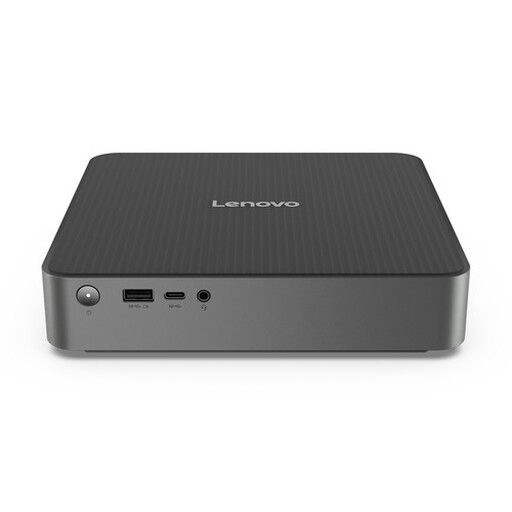 No image available
A mini desktop to consider if you’re looking for a compact editing setup and its connections suit your monitor and storage.
The product description lists 16 GB memory, a 512 GB SSD, integrated Intel Graphics and a 1-litre case. It also mentions Thunderbolt 4, HDMI and DisplayPort. Adobe recommends 32 GB RAM or more for 4K and above in Premiere.
Check your editing software’s requirements for that resolution, along with the desktop’s exact memory and GPU configuration. Adobe recommends 32 GB RAM or more for 4K and above in Premiere; this isn’t automatically a requirement for other software.
Compare the connections on your existing devices with those on the exact desktop model. Apple lists Thunderbolt and HDMI for the Mac mini. For a Windows configuration, check the ports on the model you’ve chosen before ordering cables or adapters.
If needed, include a monitor, keyboard, mouse, storage and software in your budget. Lenovo says the monitor, keyboard and mouse are sold separately with the P3 Tiny Gen 2 configuration reviewed. For a consumer purchase in the Netherlands, statutory rights apply alongside any manufacturer’s warranty. If there’s a problem, contact the seller, according to the Dutch government.
Don’t assume that you can. The Dutch government says permission from rights holders may be needed to use or make copyright-protected work available to the public. Performers are also protected by related rights. The permissions you need for your recording depend on the work, the performers and any existing agreements.
According to ACM ConsuWijzer, online consumer purchases generally come with a statutory cooling-off period of up to 14 days after delivery. Check the applicable exceptions and conditions for your purchase.