
4K video editor
You want to know whether your computer is suitable for your source footage and editing software. Compare their requirements with the exact configuration you’re considering.


Start by choosing a computer that suits your editing software, footage resolution and existing equipment. A compact Mac mini could be a good fit if you want macOS and its connections and storage suit your workspace. A Windows tower offers a configurable option if you use Windows software or have specific memory and graphics card requirements.
You want to know whether your computer is suitable for your source footage and editing software. Compare their requirements with the exact configuration you’re considering.
You’ll need storage for your original footage, any working copies and the final export. Decide in advance whether internal storage will be enough or whether external storage would suit your workflow.
You don’t want to buy equipment you don’t need. Check that your monitor, peripherals and software will work with the Mac or Windows PC you choose.
A good fit if: you want to work with macOS, have limited desk space and already have, or can arrange, a suitable monitor and the connections you need.
Keep in mind: check that the SSD has enough space for your footage and working files. A media engine alone doesn’t show how every project will perform.
A good fit if: you need Windows software or are looking for a specific combination of memory and graphics card.
Keep in mind: a workstation name doesn’t guarantee a particular configuration. Compare the exact model with your software and footage requirements.
| What to consider | What should you check? | Who is this important for? |
|---|---|---|
| Editing configuration | Check the software version, source resolution, RAM and GPU in the exact model. For Premiere 26.x on Windows, Adobe lists 16 GB RAM for HD and 32 GB or more for 4K, with 8 GB of GPU memory as a recommended specification. These are software recommendations, not a performance test of a particular PC. | If I mainly want to know whether my computer suits my software and footage, I prioritise editing performance. Around 33% of consumers put this need first. |
| Storage space | Add together the space needed for source files and working copies. Compare the total with the internal SSD, and check the connections if you plan to use external storage. | I want enough space to store my footage, working copies and export. Around 27% of consumers make storage space their top priority. |
| Complete workspace | When choosing, factor in the computer, any peripherals you still need, storage and the software version you’ll be using. | If I want to work out what I need for a complete editing setup, I look beyond the desktop itself. Around 20% of consumers prioritise the overall setup. |
| Software and connections | Check which operating system your editing software requires and whether your monitor, recording media and storage can be connected to the desktop. | I want to keep using my editing software and existing monitor or storage. Around 20% of consumers start by checking compatibility. |
Desktops in the same product range can have different components. The model name alone won’t tell you how much memory or what type of graphics hardware you’ll get.
Compare the full specification sheet with your editing software requirements and source footage format.
Source files and working copies may need to sit side by side in an editing workflow. Adobe describes a Premiere workflow using proxy files, which means your project may need more space than the final export alone.
Check how large your footage is and allow storage for any working copies before choosing an SSD configuration.
Blackmagic Design offers a free version of DaVinci Resolve and a Studio version with additional features.
Check that the effects, codecs and export settings you need are available in the version you plan to use.
A compact macOS option to compare if you have limited desk space and your monitor and connections are compatible with the desktop you choose.
The ThinkStation P3 Tower Gen 2 is a Windows tower range to consider if you want to compare components in detail.
The Z2 Tower G1i is a workstation range to compare if you’re looking for a specific configuration and room to expand.
The Precision 5860 Tower is a configurable workstation option to compare if you’re looking for a tower.
ProArt desktops are worth considering if you’re looking for a desktop for creative workflows.
This selection includes Windows desktops with a range of RAM, GPU and storage configurations. Compare the listed components with your editing software, source footage and the space you need for project files.
 Image unavailable
The listed RAM and GPU memory specifications meet Adobe’s recommendations for Premiere 4K on Windows. Also check that the rest of the configuration suits your project.
32 GB DDR5, NVIDIA GeForce RTX 5080 with 16 GB memory and 1 TB NVMe SSD.
Windows 11 Trial is listed; check which version and activation you need.
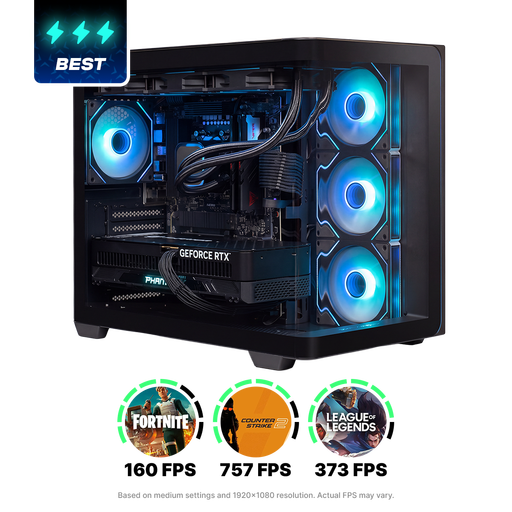 Image unavailable
If you want to store lots of source footage and working copies, compare the listed storage with the size of your own project; the configuration alone won’t predict editing performance.
32 GB RAM, NVIDIA RTX 5090 with 24 GB of graphics memory and a 2 TB NVMe SSD.
The product name lists a Ryzen 9 processor.
 Image unavailable
This configuration is worth comparing if you’re looking for a Windows desktop with a dedicated graphics card; make sure the components meet your editor and project requirements.
Intel Core Ultra 7 265F, 32 GB DDR5, NVIDIA GeForce RTX 5070 with 12 GB memory and a 1 TB SSD.
Windows 11 Home is listed.
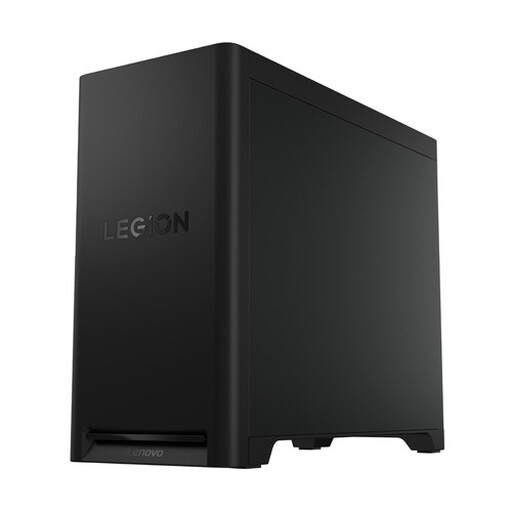 Image unavailable
Compare this tower with your project if you’re looking for a desktop with a dedicated graphics card and room for media files.
32 GB DDR5, NVIDIA GeForce RTX 5070 with 12 GB of graphics memory and a 1 TB SSD.
Windows 11 Home is listed; the product description mentions support for storage expansion.
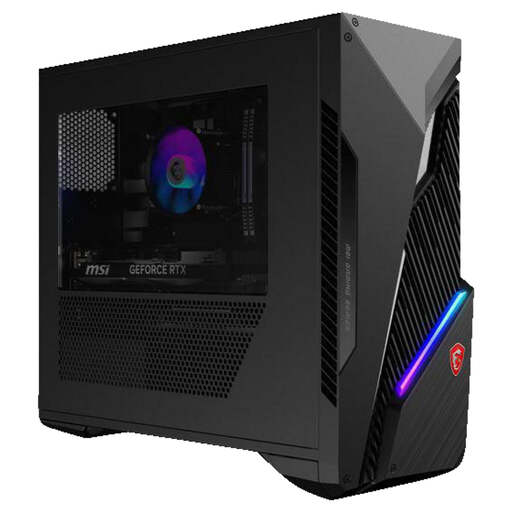 Image unavailable
The listed 16 GB RAM matches Adobe’s recommendation for Premiere HD. For 4K, Adobe recommends 32 GB or more, so compare this difference with your source footage.
16 GB RAM, NVIDIA RTX 5060 Ti with 8 GB of graphics memory and a 1 TB NVMe SSD.
Windows 11 Home is listed.
It depends on your software and source resolution. For the Windows versions of Premiere reviewed, Adobe recommends 16 GB for HD and 32 GB or more for 4K and above. So don’t treat 16 GB as a general guarantee of smooth 4K editing.
According to Adobe, you can edit in Premiere using lighter proxy files, then switch back to the originals for the final export. Allow space for these additional files too, and check the requirements for the version you use.
If you buy as a consumer in the Netherlands, contact the seller if a product doesn’t work as it should. The Dutch government distinguishes between the seller’s responsibilities and a manufacturer’s warranty; read the terms before taking out any additional cover.
Don’t assume that this is automatically allowed. The Dutch Data Protection Authority notes that identifiable people are personal data, and that the applicable privacy rules depend on who is filming and how the footage is shared. The Dutch government says you may need permission to use copyright-protected music. Discuss the specific screening and any publication with your course or organiser.