Vandaag of morgen in huis

Kwaliteit gegarandeerd

Welkomstaanbiedingen ontgrendelen: GRATIS bezorging | Tot 80% korting | Gratis 30 dagen JoyPlus-proefperiode
Download de app
A slow PC, endless loading screens in your favourite game, or a full storage drive on your PlayStation 5. These are common frustrations. An M.2 SSD is the upgrade that gives your system a significant speed boost. But the market is flooded with technical jargon and marketing promises. This can make buying an M.2 SSD unnecessarily complicated, with the risk of overpaying for features you don't need.
As a Joybuy Product Recommendation Officer, I'll help you cut through the noise. We'll focus on the specifications that truly matter and steer clear of the most common pitfalls.
To avoid a bad purchase, it's crucial to understand a few key specifications. This will help you choose an internal SSD that perfectly matches your use case and budget.
The PCIe generation determines the maximum theoretical speed of the SSD.
Pro Tip: Check your motherboard or laptop specifications to see which PCIe generation is supported. An SSD is 'backwards compatible' (a PCIe 4.0 SSD works in a 3.0 slot), but you won't get its maximum speed.
Modern games and software are taking up more and more space.
As mentioned, a fast M.2 SSD can get hot.
Below is a selection of M.2 SSDs tailored to different user profiles. We focus on how each model avoids the pitfalls mentioned earlier.
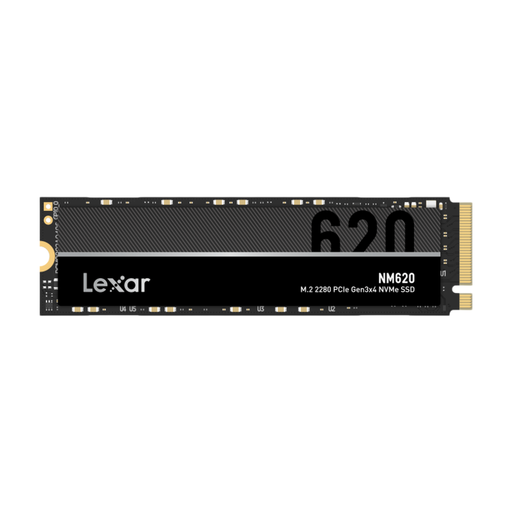
Why it's a match: Perfect for those looking to give an older PC or laptop with a traditional hard drive or SATA SSD a noticeable speed boost, without paying a premium for features the system can't support anyway.
This PCIe 3.0 SSD prevents you from overpaying for PCIe 4.0 speeds that your system can't handle. The focus is on a tangible, practical performance improvement at a competitive price.
Excellent price-to-performance ratio. According to Lexar, read speeds reach up to 3500 MB/s, a significant upgrade for everyday use and light gaming.
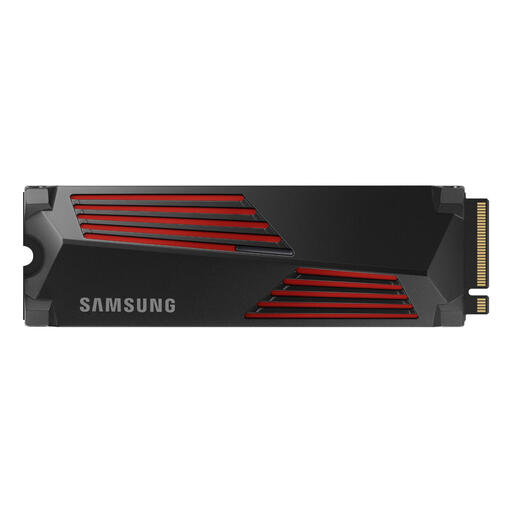
Why it's a match: Ideal for gamers who want to minimise loading times on their PC or expand their PlayStation 5's storage. The 2TB SSD capacity provides ample space for a large game library.
This model directly solves the heat issue with an integrated heatsink, a requirement for the PS5 SSD slot. Its speed is perfectly matched to the PCIe 4.0 requirements of the console and modern gaming PCs.
High PCIe 4.0 SSD performance (up to 7,450 MB/s read, according to Samsung) and a pre-installed heatsink ensure stable speeds and easy installation in a PS5 or a high-end SSD for PC.
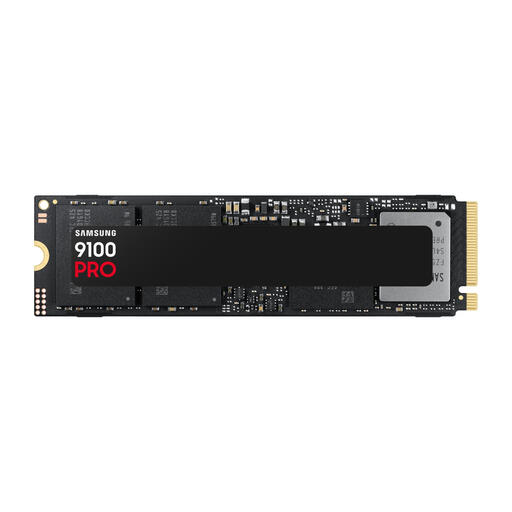
Why it's a match: For the content creator working with 8K video files, or the PC builder assembling a system that's ready for the years ahead and is unwilling to compromise on performance.
This user is the one who actually needs the top-tier speeds that are overkill for others. The SSD prevents storage from becoming a bottleneck in a system with a high-end processor and graphics card.
Extreme speeds thanks to PCIe 5.0 (up to 14,800 MB/s read, according to Samsung) for processing massive files and minimising wait times in demanding professional software.
We have compiled a complete, up-to-date list of products that fully meet these strict selection criteria and safety regulations.
For a PCIe 3.0 SSD, it's usually not necessary unless it's installed in a tight, poorly ventilated space. For PCIe 4.0 and PCIe 5.0 SSDs, a heatsink is highly recommended, especially for intensive tasks like gaming or video editing. For use in a PlayStation 5, a heatsink is mandatory. Many modern motherboards now come with built-in M.2 heatsinks. If that's not the case, choose an SSD that already has a heatsink attached.
No. Always check three things before buying an M.2 SSD:
For most gamers and everyday users in 2026, a fast PCIe 4.0 SSD is more than sufficient and offers the best price-to-performance ratio. A PCIe 5.0 SSD is currently worth the premium primarily for professionals who constantly work with extremely large files or for PC enthusiasts who want the absolute latest and have a compatible system (with a recent generation Intel or AMD processor and motherboard).