Who is this guide for?

People sharing large project files

Want to transfer files reliably at a workstation at the end of the corridor? Focus on how transfers perform there, and check whether a wired Wi-Fi access point is an option rather than relying solely on quoted wireless speeds. Consumentenbond describes tests using large and small files over both Wi-Fi and cable.

People working in a remote spot

If your existing Wi-Fi doesn’t reach the end of the corridor reliably, the location of the access point and its connection back to the router are key considerations. Consumentenbond includes placement as part of its range testing.

People without a network cable

If you can’t run Ethernet to your workstation, compare a wireless access point with a connection over your mains wiring. With powerline, you’ll need compatible adapters, and your electrical installation can affect performance.

What should you look for when buying?

Wired access point or Wi-Fi access point

Choose this if: you can run Ethernet to the access point and file transfers are your priority.

Trade-off: you’ll need to run a cable; a gigabit port alone doesn’t guarantee a particular file transfer speed.

Wireless repeater or mesh node

Choose this if: running a cable isn’t possible and the router signal is still strong enough at an intermediate point.

Trade-off: the wireless connection back to the router remains a deciding factor; mesh features require compatible devices.

Powerline with Wi-Fi

Choose this if: running a cable or getting a reliable wireless connection through the corridor doesn’t seem feasible, but you have accessible sockets.

Trade-off: throughput depends partly on your electrical installation and interference; you’ll need compatible adapters.

What to consider What should you check? Who is this important for?
File transfers Test transfers between your workstation and storage. Compare large and small files; a gigabit port doesn’t tell you how fast those transfers will be. If I share project files, I want to know whether transfers are reliable at my workstation. Around 36% of consumers prioritise reliable file transfers at their workstation.
Coverage at the end of the corridor Find a spot where the access point still has a good connection to the router and can reach your workstation. Check the connection in both locations. When I work at the end of the corridor, I want coverage there without putting the access point out of the router’s range. Around 29% of consumers prioritise usable coverage at their workstation.
Installation without a cable Compare a wireless intermediate point with powerline. For powerline, check which adapter series are compatible and test the connection using the sockets you plan to use. If I can’t run a long network cable, I want to know which connection option is practical in my home or workspace. Around 21% of consumers prioritise installation without a network cable.
Compatibility and security Check the exact router and access point combination, supported security settings and firmware for your hardware version. Also check the CE marking and product documentation for the specific model on offer, as advised by the Dutch Authority for Digital Infrastructure for radio equipment. With my existing network equipment, I want to know in advance which features work together and which security settings are available. Around 14% of consumers prioritise compatibility and security.

Common pitfalls

  • Choosing based solely on the quoted Wi-Fi speed

    For project files, what matters is the transfer speed at your workstation. The connection back to the router and the rest of your network also play a part.

    Check the connection route and test it where you plan to work, using both large and small files.

  • Placing the access point right at the end of the corridor

    A wirelessly connected access point also needs a usable connection to your existing network.

    Try an intermediate location. If there’s no usable connection there, look into running a cable or using a different connection route.

  • Assuming powerline adapters always work together

    Your electrical installation and interference can affect throughput. Devolo states that Magic adapters are not compatible with the older dLAN range.

    Check the adapter series and what’s included in the set, then test the connection using the sockets you plan to use.

    If your existing adapters aren’t compatible, you may need to buy an extra compatible adapter.

  • Expecting all mesh features to work with every router

    FRITZ! Mesh and ASUS AiMesh require compatible devices; a repeater won’t automatically support every brand-specific feature.

    Check the exact router and access point models before relying on integrated mesh features.

Brands to compare

TP-Link

The RE705X is worth considering if you’re looking at a repeater and may want to use it later in a wired access point setup.

  • TP-Link lists dual-band Wi-Fi 6, a gigabit Ethernet port and access point mode for the RE705X.
  • OneMesh isn’t automatically compatible with every router. Check the combination, hardware version and firmware.

FRITZ!

The FRITZ!Repeater 1200 AX is particularly worth considering if you already use a FRITZ!Box; FRITZ! says it can also be used with other routers.

  • FRITZ! lists a gigabit LAN port and a LAN connection to a FRITZ!Box for Mesh Wi-Fi.
  • Don’t assume the described FRITZ! Mesh integration applies to other routers or different regional models.

ASUS

The RP-AX58 is worth considering if you have an existing ASUS AiMesh router, or if you’re looking for a standard extender with a different router.

  • ASUS lists AiMesh for compatible devices, as well as an access point mode.
  • AiMesh features aren’t necessarily available with a router from another brand. ASUS also says you’ll need Wi-Fi 6-compatible devices at the receiving end.

devolo

The Magic 2 WiFi next Starter Kit is an alternative connection option if Wi-Fi doesn’t reach far enough through the corridor and you want to use your mains wiring.

  • devolo lists two adapters in the starter kit, two gigabit LAN ports on the Wi-Fi adapter and the option to expand within the Magic range.
  • dLAN adapters aren’t supported. According to devolo, actual powerline throughput also depends on your electrical installation and interference.

Joybuy products for wired Wi-Fi and mesh

This product selection focuses on wired access points and mesh setups for anyone who can run Ethernet to an access point or wants to use multiple mesh nodes.

ASUS ZenWiFi BD4 Dual-Band Wi-Fi 7 (802.11be), 2.4 GHz and 5 GHz

ASUS ZenWiFi BD4 Dual-Band Wi-Fi 7 (802.11be)

A mesh option if you can run Ethernet to the access point and want to use wired backhaul.

Dual-band: 2.4 GHz and 5 GHz.

The wired backhaul option requires an Ethernet connection.

View at Joybuy

TP-Link Omada EAP653 Wireless Access Point, 2976 Mbit/s, Power over Ethernet (PoE)

TP-Link Omada EAP653 Wireless Access Point, 2976 Mbit/s, PoE

Suitable for a wired access point setup if you can provide Ethernet and PoE power at the installation location.

This access point setup requires a wired connection and PoE power.

View at Joybuy
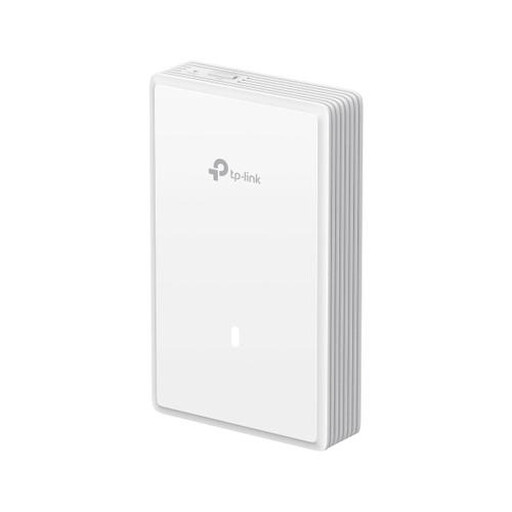
TP-Link EAP725-Wall, 5012 Mbit/s, Power over Ethernet (PoE)

TP-Link EAP725-Wall, 5012 Mbit/s, PoE

An access point option for a location where you can use a wired connection and PoE power.

Installation requires Ethernet and PoE power.

View at Joybuy

TP-Link Deco XE75 tri-band mesh Wi-Fi system, Wi-Fi 6E (802.11ax)

TP-Link Deco XE75 Tri-band Mesh Wi-Fi 6E (802.11ax)

A mesh option if you want to use several nodes to extend Wi-Fi through the corridor.

Tri-band mesh Wi-Fi system with Wi-Fi 6E (802.11ax).

View at Joybuy

TP-Link Deco X50-PoE 3-pack, dual-band Wi-Fi 6 (802.11ax)

TP-Link Deco X50-PoE (3-pack) Dual-Band Wi-Fi 6 (802.11ax)

A mesh kit with multiple nodes for anyone looking to extend Wi-Fi to several areas.

The product name specifies PoE; bear this in mind when planning the installation.

View at Joybuy

Frequently asked questions

Where should you put a wireless Wi-Fi extender in a long corridor?

Place it where it still has a good connection to the router, rather than automatically putting it in the spot with the weakest signal. Then check the connection and file transfers at your workstation; the best location depends on your setup.

Will project files transfer faster if the box says AX3000?

Not necessarily: the quoted wireless speed alone doesn’t determine file transfer performance. The connection back to the router and the rest of your network also play a part. That’s why Consumentenbond tests in different locations, over both Wi-Fi and cable, using large and small files.

Can I combine an existing powerline adapter with a devolo Magic kit?

Check the adapter range first. devolo says Magic adapters can be used together to expand your setup, but adapters from the older dLAN range aren’t supported by the Magic 2 WiFi next.

What warranty applies to a Wi-Fi extender in the Netherlands?

If a consumer product is faulty in the Netherlands, you may be entitled to a legal guarantee. The Dutch government says there is no fixed statutory guarantee period of two years; a manufacturer’s warranty is in addition to this.

Which product marking should you check on a Wi-Fi extender?

Check the CE marking and product documentation for the specific model on offer. The Dutch Authority for Digital Infrastructure states that radio equipment must comply with the relevant EU requirements and, if it does, carry a CE marking.
