
Vandaag of morgen in huis

Kwaliteit gegarandeerd

Welkomstaanbiedingen ontgrendelen: GRATIS bezorging | Tot 80% korting | Gratis 30 dagen JoyPlus-proefperiode
Download de app
Grainy video, crackling audio, or a camera that constantly refocuses. Choosing a good webcam for remote work or online classes can feel like a gamble. Your laptop's built-in camera often falls short, and the market is flooded with models that promise a lot but deliver little. As a Joybuy Product Recommendation Officer, I'll help you make the right choice based on specifications, not marketing hype.
Before you make a decision, it's important to recognise a few common pitfalls. Many buyers fall for them, resulting in frustration and wasted money.
To avoid the problems above, there are a few technical specifications you should always check. These determine whether a webcam is worth its price.
This duo determines the sharpness and smoothness of your video.
The frame rate, expressed in frames per second (fps), determines how smooth the motion is. 30 fps is the standard and more than sufficient for professional use.
The field of view determines how much of your surroundings the camera captures.
These two features ensure you always look your best without having to manually adjust settings. Autofocus keeps you sharp, even when you move. Automatic light correction adjusts the image based on ambient light, keeping your face bright even with a window behind you.
Based on these criteria, we have selected a few models that suit different user profiles.
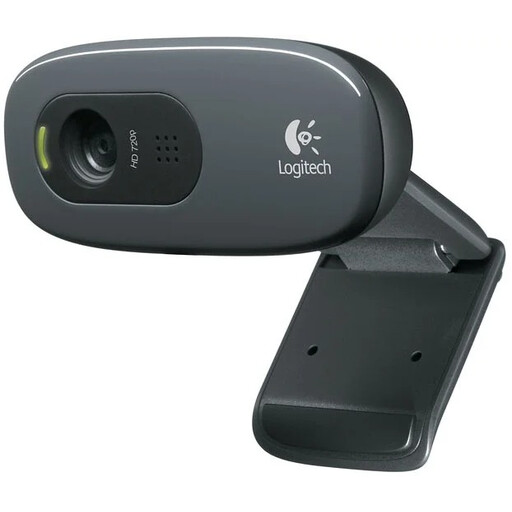
Why This Fits Their Persona: A reliable upgrade for those tired of their built-in laptop camera. Ideal for students or for basic video calls without a major investment.
It delivers true 720p HD resolution and has a noise-reducing microphone, avoiding the pitfalls of vague "HD" claims and poor audio.
Automatic light correction for a clear image and a simple plug-and-play setup via USB.
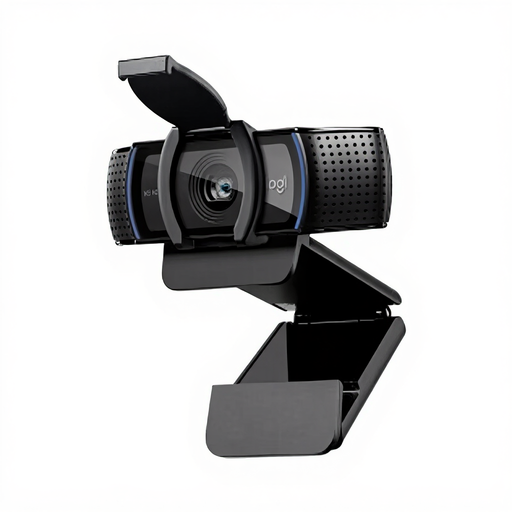
Why This Fits Their Persona: The perfect all-rounder for professionals who make daily video calls. This HD webcam offers a consistent, high-quality experience across all major meeting platforms. It's also a popular choice as a streaming webcam for beginners.
It offers sharp 1080p video and clear stereo audio thanks to dual microphones. The automatic light correction and autofocus directly address the most common frustrations.
Certified for Microsoft Teams and Zoom. Includes a convenient privacy shutter and a sturdy, adjustable clip for mounting.
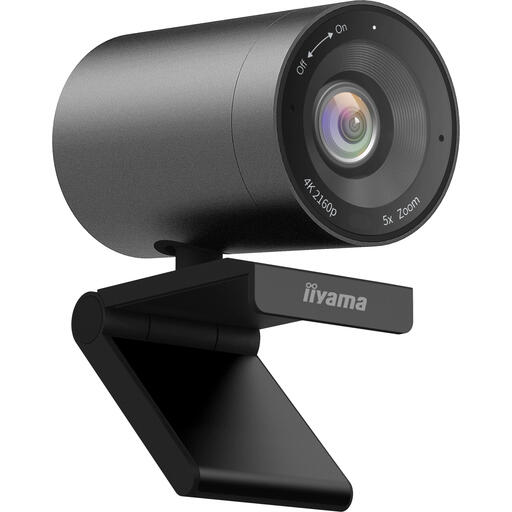
Why This Fits Their Persona: For those who demand the highest image quality or regularly have multiple people in the frame. The 4K resolution and wide viewing angle make this a powerful tool for presentations and small team meetings.
It delivers true 4K Ultra HD resolution, far surpassing vague "HD" claims. The wide 120-degree viewing angle is clearly specified and ideal for more than one person.
4K Ultra HD resolution, a very wide 120-degree viewing angle, and a microphone with a 4-meter range.
A good webcam is the first step. For those who need crystal-clear audio in meetings or recordings, we have a selection of products with advanced microphones and speakers.
No, installation is very simple. The C920e is a 'plug-and-play' device. You connect it to a USB port on your computer, and it is immediately recognised by most operating systems and applications like Zoom, Microsoft Teams, and Google Meet.
The 'e' in C920e stands for 'enterprise'. This is the business version of the popular C920. The hardware is largely identical, but the C920e is specifically certified for business software, often comes with a privacy shutter, and is optimised for deployment in corporate environments. For a remote worker, the performance is comparable.
Generally, no. The webcam works immediately after being plugged in. However, installing the manufacturer's software, such as Logitech Sync, can offer additional benefits. It allows you to manually adjust zoom, focus, and colour settings for more control over your image.
