First, check whether the connection is weak mainly in the loft: a Wi-Fi booster won’t fix a slow internet connection at the router. A wireless repeater is a good option if there’s a suitable midway location, an access point if you can run a network cable to the loft, and compatible mesh nodes if coverage is weak across several floors. The stated Wi-Fi speed doesn’t guarantee the download speed you’ll get in the loft.
Who is a Wi-Fi solution for the loft suitable for?
Loft user without a network cable
If downloads keep stalling mainly in the loft, look for a midway location where the repeater can still receive a usable signal from the router. TP-Link’s placement guidance highlights that a repeater depends on the connection available at its location.
Loft user with the option of running a cable
Running a network cable to your converted loft allows you to set up a wired Wi-Fi access point. This means the wireless signal no longer has to pass through the floor between the access point and your home network.
Someone with weak Wi-Fi on several floors
If you’re having problems in rooms beyond the loft, work out how many areas need better coverage. The Which? buying guide distinguishes between solutions for one room and those for several floors.
What should you look for when choosing?
Wireless repeater
When to choose it: If the problem is in one area of the loft and there’s still a usable router signal at a midway location.
Consider: A repeater can’t establish a reliable connection from a location where the signal is already too weak.
Wired access point
When to choose it: If you can run a network cable to the loft and the device supports access point mode.
Consider: Routing the cable and finding suitable connections will take extra work.
Mesh network
When to choose it: If Wi-Fi is weak in several rooms or across multiple floors, or if you want to expand a compatible mesh network.
Consider: Check that the mesh features you want work with your router. Multiple nodes also mean more equipment and power use.
| What to consider |
What to look for when buying |
Who is this important for? |
| Range without a cable |
Test a midway location, then check the Wi-Fi where you use it in the loft. |
I want to improve Wi-Fi in one area of the loft without running a cable, and need a midway location where the repeater can still connect to the router. Around 36% of consumers prioritise better coverage in the loft. |
| Wired connection |
Check the cable route, available network ports and explicit support for access point mode. |
If I can run a cable to the loft, I want to know whether the access point can connect to it and what extra installation work is involved. Around 29% of consumers prioritise a wired connection to the loft. |
| Coverage across several floors |
First, map out the problem areas and check that the mesh system is compatible with your router. |
I have weak Wi-Fi in more than one area and want to work out how many nodes I need, without assuming that devices labelled as mesh will work together. Around 21% of consumers prioritise coverage across several floors. |
| Cost and power consumption |
First, test the connection by the router and then check whether you need an extra node. Bear in mind that equipment uses power while switched on. |
For the occasional magazine download, I don’t want to add unnecessary equipment before finding out what’s causing the slow connection. Around 14% of consumers prioritise essential spending and power consumption. |
Common Wi-Fi pitfalls in the loft
-
Plugging the repeater in where reception is poor in the loft
A wireless repeater depends on the router signal it receives at its location. If that signal is already unusable, it can’t create a reliable connection to the router.
First, try a midway location, then check the connection in the loft. If there’s no suitable spot for a wireless connection, look into running a cable and using access point mode.
If wireless placement doesn’t work, running a cable or adding a different access point may involve extra work.
-
Assuming the Wi-Fi or AX figure guarantees your download speed
A product specification doesn’t automatically tell you what download speed you’ll get in the loft. Placement, floors, your router, connected devices and your internet connection all play a part.
Compare the connection by the router with how it performs in the loft, and check whether your devices support the Wi-Fi generation you want to use.
-
Assuming all mesh devices work in the same way
TP-Link OneMesh and ASUS AiMesh rely on compatible equipment. A mesh label on a product doesn’t, by itself, prove that the features you want will work with your router.
Check your exact router model and the features you want before relying on brand-specific mesh integration.
You may need to replace existing network equipment to use certain brand-specific features.
-
Buying extra Wi-Fi nodes before finding out what’s causing the problem
Your internet connection itself or the location of your router could also be causing the slow speeds. Extra Wi-Fi nodes won’t automatically fix a slow connection at the router.
First, test the connection by the router and in the loft, then work out which areas need better coverage.
Wi-Fi nodes are often left on for long periods, so adding extra devices can also increase power consumption.
Brands to compare
TP-Link
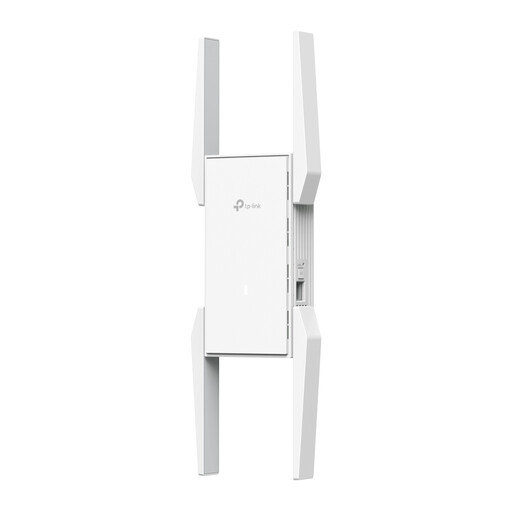
The RE705X is an example of a repeater that, according to TP-Link, can also work as a wired access point.
- TP-Link lists a gigabit port, access point mode and OneMesh support.
- OneMesh depends on having a compatible router. The stated band speeds aren’t measured download speeds in the loft.
FRITZ!
The FRITZ!Repeater 1200 AX is worth comparing if you already have a FRITZ!Box or are planning a LAN connection to the loft.
- FRITZ! lists a gigabit LAN connection and a LAN connection to a FRITZ!Box.
- FRITZ! says it can be used with other routers, but the FRITZ! mesh integration described isn’t automatically available with every router.
ASUS
According to ASUS, the RP-AX58 supports repeater and access point modes; AiMesh may be useful with a compatible router.
- ASUS lists support for other routers and says AiMesh features require compatible equipment.
- ASUS warns that the advertised 160 MHz bandwidth may not be available in some countries.
NETGEAR
NETGEAR describes the EAX15 as a plug-in Wi-Fi 6 extender for expanding an existing network.
- NETGEAR lists a gigabit Ethernet port and the option to use your existing Wi-Fi name.
- The stated speed of up to 1.8 Gbit/s is a product specification, not a measured download speed in the loft.
Joybuy products for loft Wi-Fi
These products are designed for wireless Wi-Fi extension or for setting up a wired access point in the loft. With a wireless repeater, check that it can be placed within range of the router.
 No image available
Wifi Repeater Pro Black
Suitable for wireless extension to an area of the loft, provided the repeater can still receive a usable signal from the router.
The product information lists 2.4 GHz, up to 300 Mbps and setup via the Mi app. This speed rating isn’t a measured download speed.
View at Joybuy
 No image available
TP-Link Omada EAP653 access point
Suitable for a wired access point setup if you have a suitable network cable running to the loft.
The product information lists Wi-Fi 6, 2.4 and 5 GHz bands, WPA3, an Ethernet port and PoE support.
View at Joybuy
 No image available
TP-Link Omada EAP673 extender, white
Suitable for wireless extension if you can place the device within range of the existing network.
The product information lists dual-band Wi-Fi and an Ethernet LAN port, with 10/100/1000 Mbit/s in the product name.
View at Joybuy
 No image available
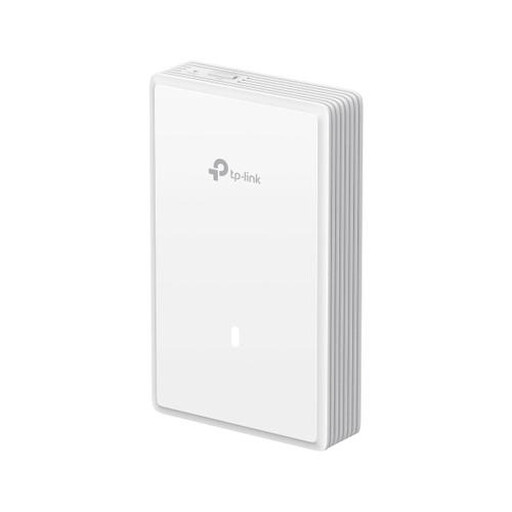
TP-Link EAP725-Wall access point
Suitable for a wired access point setup if a network cable is available in the loft.
The product information lists Wi-Fi 7, three Ethernet ports including 2.5G support, PoE and wall or ceiling mounting.
View at Joybuy
 No image available
TP-Link TL-WA801N access point and Wi-Fi extender
Suitable for extending your network in repeater mode or for a wired access point setup. Check which setup you need.
The product information lists 2.4 GHz, up to 300 Mbit/s, a 10/100 Mbit/s Ethernet port and passive PoE. The speed rating isn’t a measured download speed.
View at Joybuy
Frequently asked questions
How can you tell whether a booster will help with magazine downloads?
Compare a speed test using a network cable at the router with how the connection performs in the loft. If the wired connection is slow too, investigate your internet connection first. If Wi-Fi is weak mainly in the loft, look at where you place your equipment or consider a wired access point.
Where should you place a wireless repeater for the loft?
Choose a midway location where the router signal is still usable, then test the connection in the loft. According to TP-Link’s placement guidance, you may need to put the repeater closer to the router first if distance or obstacles are weakening the connection.
Do you need a permit or registration to use Wi-Fi at home in the Netherlands?
No. The Netherlands has no notification or registration requirement for the licence-exempt Wi-Fi use described by the Dutch Authority for Digital Infrastructure. Use equipment that meets the applicable requirements.
What should you look for in CE marking?
The Dutch Authority for Digital Infrastructure describes the required CE marking as part of the process for placing radio equipment on the European market. Check the marking and product information for the version you actually receive.
Who can help if a booster you’ve bought develops a fault too soon?
In the Netherlands, the seller is responsible for the statutory guarantee, in addition to any manufacturer’s guarantee. What you could reasonably expect from the product is taken into account when making a statutory claim; it doesn’t automatically have a fixed duration of two years.


