
Student with weak Wi-Fi in the loft
Your study portal works elsewhere in the house, but the connection keeps dropping out in your converted loft. You mainly want to know where an extra access point can still get a usable connection.


First, test your internet connection using a cable, then check the Wi-Fi in your loft: a new router won’t fix a slow connection from your provider. The Consumers’ Association recommends checking the wired connection separately. If the Wi-Fi signal is the main problem, a wired access point may be a good option if you can run a cable. If you can’t, mesh may work, provided you place the units where they can still communicate reliably with each other.
Your study portal works elsewhere in the house, but the connection keeps dropping out in your converted loft. You mainly want to know where an extra access point can still get a usable connection.
You want to connect an access point near your study area using a network cable, so the connection doesn’t rely solely on the signal travelling through floors and walls.
You want to check your router’s position and connections first, and see whether an extension will do the job before replacing your entire home network.
First, check that your internet connection itself is working properly. Then choose between a different router, a wired access point and wireless coverage extension, depending on whether you can run a cable and how well the units can connect to each other.
Suitable if: you can move it to a more central position and tests show that one unit can reach the loft.
Bear in mind: walls and ceilings may still weaken the signal; a standalone router doesn’t automatically act as a Wi-Fi access point in the loft.
Suitable if: you can run a network cable to or near the loft and want to provide Wi-Fi there.
Bear in mind: the cable route, network mode and available Ethernet ports must all be suitable for your setup.
Suitable if: you can’t run a cable, but there’s a spot between the router and the loft with good enough Wi-Fi reception.
Bear in mind: distance and obstacles affect the connection between units; placing a unit somewhere with barely any reception won’t fix the problem by itself.
| Consideration | What to look for | Who does this matter to? |
|---|---|---|
| Wi-Fi coverage in the loft | Test Wi-Fi at your study area and at a possible location for a mesh unit; don’t treat a coverage claim as a guarantee for your home. | If I study in the loft, I want to know whether Wi-Fi reaches it and a possible midway spot before buying extra units. Around 36% of consumers put loft coverage top of their list. |
| Connection while studying online | Compare a speed test over a network cable with your Wi-Fi experience in the loft. Also check whether you can connect the access point by cable. | If my study portal keeps dropping out, I want to work out first whether the problem is the internet connection itself or the Wi-Fi route to the loft. Around 29% of consumers give a reliable connection top priority. |
| Fitting into your network | Decide whether you’re replacing the router or adding Wi-Fi to your existing network. Check the connections you need, the network mode and any provider settings. | If I want to keep my existing network, I need an extension that works with my current connection. Around 21% of consumers prioritise straightforward network integration. |
| Use and maintenance | Consider how many devices will be switched on all the time, and check the update and security settings. The RDI states that Wi-Fi equipment must display the required CE marking; check the marking on the device you receive. | If I add extra equipment, I also want to know what it will involve in terms of power and management. Around 14% of consumers give running costs and security maintenance top priority. |
The stated speed doesn’t tell you how well the signal will travel through the walls and ceilings in your home.
Test the connection at your study area, then decide whether to move the router, run a cable or extend coverage wirelessly.
The extra unit still needs to be able to make a usable connection to your existing network.
First, find a suitable midway spot. If there isn’t one, see whether you can install a wired access point.
Replacing a router and extending Wi-Fi require different connections and settings.
Before you buy, decide which network function you need and check the instructions for the device and your provider.
The range includes both standalone routers and Deco mesh units. These are different solutions to a Wi-Fi problem in the loft.
According to ASUS, the ZenWiFi XD5 is a mesh set that can be used wirelessly or with Ethernet backhaul between the units.
The FRITZ!Repeater 1200 AX is designed to extend an existing network, not to replace a modem router entirely.
These product options include mesh sets, a standalone router, a repeater and a wired access point for Wi-Fi in a study area in the loft.
 No image available
A mesh set with two units for anyone who wants Wi-Fi in several areas and may be able to use a wired connection between the units.
Tri-band Wi-Fi. The product description lists 10 Gbps, 2.5 Gbps and 1 Gbps connections per unit. Wired and wireless backhaul are listed.
 No image available
A mesh set with three units for anyone who needs Wi-Fi in several possible locations and wants the option of using Ethernet backhaul.
Wi-Fi 6 (802.11ax), dual-band (2.4 GHz/5 GHz) and three gigabit ports per unit. TP-Link lists Ethernet backhaul as an option.
 No image available
A standalone router for anyone who wants to test whether a well-positioned router can reach their study area; you’ll need to check the coverage in your own home.
Dual-band (2.4 GHz/5 GHz) and gigabit Ethernet. The product description lists Wi-Fi 6 and AiMesh extension with other AiMesh-compatible ASUS routers.
 No image available
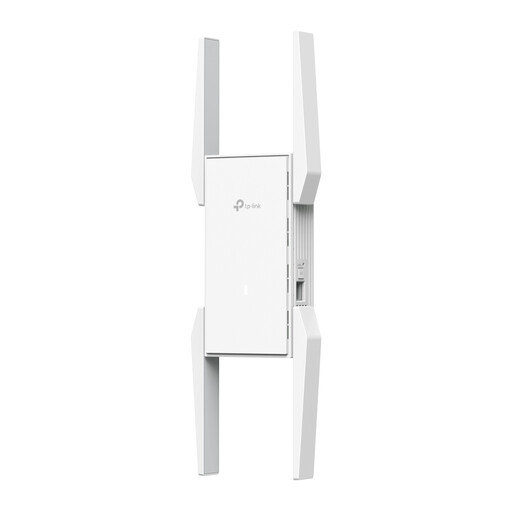
A repeater for extending an existing network, provided the spot where you place it is still within range of that network.
The product description lists Wi-Fi 6, dual-band and a network connection of 10, 100 or 1000 Mbit/s.
 No image available
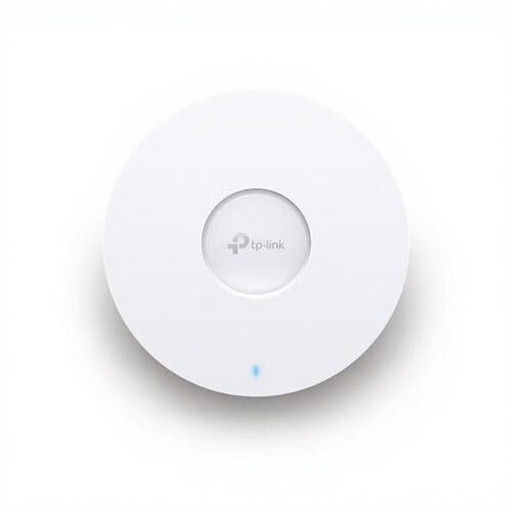
A wired Wi-Fi access point for anyone who wants a separate Wi-Fi connection in their study area and can accommodate the stated mounting and management requirements.
Wi-Fi 6, a gigabit Ethernet port and Power over Ethernet (PoE). The product description lists wall or ceiling mounting and web management.
First, test the connection using a computer connected by a network cable. If that works well but the Wi-Fi keeps dropping out in the loft, look at the router’s position or consider an extra access point before replacing the router.
Put the unit somewhere it can still connect reliably to the existing Wi-Fi unit, with as few obstacles between them as possible. Placing it in the loft won’t help if the signal barely reaches that far already.
Yes. According to ACM ConsuWijzer, you’re free to choose your router. Additional connection and security requirements may apply if you use your own modem; ask your provider about the settings you’ll need.
The RDI states that the equipment must display the required CE marking. Check the marking on the device you receive, and keep your network up to date and secure after installation.
No. ACM ConsuWijzer explains that the legal guarantee depends on what you could reasonably expect from the product and applies alongside any manufacturer’s or seller’s guarantee. If a product is faulty, contact the seller.