What should you look for in Wi-Fi for a live online lecture?
Choose how to extend your connection based on the signal near the router, the distance to the loft and whether you can run a cable. The Consumers’ Association advises positioning Wi-Fi points so they can reach each other with as few obstacles as possible.
Standalone wireless repeater
Choose this option: if Wi-Fi is weak mainly where you attend lectures and you can find a midway spot with a usable router signal.
Bear in mind: the connection will still depend on where you place the repeater and on any obstacles between it and the router.
Wired access point
Choose this option: if there is, or you can run, an Ethernet cable to the loft.
Bear in mind: you’ll need a cable and a suitable connection or access point mode; this won’t fix a problem with your provider’s connection.
Mesh with multiple Wi-Fi points
Choose this option: if several rooms need better coverage, not just the loft.
Bear in mind: check compatibility with your existing router, and consider where the points can be placed and how they connect.
Powerline with a Wi-Fi adapter
Choose this option: if running a cable is difficult and a wireless connection isn’t working well.
Bear in mind: performance over your home’s electrical wiring depends on your installation, so test it using the sockets you plan to use.
| What to consider |
What to check before buying |
Who is this important for? |
| Coverage where you attend lectures |
Test both in the loft and at a possible midway spot; check the Wi-Fi point’s placement guidance. |
If I attend lectures from one fixed spot in the loft, I want to know whether the signal there is usable. Around 40% of consumers give coverage in that one spot their highest priority. |
| Reliability for live video and audio |
Test the connection at the router using a network cable, then try your planned setup while streaming a similar video. |
If losing the connection during a lecture is my biggest concern, I first want to know whether the internet connection itself works well at the router. Around 30% of consumers prioritise reliability for live video and audio. |
| Coverage in several rooms |
Identify the rooms with a weak signal and check how many Wi-Fi points you need and how they communicate with the router and each other. |
If several rooms have weak Wi-Fi, I want to improve more than just the loft. Around 20% of consumers give coverage in more than one room their highest priority. |
| Cost and existing equipment |
Check your router’s features, how many devices you need and their power consumption; don’t base your choice solely on an advertised maximum speed. |
If I’m mainly weighing up the cost and whether the equipment will work with my existing setup, I want to know what my current router supports. Around 10% of consumers prioritise cost and compatibility. |
Joybuy products for different connection options
These products offer different ways to extend Wi-Fi to a loft: via powerline, with multiple mesh points, using a standalone repeater or through a wired access point.
 Image unavailable
TP-LINK TL-WPA7517 Kit powerline adapter starter kit
A powerline Wi-Fi solution for extending your network upstairs over your existing electrical wiring.
IEEE 1901; Type E plug.
View at Joybuy
 Image unavailable
TP-Link Deco X50 (3-pack) dual-band Wi-Fi 6
A mesh system with three units for homes that need Wi-Fi coverage in several places.
Dual-band: 2.4 GHz and 5 GHz; three Gigabit Ethernet ports per unit.
View at Joybuy
 Image unavailable
Wi-Fi Repeater Pro, black
A standalone repeater for improving coverage in one weak spot, provided you can test a suitable midway location.
2.4 GHz band; two external aerials; the product description mentions QR code setup and an indicator light to help with positioning.
View at Joybuy
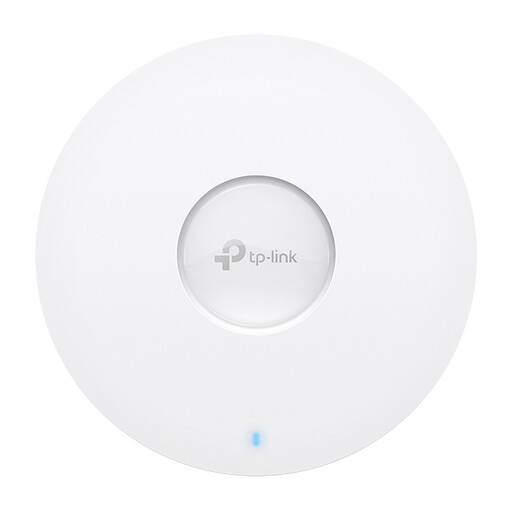 Image unavailable
TP-Link Omada EAP613 Wi-Fi 6 access point
An access point for a setup where you can run a network cable to the loft.
Suitable for wall or ceiling mounting. The product description lists 802.3at PoE, passive PoE or DC as power options; check that your setup has a suitable power supply.
View at Joybuy
Frequently asked questions
How can you tell whether a repeater will solve the problem with your live online lecture?
First, use a laptop and a network cable to test the connection at the router. If it’s repeatedly too slow, investigate the internet connection first. If the Wi-Fi is weak mainly in the loft, try placing the repeater at a suitable midway point.
Where should you place a wireless Wi-Fi point?
Don’t automatically place it where reception is worst. Choose a midway spot with as few obstacles as possible between the Wi-Fi points and, where available, check the indicator or setup app.
What requirements must a Wi-Fi repeater meet to be sold in the Netherlands?
According to the Dutch Authority for Digital Infrastructure, radio equipment sold in the Netherlands must meet the applicable European requirements and carry a CE marking. Check the specific product and offer; a general model description doesn’t prove that every item being sold complies. A CE marking also doesn’t tell you whether the Wi-Fi range will be good in your home.
Are you entitled to a cooling-off period when buying online in the Netherlands?
For many distance purchases from a business, you have a 14-day cooling-off period, according to the Dutch Government; the seller must provide information about this period, among other things. Check the terms of the specific purchase, as exceptions apply.
How can you keep your connection secure after installation?
Use appropriate Wi-Fi encryption and a strong password, and keep your router and Wi-Fi points up to date. These are usage recommendations, not confirmation that a specific product on offer meets the legal requirements for sale.


