First, test your internet connection using an Ethernet cable, then check the Wi-Fi in your loft: a new router won’t automatically fix a weak signal caused by floors or ceilings. If you can run a cable to the room where you teach, a wired access point or mesh node is a good option. If not, mesh may work as long as the nodes can receive a strong enough signal from each other.
Who should consider these options?
Teacher with weak Wi-Fi in the loft
If you teach from a converted loft, first check whether the internet connection itself is unreliable or whether the Wi-Fi coverage or placement is the problem. The Consumentenbond recommends testing the connection over a cable and positioning Wi-Fi access points carefully.
Household with several people online at once
If devices elsewhere in the house are online during your lesson, coverage across multiple floors and the connection between Wi-Fi access points are important. The Consumentenbond and mesh system manufacturers highlight placement and the connection between nodes as key considerations.
Teacher who gives pupils access to Wi-Fi
If you let pupils or other visitors use your Wi-Fi, look for a separate guest network, suitable security settings and regular router updates. The Consumentenbond recommends paying attention to network and router security.
What should you look for?
First, check that your internet connection is working properly. Then choose between a wired extension, mesh or a repeater, depending on your cabling and the signal strength where you can place the Wi-Fi access points.
Wired access point
This is a good option if: your internet connection is good and there’s already an Ethernet cable to the loft, or you can run one.
Bear in mind: you may need to install cabling, provide power and configure additional settings; an access point such as the Ubiquiti U6+ uses PoE.
Mesh extension
This is a good option if: several rooms or floors need better coverage and you can place the nodes where they’ll receive a strong enough signal.
Bear in mind: a wireless node still needs a good connection to the network; the number of units and available ports vary between systems.
Standalone repeater
This is a good option if: you mainly need to extend coverage to one area and there’s a suitable spot in between where the repeater can still receive a good Wi-Fi signal.
Bear in mind: the wireless connection depends on the signal strength where you place the repeater. FRITZ! Mesh integration requires a compatible FRITZ!Box with FRITZ!OS 7 or later.
Replace your main router
This is a good option if: tests or the features you need show that your current router isn’t up to the job.
Bear in mind: a new router doesn’t guarantee coverage across multiple floors; also check that it works with your provider’s connection and settings.
| What to consider |
What should you check? |
Who is this important for? |
| Coverage in the loft |
Test the signal where you teach; check whether there’s an Ethernet cable to the loft and where a wireless node can still receive a strong enough signal. |
If I teach in the loft, I want usable Wi-Fi there without relying on a quoted coverage area. Around 36% of consumers prioritise reliable coverage in the loft. |
| Several people online at once |
Test the internet connection over a cable, then check the Wi-Fi while your household uses the network as usual. |
If devices elsewhere in the house are online during my lessons, I want the connection for teaching to remain usable. Around 29% of consumers give simultaneous use top priority. |
| Guest access and security |
Check whether the version you’re considering offers guest access and suitable security settings, and find out how it receives updates. |
When pupils or visitors need Wi-Fi, I want to know what access and settings are available. Around 21% of consumers prioritise guest access and secure network management. |
| Easy to extend |
Check which router and cables you already have, what power an access point needs and whether the software features you want require a paid subscription. |
If I want to extend my existing network, I don’t want to add equipment or settings I don’t need. Around 14% of consumers give simplicity and cost top priority. |
Common buying mistakes
-
Assuming a higher advertised speed guarantees a good connection for teaching
Manufacturers’ speed figures don’t tell you how well Wi-Fi will work in your home. Obstacles can weaken the signal, and a new router won’t fix a slow internet connection.
First, test your internet connection using a computer connected by Ethernet, then check the Wi-Fi where you teach.
This could help you avoid buying a router you don’t need if the real problem is placement or the connection between Wi-Fi access points.
-
Placing a wireless node where the signal has already dropped out
A wireless extender still needs to be able to establish a usable connection to the network.
Try an intermediate location and consider wired backhaul if you can’t find a suitable spot for a wireless node.
You may need an intermediate Wi-Fi access point or an Ethernet cable.
-
Comparing an access point with a complete mesh system
An access point such as the Ubiquiti U6+ won’t automatically replace all your networking equipment, and it uses PoE for power.
Compare the complete setup you’ll need, including your existing router, cabling, power and management.
You may need extra installation components, such as cabling and a compatible PoE power supply.
Brands to consider
TP-Link
The Deco X50 is a mesh solution for covering several rooms. TP-Link lists Wi-Fi 6, three gigabit ports per unit and optional Ethernet backhaul.
- TP-Link says the Deco app can help with placement and set-up.
- The quoted speeds and coverage areas aren’t a measurement of your loft; coverage and real-world throughput depend on factors such as building materials and obstacles.
ASUS
The ZenWiFi XD5 is a mesh solution for anyone looking to place multiple nodes. ASUS describes Ethernet backhaul as an option if you have wall sockets.
- ASUS lists app-based set-up and compatibility with older generations of Wi-Fi.
- A quoted coverage area or speed won’t predict the connection in your teaching room. Check the pack size too: two-packs and three-packs are different versions.
FRITZ!
The FRITZ!Repeater 1200 AX is an extension option that may be particularly useful if you already have a compatible FRITZ!Box.
- FRITZ! describes the LAN port as providing an additional access point.
- The Mesh integration described requires a FRITZ!Box with FRITZ!OS 7 or later; don’t assume it will work with every router.
Ubiquiti
The UniFi U6+ is a Wi-Fi 6 access point for a targeted wired set-up in the loft, not a standalone replacement for an internet modem.
- Ubiquiti specifies a gigabit Ethernet connection and PoE power.
- The manufacturer names UniFi Network as its management software; alongside cabling, you’ll also need to consider power and management.
Joybuy products for extending or replacing your set-up
These models are suited to extending a mesh network, replacing a main router or adding a wired access point. Test your connection and check the cabling, power and connection requirements before choosing a version.
 No image available
TP-Link Deco BE68 2-pack
A mesh system with two units for extending coverage across several rooms.
The product description lists Wi-Fi 7 and wired or wireless backhaul.
View at Joybuy
 No image available
TP-Link Deco X20 2-pack
A mesh system with two units for extending Wi-Fi coverage at home.
The product description lists Wi-Fi 6, Ethernet backhaul and a guest network.
View at Joybuy
 No image available
ASUS RT-AX52 AX1800 AiMesh router
A router option for anyone looking to replace their main router when test results or required features point to the need for a change.
Dual-band Wi-Fi 6, three gigabit Ethernet ports and AiMesh compatibility.
View at Joybuy
 No image available
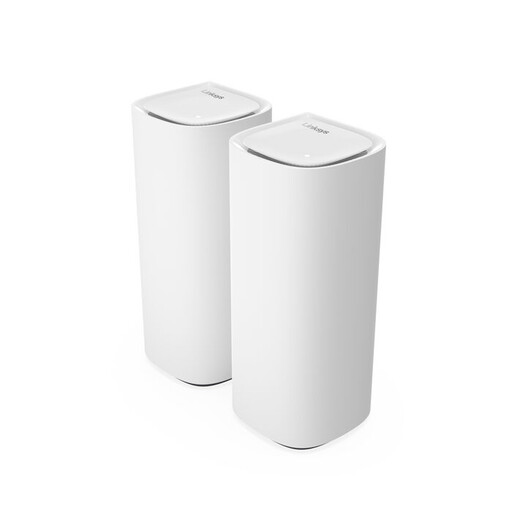
Linksys Velop Pro 7 tri-band Wi-Fi 7
A mesh router option for extending coverage across several rooms.
Tri-band: 2.4 GHz, 5 GHz and 6 GHz. The product description lists expandable Velop Pro 7 nodes and management via the Linksys app.
View at Joybuy
 No image available
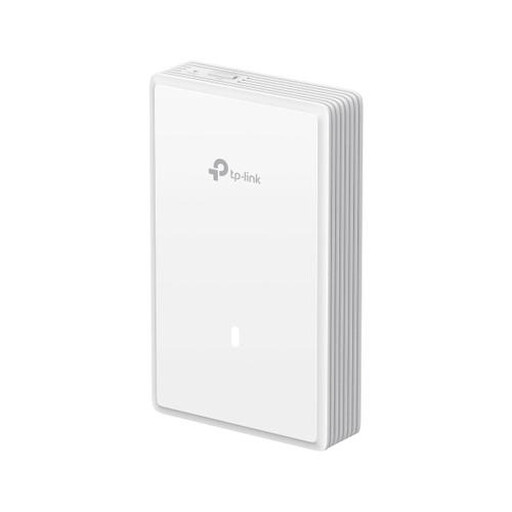
TP-Link EAP725-Wall
An access point for a wired extension, for example if there’s an Ethernet connection to the room where you teach.
The product description lists Wi-Fi 7, PoE power and wall or ceiling mounting. Installation requires Ethernet cabling and a compatible PoE power supply.
View at Joybuy
Frequently asked questions
Should you replace your internet package or router first?
Not necessarily. First, test the connection using a computer connected by Ethernet. This helps you tell the difference between an internet connection problem and weak Wi-Fi in the loft. Then check placement and coverage. The Consumentenbond recommends testing the connection over a cable.
Where should you place a wireless Wi-Fi access point for the loft?
Don’t automatically put it where the signal is weakest. A wireless access point needs to be able to reach the other access points, so try an intermediate location. The Consumentenbond recommends placing Wi-Fi access points where they can connect reliably with each other.
Can you use your own router in the Netherlands?
Yes. ACM ConsuWijzer explains that you have the freedom to choose your router. To connect it directly, the device must meet the applicable requirements; ask your provider which settings you’ll need. Using an access point behind your existing router is a different set-up option.
What should you do after installation to set up guest access and security?
Check which guest network and security settings are available, and keep your router up to date. The options you can configure vary by device; the Consumentenbond recommends paying attention to network security and router updates.
What requirements apply to Wi-Fi equipment sold in the Netherlands?
Radio equipment must meet the applicable European requirements. The Rijksinspectie Digitale Infrastructuur explains that manufacturers apply a CE mark when all requirements have been met. Check the exact version you’re buying.


