First, check the Wi-Fi signal in your loft and see whether repositioning or adjusting your existing provider router is enough. A new router won’t automatically improve your connection. If the connection between floors is weak, a wired access point is an option if you can run a network cable. Mesh is worth considering when several areas have poor coverage and running cables isn’t practical. For a proper document back-up, you’ll also need a separate storage destination, a configured copy task and suitable security.
Who should consider these options?
Home worker with poor signal in the loft
Your back-up connection keeps dropping at your desk, while the router is elsewhere. The Dutch Consumers’ Association (Consumentenbond) points out that walls, ceilings and other obstacles can interfere with the signal, so start by checking it where you work.
Worker handling sensitive documents
You want to know where work documents can be stored and how to secure your home-working setup. The Dutch Data Protection Authority (Autoriteit Persoonsgegevens) advises working in a secure work environment wherever possible. A router alone won’t make your back-up secure.
User of local network storage
You want to copy files from the loft to storage on your home network. Check both the connection to that storage and your back-up schedule; VeiligInternetten explains that back-ups can be set up manually or automatically.
What should you consider when choosing?
Keep or reposition your existing provider router
Choose this if: after checking the signal and repositioning the router, the connection is already good enough for your back-up.
Bear in mind: the connections and positioning options available with your existing device.
Wired access point near the loft
Choose this if: you can run a network cable to the loft and need extra Wi-Fi coverage there.
Bear in mind: the cable installation, access point mode and ports on the device you choose.
Mesh with multiple nodes
Choose this if: several areas have poor coverage and running cables isn’t practical.
Bear in mind: positioning and obstacles. TP-Link says Deco X50 units can connect wirelessly or via optional Ethernet backhaul.
Standalone router with extra network features
Choose this if: you have a clear need for extra ports, network segmentation or management features as well as Wi-Fi.
Bear in mind: a single new Wi-Fi access point won’t automatically fix poor coverage through ceilings. Also check that it’s compatible with your provider’s network connection.
| Point to consider |
What should you check? |
Who is this important for? |
| Connection in the loft |
Check the signal where you work and compare the router’s position with a wired access point or mesh. If you choose mesh, check whether Ethernet backhaul is possible. |
If I work in the loft, I want the connection to stay reliable when I back up documents. Around 31% of consumers prioritise improving coverage in the loft. |
| Restorable document copy |
Choose a storage destination, set up a manual or automatic back-up and check that you can restore a document. |
I want to be able to restore a recent copy, not just see files in a shared folder. Around 25% of consumers give a working, restorable back-up top priority. |
| Protection of work data |
Check what storage is permitted, access rights, updates and whether a guest or IoT network is genuinely isolated. |
When handling sensitive work documents, I want to know who can access them and what storage my employer allows. Around 25% of consumers also prioritise protecting work data. |
| Cost and compatibility |
First check your provider router’s settings and capabilities. Then work out what additional devices, cables or services you’ll need. |
If I want to limit extra equipment and set-up work, I first check whether I can configure my current network differently. Around 19% of consumers prioritise cost and compatibility. |
Common buying mistakes
-
Assuming the advertised mesh coverage guarantees a signal in the loft
Ceilings and other obstacles affect the signal, and manufacturers’ figures can’t predict how well a connection will work in your home.
Check the signal where you work and consider where you could position the nodes or a wired access point.
Depending on your chosen set-up, you may need to run cables or find another position for the nodes.
-
Assuming USB storage or a shared folder counts as a completed back-up
Being able to access files doesn’t prove that a recent copy is made regularly or that you can restore it.
Set up the copy task separately and check that you can restore a document.
-
Connecting your own router without checking your provider’s settings
Your own device may need specific connection settings. Also check how firmware updates are managed.
Ask for the required settings, check how to connect the device and plan router updates.
Brands to consider
TP-Link
TP-Link describes the Deco X50 as a Wi-Fi 6 mesh system for areas that need multiple Wi-Fi access points.
- TP-Link lists three gigabit ports per X50 unit and optional Ethernet backhaul.
- Advertised coverage and combined wireless speed don’t guarantee a signal in a particular converted loft. The Deco X50 is a different model from the X50-5G.
ASUS
The RT-AX86U Pro is a standalone Wi-Fi 6 router for anyone looking for configurable ports or additional router settings.
- ASUS lists access point and AiMesh modes, USB connections and guest networks, among other features.
- It remains a single Wi-Fi access point unless you expand your set-up; its features don’t indicate how well the connection will perform in your loft.
Synology
The RT6600ax is designed for network management, for example when work, guest and IoT devices need to be kept separate.
- Synology lists configurable network segmentation and a 2.5GbE port.
- The manufacturer says that performance figures from internal tests depend on usage, environment and configuration. A router doesn’t replace a configured document back-up.
FRITZ!
According to the manual, you can set up connected USB storage as a network drive with the FRITZ!Box 7690.
- The manual explains how to access it using a FRITZ!Box user account and configured permissions.
- An accessible storage folder isn’t an automatic back-up schedule in itself. Also check that the router is compatible with your provider’s connection.
NETGEAR
The Orbi RBK763S is a mesh set with a router and two satellites for Wi-Fi coverage in multiple areas.
- NETGEAR lists a dedicated connection between the router and satellites, as well as one year of Armor included.
- This product information doesn’t establish what coverage you’ll get in a particular loft. Check the terms for security services after the included period.
Mesh systems at Joybuy
These products are multi-node mesh Wi-Fi solutions to consider if you need coverage in different areas of your home. Actual performance depends on positioning and obstacles; none of these systems will back up work documents by itself.
 Image unavailable
TP-Link Deco X50 (3-pack)
This mesh set is an option for checking coverage in several areas if the signal in your loft is poor.
Wi-Fi 6; three gigabit ports per unit; optional Ethernet backhaul.
For a document back-up, you’ll also need a storage destination and a configured copy task.
View at Joybuy
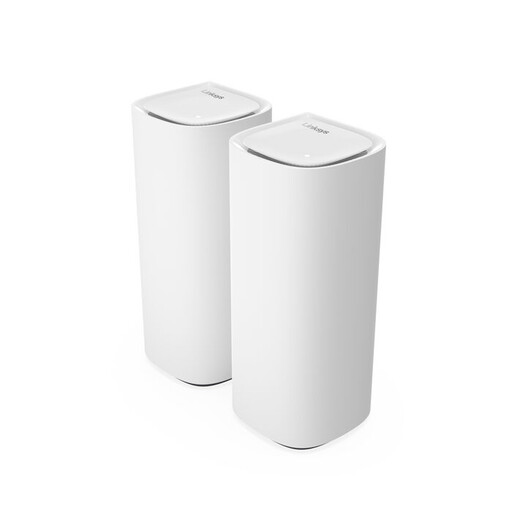 Image unavailable
Linksys Velop Pro 7
This mesh set-up is worth considering if you want to check Wi-Fi coverage in more than one area of your home.
Tri-band Wi-Fi 7 with 2.4 GHz, 5 GHz and 6 GHz; two mesh nodes included, with expansion possible using compatible mesh devices.
For a document back-up, you’ll also need a storage destination and a configured copy task.
View at Joybuy
 Image unavailable
TP-Link Deco X50-POE (2-pack)
This set of two mesh units is an option for checking coverage in several areas.
Wi-Fi 6 and WPA3; two Ethernet ports per unit; PoE support.
A router won’t automatically back up documents; you’ll need separate storage and a configured copy task.
View at Joybuy
 Image unavailable
TP-Link Deco XE75 Pro (3-pack)
This mesh set with three units is designed for checking the connection in several areas of your home.
Tri-band Wi-Fi 6E with 2.4 GHz, 5 GHz and 6 GHz; Ethernet ports per unit.
For a document back-up, you’ll also need a storage destination and a configured copy task.
View at Joybuy
 Image unavailable
TP-Link Deco XE75 (3 nodes)
This multi-node mesh set is an option for checking coverage in different areas of your home.
Tri-band Wi-Fi 6E with 2.4 GHz, 5 GHz and 6 GHz; three gigabit ports per unit.
A router won’t automatically back up documents; you’ll need separate storage and a configured copy task.
View at Joybuy
Frequently asked questions
Will a new router automatically back up my work documents?
No. You’ll need to choose a separate storage destination and set up a manual or automatic copy task. If you’re backing up work documents, also check which storage environment your employer or client allows.
How can you test the connection in the loft first?
Check the signal where you work and see where your existing Wi-Fi access point is positioned. You could also compare a wired network connection with Wi-Fi to find out whether the wireless connection is the main limitation.
Can I connect my own router in the Netherlands?
Yes. According to ACM ConsuWijzer, you’re free to choose your own router. Your provider may refuse an insecure device; if necessary, ask for the connection settings and make sure the device receives updates.
What legal requirements apply when buying a Wi-Fi router?
Radio equipment placed on the market in the Netherlands must meet European requirements and carry the mandatory CE marking. Check the marking on the specific device; it doesn’t mean the router will automatically store or protect documents.
What should you check after buying?
Check what storage, cables or extra nodes your set-up needs, and how firmware updates are managed. NETGEAR lists one year of Armor included with the Orbi RBK763S; check the terms for any service after that period.


