Who is this relevant to?

Creative professional with large portfolio files

You regularly send image or video files and want to find out first whether your connection’s upload speed or your Wi-Fi is the bottleneck. The Consumers’ Association explains that uploading includes sending photos and videos.

Loft worker dealing with weak Wi-Fi zones

You work a distance from the connection point or behind obstacles, and want to work out whether moving your equipment, using mesh or running a cable will give your workspace better coverage. The Consumers’ Association recommends placing Wi-Fi points where you need the signal.

Creative professional with a permanent workspace

You may be able to run a cable and prefer a reliable connection in one place over the convenience of wireless. A wired test helps distinguish your Wi-Fi connection from your internet connection, as the Consumers’ Association recommends.

What should you consider when choosing?

Keep your existing equipment

Choose this if: a wired test at the connection point already shows sufficient upload speed and you can move your existing Wi-Fi point.

Bear in mind: moving it may not solve consistently weak coverage behind obstacles.

A single standalone router

Choose this if: one suitably positioned location gives you enough coverage and your current router lacks the features or connections you need.

Bear in mind: a single point may not provide enough coverage to a workspace behind walls or ceilings.

Mesh with multiple points

Choose this if: you have weak Wi-Fi zones and can position points in suitable locations between them.

Bear in mind: the points need space and power. Ethernet backhaul is an option if you can run a cable between them.

Wired workspace or access point

Choose this if: you can run a network cable to your permanent portfolio workspace.

Bear in mind: running a cable and providing PoE power may need extra planning; an access point doesn’t replace a modem or router.

Priority What should you check? Who cares most about this?
Upload speed Compare a wired upload speed test at the connection point with your package, then test Wi-Fi at your workspace. I want to know whether my connection is limiting upload speed before I buy anything. Around 36% of consumers put the available upload speed first.
Coverage at your workspace Test at your workspace and see whether one central router location is enough or you need several suitable positions. I want to upload my portfolio from a place where distance or obstacles could weaken the Wi-Fi signal. Around 29% of consumers put loft coverage first.
Wired connection Check the cable route and available LAN ports, and, if you’re using an access point, the required power supply method. I work in one fixed location and would rather not rely on Wi-Fi there. Around 21% of consumers put having a workspace that can be connected by cable first.
Security and management Check which Wi-Fi encryption methods are supported, whether updates are available and whether you need a guest network. I want to consider network security and maintenance alongside upload speed and coverage. Around 14% of consumers put this first.

Common buying mistakes

  • Confusing the Wi-Fi speed on the box with upload speed

    Your internet connection speed and your local Wi-Fi are two different links in the chain. A higher advertised Wi-Fi speed won’t automatically increase the upload speed of your package.

    First, test your connection with a cable, then compare the result with a Wi-Fi test at your workspace.

  • Assuming a coverage claim guarantees coverage in your loft

    Walls, ceilings and the distance between mesh points can all affect the signal at your workspace.

    Test in your loft and position extra points where they can still maintain a good connection with each other. Check whether Ethernet backhaul is possible.

  • Treating an access point as a complete router replacement

    The Ubiquiti U6+ is an access point with an Ethernet uplink and PoE power, not a standalone modem or router.

    Before buying, plan the route from your internet connection and check that the required network connection and PoE supply are available.

Brands to compare

TP-Link

The Deco X50 is a Wi-Fi 6 mesh system that may suit you if you need several Wi-Fi points. The information below relates to this product, not every product from the brand.

  • TP-Link Netherlands lists three gigabit ports per Deco X50 unit and optional Ethernet backhaul.
  • These specifications don’t show what coverage you’ll get in a particular loft workspace; placement and obstacles still matter.

ASUS

The RT-AX58U is a standalone Wi-Fi 6 router, while the ZenWiFi BD4 is an expandable dual-band Wi-Fi 7 mesh system. The specifications apply to the models named.

  • ASUS Netherlands lists one gigabit WAN port and four gigabit LAN ports for the RT-AX58U; for the ZenWiFi BD4, ASUS lists two 2.5G ports.
  • The two models have different port configurations. ASUS’s speed and coverage figures are manufacturer claims, not measurements taken in your loft.

FRITZ!

The FRITZ!Box 4060 is a standalone Wi-Fi 6 router designed to be used behind a modem.

  • FRITZ! lists one 2.5-gigabit WAN port and three gigabit LAN ports for this model.
  • The WAN and LAN ports have different rated capacities. If port capacity affects your choice, consider the entire wired connection; the specifications don’t prove you’ll get coverage in a particular workspace.

Ubiquiti

The UniFi U6+ is a Wi-Fi 6 access point that can be mounted on a wall or ceiling, for a workspace that can be connected by cable.

  • Ubiquiti lists a gigabit Ethernet uplink and PoE power.
  • The U6+ is not a standalone modem or router. Check that you have a suitable cable route and PoE power supply.

Joybuy products

This Joybuy selection includes standalone routers and a TP-Link Deco X50 mesh kit for anyone comparing routers or mesh systems for a portfolio workspace. First, check whether your internet connection or Wi-Fi coverage is the main issue.

ASUS RT-AX52 AX1800 dual-band wireless router

ASUS RT-AX52 AX1800

A standalone router to compare if you’re using one suitably positioned Wi-Fi point.

The product name lists Gigabit Ethernet and dual-band (2.4 GHz / 5 GHz).

View at Joybuy

TP-Link Deco X50 mesh kit with three Wi-Fi 6 points

TP-Link Deco X50 (3-pack)

A mesh kit to compare if you want to position several Wi-Fi points around your loft.

The product name lists Wi-Fi 6 (802.11ax) and dual-band (2.4 GHz / 5 GHz).

View at Joybuy
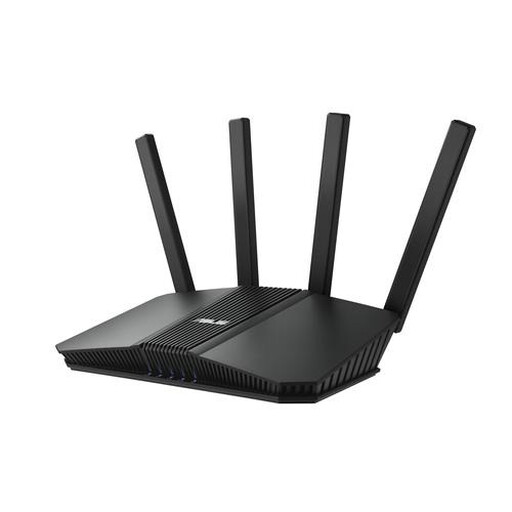
ASUS RT-BE82U BE6500 dual-band wireless router

ASUS RT-BE82U BE6500

A standalone router to compare if you’re looking for router features and want to consider the wired connection too.

The product name lists 2.5 Gigabit Ethernet and dual-band (2.4 GHz / 5 GHz).

View at Joybuy

ASUS RT-AX52 Pro AX3000 dual-band wireless router

ASUS RT-AX52 Pro AX3000

A standalone router to compare if you’re looking for one router to form the basis of your network.

The product name lists Gigabit Ethernet and dual-band (2.4 GHz / 5 GHz).

View at Joybuy
TP-Link Archer GE230 dual-band wireless router

TP-Link Archer GE230

A standalone router to compare if you also want to consider the wired connection and potential network expansion.

The product name lists 2.5 Gigabit Ethernet and dual-band (2.4 GHz / 5 GHz).

View at Joybuy

Frequently asked questions

Will a new router make my portfolio uploads faster?

Not if your internet connection’s upload speed is the bottleneck. The Consumers’ Association recommends testing with a cable at the connection point first, then checking Wi-Fi at your workspace. The difference can help you identify which part of the connection needs attention.

Where should I position mesh points in a loft?

Place an extra point where it can still maintain a good connection with the other point, rather than waiting until the signal is already very weak. The Consumers’ Association recommends keeping obstacles between Wi-Fi points to a minimum. Consider Ethernet backhaul if you can run a cable.

Can I connect my own router with a Dutch internet provider?

ACM ConsuWijzer explains the right to use your own router in the Netherlands. If you’re replacing equipment supplied by your provider, also check the connection technology and the settings your provider specifies for the connection. These checks also matter if you want to replace the modem as well.

Which Wi-Fi security features and maintenance should I check?

Check whether the router supports WPA2 or WPA3 and available firmware updates, and whether your devices can connect using your chosen security setting. The Consumers’ Association points out that older devices don’t always support WPA3.

What conformity information should I check for a Wi-Fi router?

Check the relevant conformity information and CE marking for the version being sold. The European Commission outlines requirements for radio equipment covering areas such as safety, electromagnetic compatibility and spectrum use. Your Europe explains that the CE marking indicates that the manufacturer considers the product to comply with the relevant EU rules.
