Joybuy monitors for portal work
These Joybuy monitors offer a range of screen sizes and resolutions to consider for source windows, the portal editor and viewing images. Always check how much workspace remains at the magnification you use.
 No image available
Samsung Odyssey G5 G50F 32-inch IPS monitor, LS32FG502EUXEN
The 32-inch screen may be worth considering if you want to position a source and editor side by side; check how much workspace remains at your magnification.
According to the product name: 32 inches, IPS and 180 Hz.
Joybuy
 No image available
AOC Gaming Q27G42XNE 27-inch Quad HD monitor
A 27-inch QHD screen may suit work with a source window and portal editor; test the layout at your usual text magnification.
According to the product name: 2560 × 1440 pixels, 2 HDMI 2.0 ports and 1 DisplayPort 1.4 port.
Joybuy
 No image available
Philips 27E1N1800AE/00 27-inch 4K UHD IPS monitor
The combination of 27 inches and 4K may be useful if you view images as well as portal text; adjust the scaling to suit your reading needs.
According to the product name: 3840 × 2160 pixels, 60 Hz, 4 ms, HDMI and DisplayPort.
Joybuy
 No image available
AOC G4 Q27G4ZR 27-inch Quad HD monitor
This 27-inch option is worth comparing if you want to view sources alongside the editor; assess the available window space at your text scale.
According to the product name: 68.6 cm (27 inches), 2560 × 1440 pixels and LED.
Joybuy
 No image available
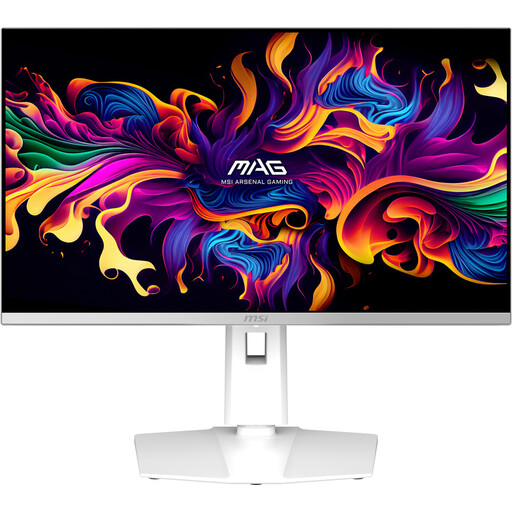
MSI MAG 272QPW QD-OLED X28 27-inch QHD monitor
This 27-inch QHD option is worth including when comparing monitors for portal work with several windows; check how much text and source material is visible at once at your magnification.
According to the product name: 2560 × 1440 pixels and a QD-OLED panel.
Joybuy
Frequently asked questions
Should I lower the screen resolution to make text larger?
Not as a first step. Microsoft Support generally recommends using the recommended native resolution; a lower resolution can make text look blurry or stretched. Try adjusting text size or display scaling first, then check your website and editor.
How can I check whether the portal remains usable with enlarged text?
Test the website with enlarged text and in a narrower viewport too. W3C describes retaining content and functionality when text is enlarged to 200%; its reflow guidance also covers narrow viewports. These are considerations for web content, not features a monitor provides automatically.
How should I set up my monitor for long periods of portal work?
Position the screen directly in front of you and adjust it so the top is slightly below eye level and you’re looking straight at the screen. Arboportaal also highlights reflections, lighting and legible symbols as points to consider. This is general workplace guidance, not a promise that a monitor will prevent discomfort.
Does every USB-C monitor charge my laptop?
No. Manufacturers list different power ratings for specific models: Dell states 90 W for the P2725DE, BenQ 65 W for the GW2790QT and LG up to 96 W for the 27UP850K-W. Also check that your laptop and cable support the video signal and power delivery you need.
Is an accessibility statement compulsory for my local history portal?
It depends on who provides the portal. DigiToegankelijk explains the obligations under the Decree on Digital Accessibility of Government for public bodies covered by that decree, including making their websites accessible and publishing a statement. Check whether the provider is covered by those requirements; a larger screen doesn’t replace an accessible website.


