Choose a monitor based first on your film’s delivery format. For SDR editing, a suitable Rec.709 mode and a way to check your own display matter more than an HDR logo alone. Then compare QHD with 4K for your timeline and image checks, and make sure the video connection and any USB-C power delivery are compatible with your laptop. Adobe describes Direct Rec.709 (SDR) as a standard workflow in Premiere, but that doesn’t automatically determine your film’s delivery format.
Monitors on Joybuy
This selection includes QHD and 4K models for anyone weighing up timeline space and image detail. Match the colour mode to your delivery format and check that the connections on the exact model suit your laptop.
 No image available
MSI Modern MD272UPHG
An option to compare if you want to assess 4K detail on a 27-inch screen.
27 inches; 3840 × 2160 pixels; 4K Ultra HD.
Joybuy
 No image available
Dell UltraSharp U2725QE
A 4K option to consider if you want to assess fine detail and also need extra connections.
27 inches; 3840 × 2160 pixels; 4K Ultra HD.
Joybuy
 No image available
ASUS ProArt PA278CV
A QHD option if you prioritise editing work and timeline space over a 4K preview.
27 inches; 2560 × 1440 pixels; Rec.709 preset; USB-C with 65 W Power Delivery. ASUS lists these specifications for the PA278CV.
Joybuy
 No image available
ASUS ProArt PA278CGV
A QHD model to compare if you’re weighing editing workspace against the extra pixels of a 4K preview.
27 inches; 2560 × 1440 pixels; Quad HD.
Joybuy
 No image available
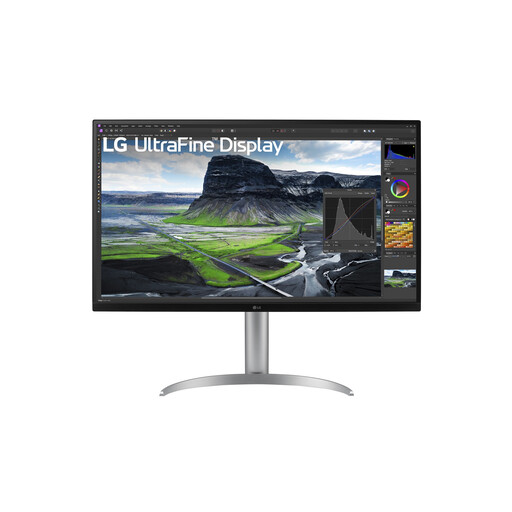
LG 32UQ850V-W
A larger 4K model to consider if you want to view footage and detail on a bigger screen.
31.5 inches; 3840 × 2160 pixels; 4K Ultra HD.
Joybuy
Frequently asked questions
Do you need to buy an HDR monitor for this film?
Not simply because a monitor supports HDR. First decide whether you’ll finish the film as SDR/Rec.709 or HDR, then match your project and display settings to that format. Adobe describes Direct Rec.709 (SDR) as a standard workflow in Premiere, but that doesn’t automatically determine your film’s delivery format.
How do you set up a monitor for colour correction?
Choose a display mode that suits your chosen delivery format and assess the image under similar lighting conditions. Adobe recommends a colourimeter for an objective check; a factory specification doesn’t measure how your particular screen performs in your own workspace.
Does USB-C definitely provide both video and charging through one cable?
No, that depends on your laptop and the exact monitor model. Check whether your laptop supports video through the USB-C connection you plan to use, and compare its power requirements with the stated Power Delivery rating.
What warranty rights apply when buying a monitor in the Netherlands?
According to the Dutch government, you’re entitled to a product that works properly, and the seller must provide a solution if a fault is justified. The Netherlands has no fixed statutory warranty period; a manufacturer’s warranty or extra warranty is separate from your statutory rights.
Which product regulations apply to a new monitor in the Netherlands?
Electrical equipment is subject to the relevant EU product regulations and mandatory CE marking. The mark indicates conformity, but it isn’t a quality mark for colour accuracy or overall quality. Computer monitors are also covered by EU energy-labelling rules for electronic displays; check the documentation and energy label for the exact model.


